
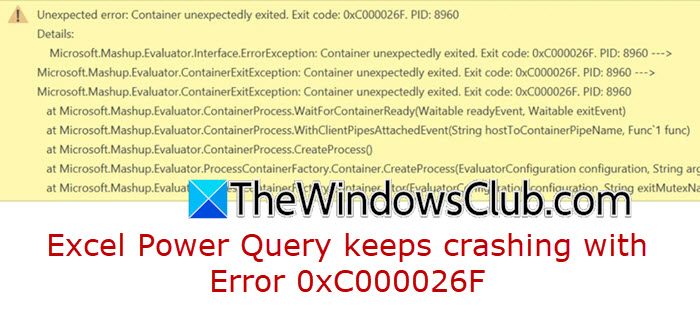
That Error 0xC000026F in Excel Power Query is a major roadblock. It typically crashes Excel completely when you try to open the Query Editor or refresh data, and it’s especially common on newer laptops with Snapdragon X processors (like the latest Surface devices). The core issue is a compatibility crash where Power Query’s engine fails to start on some ARM-based Windows systems, often after a recent update.
Why does Power Query keep crashing?
This problem primarily stems from compatibility issues between the Power Query engine and ARM-based processors, particularly Qualcomm’s Snapdragon X series found in newer devices such as the Microsoft Surface Laptop 7th Edition. The error indicates that the container process, which executes data transformations in Power Query, fails to start or crashes immediately. This is often triggered by recent Windows or Microsoft Office updates that create hardware incompatibility. Importantly, this issue is unrelated to corrupt user files or queries; it also occurs when creating a simple new query.
Fix Excel Power Query keeps crashing with Error 0xC000026F
If Excel Power Query keeps crashing with Error 0xC000026F, follow the solutions below.
- Switch Excel to Native ARM Mode
- Reset Power Query’s Local Data Cache
- Prevent the Problematic Office Update
- Use the Power Query SDK as an External Editor
Let us talk about them in detail.
1] Switch Excel to Native ARM Mode
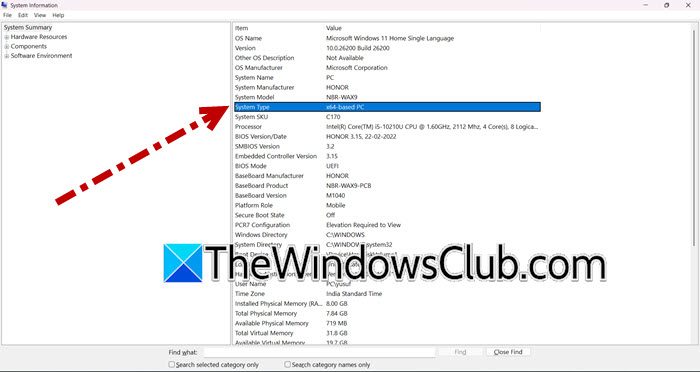
New laptops with ARM processors (such as some Surface models) run older software through an emulation layer, which can cause Power Query to crash. Installing the native ARM64 version of Office allows it to run directly on your laptop’s chip, eliminating the unstable emulation that causes the Container unexpectedly exited error.
- Hit Win + S, type “System Information”, and open it.
- Check System Type. If it says ARM-based PC, you need to complete the following steps.
- Close all Office programs (Excel, Word, etc.) completely.
- Then, open Settings > Apps > Installed apps. Search for your Office version and then Uninstall.
- Download Office for Windows on ARM (64-Bit).
- Once installed, open your Excel file again.
The error should be resolved when you try to refresh or edit the queries.
2] Reset Power Query’s Local Data Cache
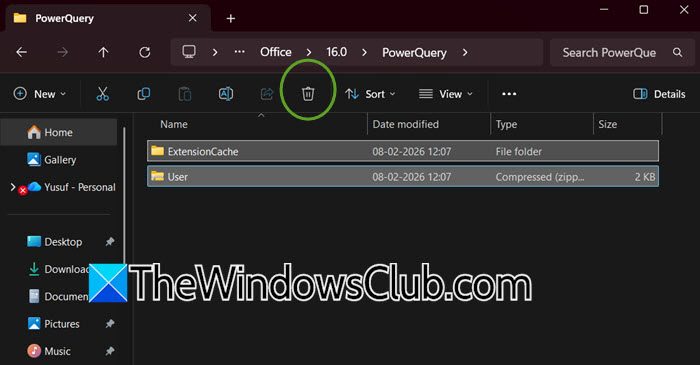
When you moved your workbook, Power Query brought over cached data and settings from your old laptop. This cached information is often tied to your previous computer’s system and may become corrupted or incompatible, causing the new Power Query engine on your laptop to crash immediately when it attempts to use the old cache. Follow the steps below to do so.
- Make sure all Excel windows are closed completely.
- Hit Win + R, type Run, and hit Enter.
- In the text box, carefully type the following exactly: %LocalAppData%\Microsoft\Office\16.0\PowerQuery and then press Enter or click OK.
- This will open a File Explorer folder. Select all the files and folders inside this PowerQuery folder and delete them. Don’t worry, this only removes temporarily cached data, not your original queries or workbook.
Restart Excel and reopen your file. Power Query will now rebuild its cache fresh for your new laptop.
3] Prevent the Problematic Office Update
The crash often occurs due to a faulty Microsoft update. To resolve this, perform a clean installation of Office and block the problematic update. Follow these steps.
- Uninstall Office completely.
- Run the Microsoft Support and Recovery Assistant (SaRA) via command line to ensure a full cleanup of leftover Office files and registry entries.
- Open Command Prompt as an administrator.
- Navigate to the folder where SaRa is installed.
- Then run – SaRAcmd.exe -S OfficeScrubScenario -AcceptEula.
- Reinstall Office for ARM64 from your Microsoft 365 account portal.
- Crucially, immediately after installation and before doing anything else, open Excel.
- Go to File > Account.
- Under Office Updates, click Update Options and select Disable Updates.
This will block the automatic update that is known to cause the 0xC000026F error.
Read: Use Excel Troubleshooter to fix Excel problems
4] Use the Power Query SDK as an External Editor
When the integrated editor in Excel is completely inaccessible due to a crash, you can author and debug your M code in an external, stable environment. The Power Query SDK for Visual Studio provides a separate editor that does not rely on the same crashing container process as Excel. This allows you to repair or rewrite the specific transformation steps causing issues, which you can then paste back into Excel’s Advanced Editor.
On a stable computer, install Visual Studio with the .NET desktop development workload. From within Visual Studio, open Extensions > Manage Extensions, search for the Power Query SDK, and install it. You can then create a new Power Query project, paste in your M code (retrieved from a working version of your file or from the internal files of the Excel workbook), and edit it safely. Once the logic has been corrected, copy the final M code and return to Excel on your main laptop; if the Advanced Editor opens, paste the corrected code there to replace the broken query.
Hopefully, you can resolve your issue using the solutions below.
Read: Excel crashes when saving a file
Why does Excel 365 keep crashing?
Excel 365 typically keeps crashing due to conflicts with third-party add-ins, corrupted program files or workbooks, or compatibility issues with other software like outdated drivers or antivirus programs. These problems can disrupt the application’s normal operation, leading to freezes or sudden shutdowns. A common issue on newer ARM-based Windows PCs is the 0xC000026F Power Query error that occurs when running an incompatible version of Office.
Also Read: Excel crashing or freezing when Printing.
