
Excel crashing or freezing when you click the Print button is a common and frustrating problem. This issue can disrupt your workflow and halt your work. Typically, it can be resolved by addressing a few specific causes. The crash may present itself as the program suddenly closing or becoming completely unresponsive, often leading to lost data and user frustration. In this post, we will see what you can do if Excel is crashing or freezing when printing.
Why does Excel freeze or crash when I print?
Excel can crash when you try to print for a few reasons. Common causes include corrupted printer drivers, conflicts with add-ins, issues with the Excel file itself, or bugs in the Excel program. These problems can disrupt the connection between Excel and your printer, making it unstable and causing it to crash. For example, a corrupted driver might not process the print data correctly, and a faulty add-in can interfere with Excel’s printing. Identifying the root cause of these issues is crucial to resolving them permanently.
Fix Excel crashing or freezing when Printing
If Excel crashes or freezes when printing, follow the solutions below.
- Update or change your Printer Driver
- Disable Excel Add-ins
- Repair Excel Files
- Repair Microsoft Office installation
Let us talk about them in detail.
1] Update or change your Printer Driver
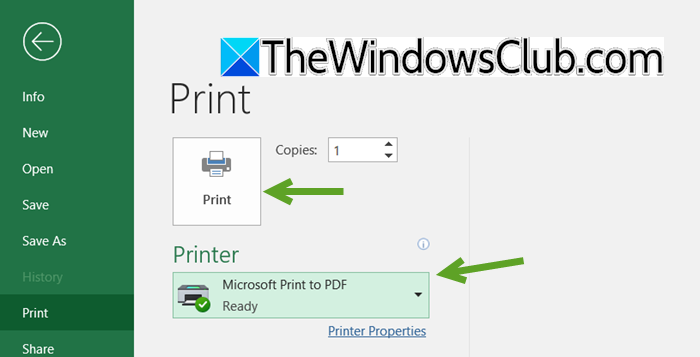
A corrupted or outdated printer driver fails to translate Excel data into a language your printer understands, resulting in a fatal communication error. Replacing it with a stable, up-to-date driver from the manufacturer or a built-in Windows driver ensures the translation proceeds smoothly, eliminating the crash.
First of all, let’s switch to Microsoft Print to PDF using the steps mentioned below.
- Open your problematic Excel workbook.
- Click on File > Print.
- Click on the printer selection menu and choose Microsoft Print to PDF from the list.
- Now, click on Print. A Save Print Output As window will appear. Save the file to your desktop.
If the PDF is created successfully and Excel does not crash, then the issue is likely with your physical printer’s driver; we need to update your Printer driver. However, if Excel still crashes, the problem is probably not related to the printer driver. In that case, the cause may be within the Excel file itself, an add-in, or the Office installation.
2] Disable Excel Add-ins
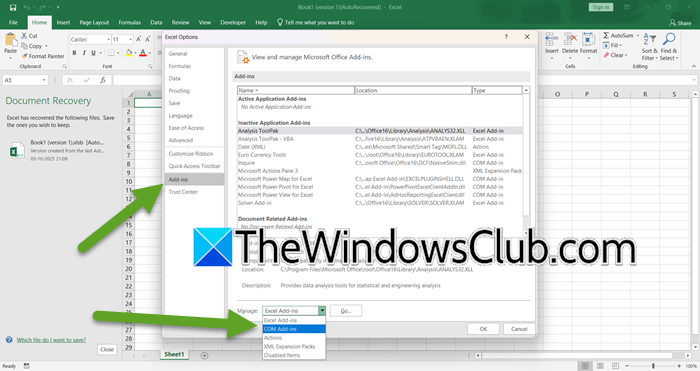
Third-party add-ins may contain bugs or conflicts that disrupt Excel’s printing process. Starting Excel in Safe Mode temporarily disables these add-ins, which helps you identify the problematic one. By disabling all add-ins and re-enabling them individually, you can determine and remove the specific cause of the crashing issue.
Follow the steps below to check and disable Excel Add-ins.
- Close Excel properly.
- Press Win + R, type excel /safe, and press Enter.
- Now, try to print your document. If printing works, an add-in is causing the issue.
- Then, open Excel normally.
- Go to File > Options > Add-ins.
- At the bottom, next to Manage, select COM Add-ins and click Go….
- Uncheck all boxes to disable every add-in and click OK.
- Restart Excel and see if it prints.
If printing is now functioning correctly, re-enable your add-ins one at a time. After turning on each add-in, restart Excel and test the printing feature. If Excel crashes again, you will have identified the problematic add-in. Keep it disabled or check for an update from the developer.
3] Repair Excel Files
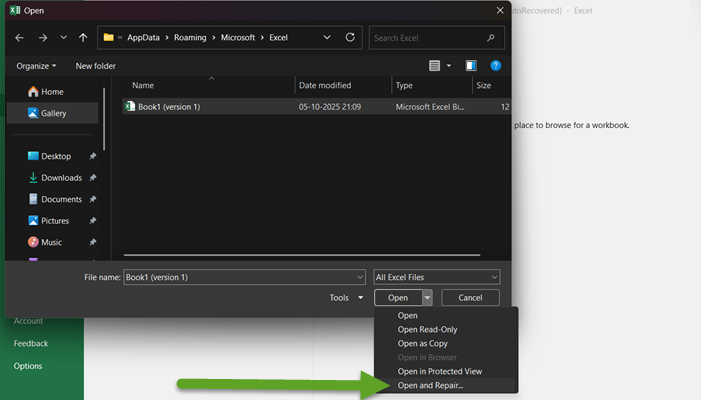
The workbook file itself may have internal corruption in its data or printing structure, disrupting Excel’s normal operations. The “Open and Repair” utility attempts to rebuild the file’s components by stripping out corrupted elements and salvaging intact data, resolving the printing conflict.
- Ensure the problematic Excel file is completely closed.
- Now, go to Excel; a blank workbook is fine.
- Navigate to File > Open > Browse and navigate to the corrupted file.
- Select the file, but do not double-click it. Instead, click the small arrow next to the “Open” button.
- From the dropdown menu, select Open and Repair.
- In the dialog box that appears, click the Repair button to recover as much data as possible.
- If Repair fails, go back and try the Extract Data option to salvage the values and formulas.
Finally, check if the issue is resolved.
Read: Excel crashes when clicking on a hyperlink
4] Repair Microsoft Office installation
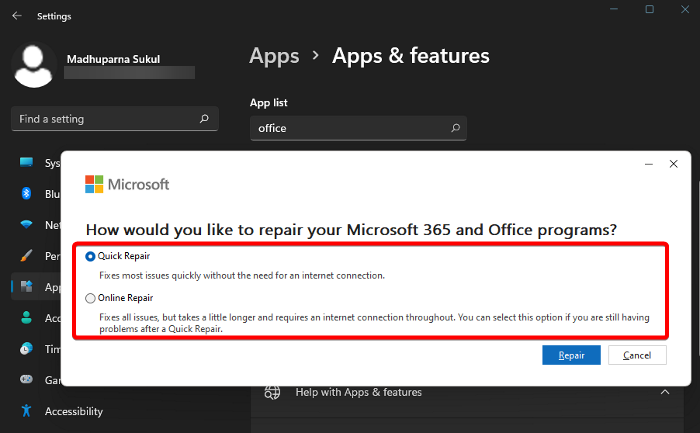
The Office repair tool fixes corrupted program files and registry entries that can disrupt core functions like printing. It replaces damaged system files with fresh ones, eliminating instability caused by incomplete updates or file corruption. You can follow the steps mentioned below.
- Close all Office applications.
- Go to Settings > Apps > Installed apps.
- Find your Microsoft Office installation.
- Click on the three dots and select Modify.
- Choose Quick Repair for a faster scan of common issues.
- If the problem persists, repeat the process and select Online Repair for a complete reinstallation.
Reboot your computer and check if the issue is resolved.
Hopefully, with these solutions, your issue will be resolved.
Read: Excel freezes when copying and pasting
How to fix Excel File that keeps crashing?
To fix an Excel file that keeps crashing, first update your printer drivers and disable conflicting add-ins via Safe Mode. If the issue persists, use the “Open and Repair” tool for corrupted files or run the Office repair utility to resolve program-level corruption, restoring stable operation.
Also Read: Excel freezing, crashing or not responding on Windows 11.
