
If you are trying to change something related to the device’s power management, but the Power Management tab is missing in Device Manager on Windows 11/10, here is what you will have to do. You can get back the Power Management tab in the device’s Properties after making a tiny change in the Registry Editor.
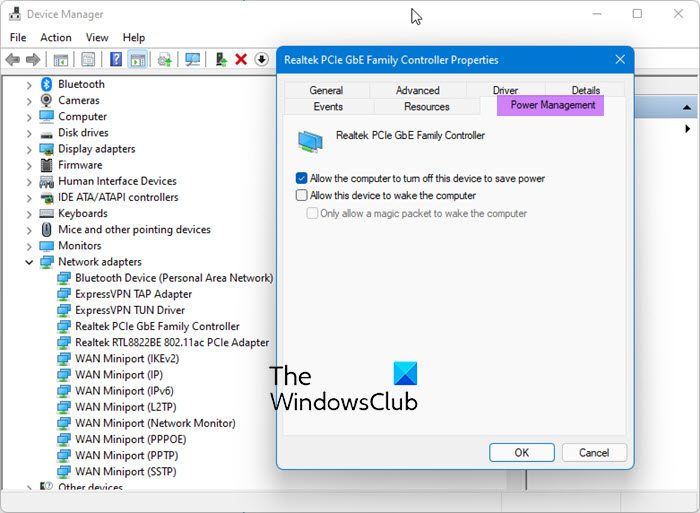
Where is the Power Management tab in Device Manager?
To access the Power Management tab for a device, first, open the Device Manager, and expand the device section (say Network adapters). After this, right-click on the selected device and click on the Properties option. You will see the Power Management tab there.
What is the use of the Power Management tab in Device Manager?
The Power Management tab in Device Manager lets you set which devices are allowed to wake your computer and which devices can turn it off. You can find the Power Management tab for devices like Mouse, Bluetooth, Keyboard, etc. Also, note that not all devices support this Power Management tab.
Let’s assume that you want to charge your phone in Sleep Mode with the laptop lid closed. For that, you must uncheck the option saying Allow the computer to turn off this device to save power. This option appears in the Power Management tab when you go to the Properties of any device. You can find the same tab at the mentioned location, whether it is a network adapter or USB controller. However, if it is not there and you must need it, you can use Registry Editor to get it back.
NOTE: Before you begin, you should know that not all Windows devices support the Power Management tab. This tab is available only for hardware that can be controlled for Sleep, Wake or power-saving functions. Network adapters, USB controllers, and some input devices usually have this tab. Devices like basic storage drives, external peripherals, and certain keyboards/mice lack this tab because their drivers or hardware don’t support power management features. Generic drivers installed by Windows may also lack this tab.
So if the hardware does not support this, following this tutorial may not help.
Precaution: It is recommended to backup all Registry files or create a System Restore point to be on the safe side.
Power Management tab is missing in Device Manager
If the Power Management tab is missing in Device Manager on Windows 11/10, follow these suggestions:
- Update or Rollback the device driver
- Edit Registry to disable Modern Standby
- Registry tweak for Network adapter
- Check Group Policy
- Run Troubleshooters
- Check BIOS settings.
1] Update or Rollback the device driver
First, update your device drivers and see if that helps. However, you should know that some devices don’t expose power management options if the driver doesn’t support them.
If you recently updated the driver, roll it back and see if that helps get the tab back.
2] Edit Registry to disable Modern Standby
If that does not help, then you will have to edit a Registry setting to fix the missing Power Management tab in Device Manager of Windows 11/10. Follow these steps-
- Search for registry editor in the Taskbar search box.
- Click on Registry Editor in the search result.
- Click the Yes button.
- Navigate to Power in HKLM key.
- Right-click on it > New > DWORD (32-bit) Value.
- Name it as CsEnabled.
- Restart your computer.
To get started, search for “registry editor” in the Taskbar search box and click on the Registry Editor in the search result. It will open the UAC prompt. Click the Yes button to open Registry Editor on your computer. After opening it, navigate to the following path-
HKEY_LOCAL_MACHINE\SYSTEM\CurrentControlSet\Control\Power
Now right-click on Power and select New > DWORD (32-bit) Value.
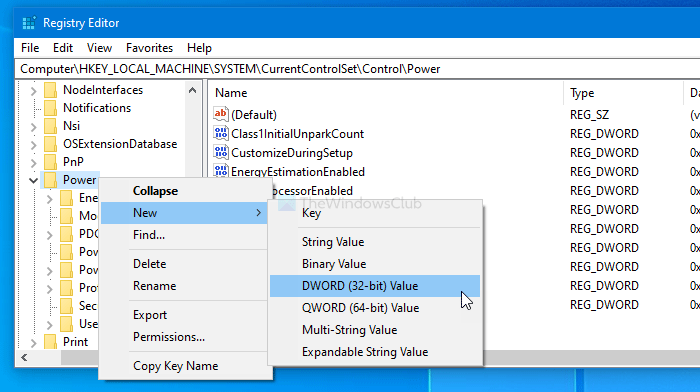
Following that, name it as CsEnabled.
Ensure that it has 0 as the Value data.
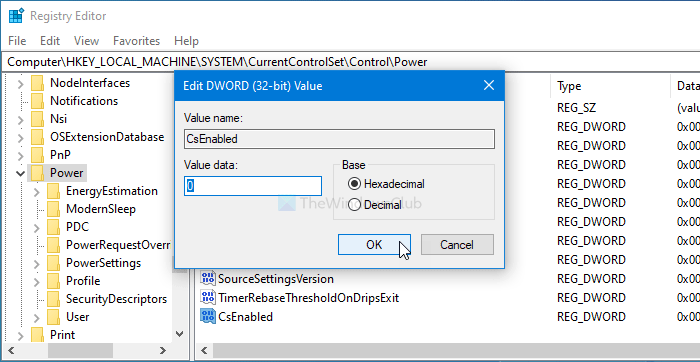
If you have completed the above step, restart your computer and then open the device’s Properties. Now you will find the Power Management tab.
If you want to hide this tab for security or any other reason, navigate to the same path, double-click on CsEnabled, and set the Value data to 1.
Then, click the OK button to save the change. As usual, restart your PC to get the difference.
3] Registry tweak for Network adapter
For network adapters, the tab may be hidden due to registry settings. So open regedit and navigate to the following key:
HKEY_LOCAL_MACHINE\SYSTEM\CurrentControlSet\Control\Class\{4d36e972-e325-11ce-bfc1-08002be10318}
Locate the adapter’s subkey and check if PnPCapabilities is set.
Setting to the Value of 24 usually enables power management options.
See if the Registry edits help; if not, you may reverse the changes mage.
4] Check Group Policy
Run gpedit.msc and navigate to the following path:
Computer Configuration > Administrative Templates > System > Power Management.
Here, ensure that the policies aren’t disabling device power management.
5] Run Troubleshooters
You could run the Power Troubleshooter as well as the Network Troubleshooters and see if that helps.
6] Check BIOS settings
If Wake or Sleep options in BIOS have been disabled, this can happen.
So restart your PC, enter BIOS, and ensure that Wake on LAN, USB wake support, or similar options are enabled under the Advanced or Power tab.
I hope this guide helps.
Read:
