
If you think of professional image editing or manipulation, Photoshop is the word that comes to mind. Photoshop has become synonymous with image editing. It has a lot of potential; we can create wonders from scratch and make the pictures the best. Although it is a paid app, its user base is unmatched by any other free or paid version. Some of the users are reporting that they are seeing Photoshop has encountered a problem with the display driver error when trying to use Photoshop on their PC. In this guide, we have a few solutions that can help you fix it.
Photoshop has encountered a problem with the display driver and has temporarily disabled enhancements which use the graphics hardware.
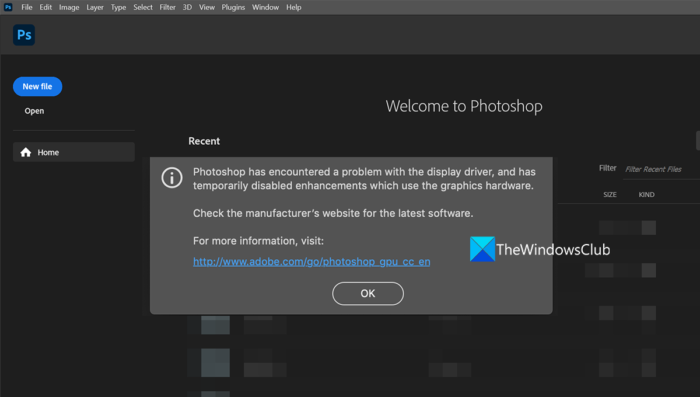
Photoshop has encountered a problem with the display driver
If you see Photoshop has encountered a problem with the display driver error when you launch Photoshop, the following fixes can help you resolve it and use Photoshop normally.
- Restart Graphics Driver
- Update Graphics Drivers
- Update Photoshop
- Disable the less powerful graphics card
- Stop using Photoshop on Virtual Machine
Let’s get into the details of each method and fix the issues.
Photoshop detected error in Display Driver
1] Restart Graphics Driver
While Windows 11/10 can recover the graphics driver on its own – in case the Video driver crashes.
In this case, you may restart the Graphics Driver manually by pressing the Win+Ctrl+Shift+B keys, and see if that helps.
2] Update Graphics Drivers
Graphics drivers play a crucial role in the smooth operation of Adobe Photoshop and other graphics-related or multimedia applications. So, if you have outdated or corrupted graphics drivers, there is a high chance that you will experience errors, such as Photoshop encountering a problem with the display driver. To resolve the issues, update your GPU card drivers to their latest version and then check if the problem is resolved.
You can follow any of the methods below to update your Graphics drivers:
- You may check for Driver Updates via Windows Update to update your drivers
- You may visit the manufacturer’s site to download the drivers.
- Use a free driver update software
3] Update Photoshop
While updates are designed to add new features, they also serve to fix bugs, address vulnerabilities, and resolve compatibility issues. Keeping Photoshop updated with the latest version is one way to avoid crashes. The error may be caused by corrupted files or other issues in the Photoshop files. You need to update it to the latest version to fix it.
To update Photoshop on Windows,
- Launch Photoshop and click on Help in the menu bar
- Then, select Updates. It will open the Adobe login page on the default web browser. Log in using your Adobe credentials associated with the account and update to the latest version following the on-screen steps.
Fix: Photoshop not enough RAM error
4] Disable the less powerful graphics card
If you use a PC with multiple graphics cards, disable the less powerful one, to make Photoshop run on the powerful one that supports all of its features. Sometimes, you may run into such errors because your less powerful graphics card does not meet the minimum requirements laid out by Adobe. You have to disable the less powerful graphics card and see if it fixes the issue. Before disabling the less powerful graphics card, make sure the video output of your monitor is connected to the dedicated graphics card.
To disable the less powerful graphics card on your PC,
- Click on the Start menu and search for Device Manager
- Open the Device Manager from the results. Expand Display adapters and right-click on the less powerful card on your PC.
- Then, select Disable from the options.
Fix: GPU Not Supported Photoshop error
5] Stop using Photoshop on Virtual Machine
Virtual machines rely on system resources to run smoothly. According to Adobe, the developer of Photoshop, virtual machines are not suitable for running Photoshop, as they haven’t fully tested it on virtual machines. It is not at all recommended to run Photoshop on a virtual machine as you may run into many errors regarding graphics or the non-usability of great features that make Photoshop unique from others.
Read: Fix Photoshop problems and issues like quitting, closing itself, etc.
These are the different ways in which you can fix the problem that Photoshop has encountered with the display driver.
How do you fix Photoshop has encountered a problem with the display driver?
When you encounter the error ‘Photoshop has encountered a problem with the display driver,’ you can resolve it by updating the graphics card, updating Photoshop, or by disabling the less powerful graphics card on your PC. You may also see this error if you use Photoshop on virtual machines.
Related: PhotoShop detected graphics hardware that is not officially supported
How do you fix Adobe Photoshop graphics processor not detected or detecting error GPU not detected?
There are many ways using which you can fix the Adobe Photoshop graphics processor not detecting or detecting GPU. You need to update graphics cards, update Photoshop, enable Use Graphics Card in Photoshop, etc.
Related read: Fix Problem parsing the JPEG data in Photoshop.
