
Nobody wants to use integrated graphics after spending a lot of money on a dedicated GPU. However, we have noticed that in some cases, a Windows PC uses integrated graphics instead of the dedicated GPU. In this post, we will discuss this issue and how to fix it.
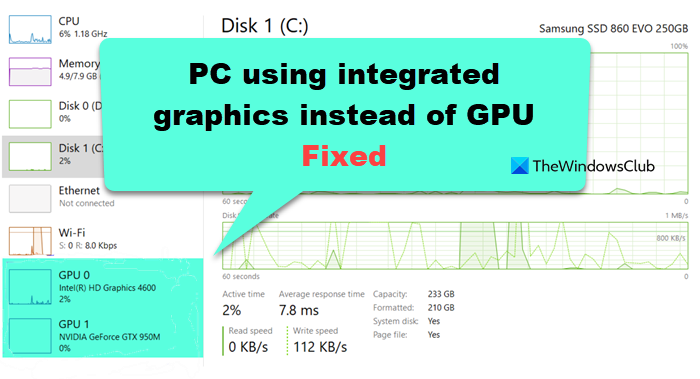
Fix PC using integrated graphics instead of GPU
If your PC is using integrated graphics instead of GPU, follow the solutions, recommendations, and workarounds mentioned below.
- Check the connection of your HDMI cord
- Force the program to run with the dedicated graphics card
- Update BIOS
- Disable Integrated Graphics Card
- Update your dedicated graphics card’s drivers to its latest version
- Reinstall your display driver
Let us discuss them in detail.
1] Check the connection of your HDMI cord
First, we recommend checking your connections to make sure everything is intact. You may need to check the HDMI cable and make sure it’s plugged into the graphics card on the back of your computer or into the motherboard, depending on your OEM. If you have a booklet, refer to it, or contact your OEM for guidance. If your connection is fine but you’re still seeing this problem, move to the next solution.
2] Force the program to run with the dedicated graphics card
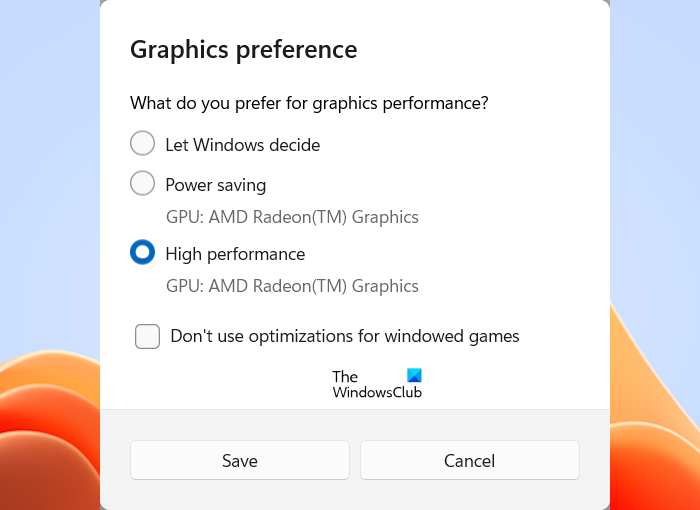
If there is a program that can not run on the integrated graphics, we recommend you force it to run with the dedicated GPU. It’s quite simple; just follow the steps below.
- Open Windows Settings.
- Go to System > Display.
- Now, scroll down and go to Related Settings to click Graphics.
- Look for the app you want to configure from the given list. If you can’t find it there, click Browse, navigate to its location, and select the associated Executable or EXE file.
- Now, click Options.
- You will see the Graphics Preferences window, select High performance, and click Save.
When you run that application, it will use the more powerful dedicated GPU.
3] Update BIOS
Your dedicated GPU might also fail to work if your BIOS isn’t updated. Hence, we recommend you update your BIOS and check if the issue is resolved. Keeping your BIOS is also crucial for the next solution that we will see.
4] Disable Integrated Graphics Card
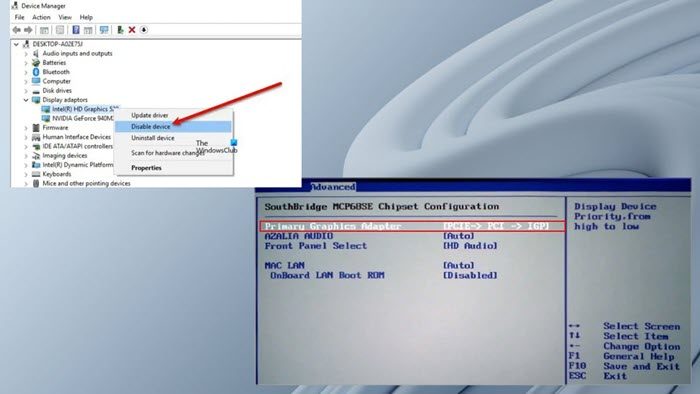
If many applications should be running on the dedicated Graphics instead of the integrated ones, we don’t recommend manually forcing them one by one. Instead, you can disable the integrated GPU to make sure that all the apps pick up the dedicated Graphics. Follow the steps mentioned below to do the same.
- Hit Win + X and click on Device Manager.
- Now, navigate to and expand the Display adapters section.
- Right-click on the integrated graphics device and select Disable device from the context menu.
You then have to disable the card from the BIOS as well. For that, Boot into BIOS, navigate to the Advanced tab, change the primary graphics adapter to PCI/PCIe from Auto or IGFX, and finally, set the VGA priority to Offboard.
This will force all applications on your computer to run on the more powerful GPU.
5] Update your dedicated graphics card’s drivers to its latest version

Disabling integrated graphics might force your computer to use a generic Windows display driver if your dedicated GPU drivers aren’t up to date. That is why updating your driver is so important.
To update your graphics drivers, use one of the following methods.
- Navigate to your manufacturer’s website, download the latest version of your graphics driver, and then install it on your computer.
- Download a free dedicated driver update tool, which will look for the latest version of the driver and install it for you.
Updating the driver should do the job for you.
Read: Integrated GPU is showing as Removable on Windows 11
6] Reinstall your display driver
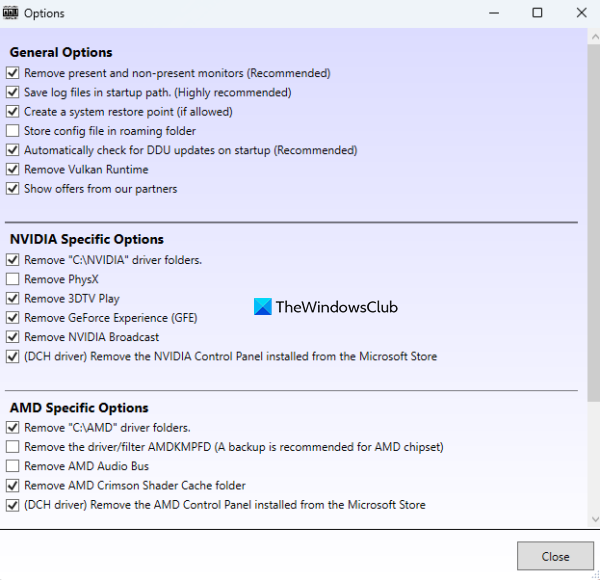
If updating the driver doesn’t help, we recommend reinstalling the dedicated graphics drivers to resolve the issue. So, first of all, download a copy of the latest version of the driver from the OEM’s website, then use the Display driver uninstaller to remove your display driver. Finally, install the driver that we asked you to copy.
That’s it!
How do I stop my computer from using integrated graphics?
To stop your computer from using integrated graphics, disable it in Device Manager. So, open the Device Manager, go to Display adapters, right-click on the integrated GPU’s driver, and select Disable device. You can also disable it in the BIOS using the steps mentioned earlier.
Read: Game not using GPU in Windows 11
What happens if you use integrated graphics instead of GPU?
Integrated graphics are not as capable as their dedicated counterpart. So, if you do decide to use integrated graphics instead of your GPU, a lot of graphically-intensive apps will cease to run. Even if they do run, the experience will not be seamless.
Also Read: Use both Integrated and Dedicated Graphics on Windows.
