
Some Windows users are unable to play Pathfinder: Wrath of the Righteous because the game fails to launch on their computer. So, if Pathfinder: Wrath of the Righteous keeps crashing on your computer too, follow the solutions mentioned here to resolve the issue.
Why does Pathfinder: Wrath of the Righteous keeps crashing on my computer?
According to many avid gamers who have been able to resolve the issue, the game crashes due to a bug. Needless to say, Pathfinder developers are aware of this issue and are trying to rectify it.
Another reason could be incompatibility; if your system does not meet the game’s requirements, you won’t be able to play it. Therefore, it is advisable to familiarize yourself with the system requirements before installing the game (mentioned later).
Finally, there are some obvious reasons, such as corrupted system files, outdated Graphics drivers, and more, about which we will be talking later in this article.
Pathfinder: Wrath of the Righteous keeps crashing
If Pathfinder: Wrath of the Righteous game crashes frequently on your Windows 11/10 computer, then use these solutions to resolve the issue:
- Verify integrity of game files
- Update your graphics driver
- Delete Temporary Files
- Install the latest game patch
- Disable Overlays
- Temporarily disable Anti-virus
Let’s start with the first fix.
1] Verify the integrity of game files
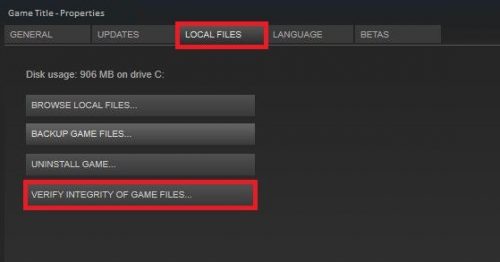
Missing and corrupted files cause a lot of trouble for gamers, preventing them from having the time of their lives. Well, if that’s the matter, then rest assured that you won’t be facing it anymore after following these steps.
- Open Steam and then navigate to the Library.
- Click Properties after right-clicking on Pathfinder: Wrath of the righteous.
- On the left corner, click the option LOCAL FILES.
- Now, click VERIFY INTEGRITY OF GAME FILES.
Check whether the crashing issue still persists. If yes, then try the next fix.
2] Update your graphics driver
When a game starts crashing then one of the first things a gamer should do is to check the Graphics Driver. It is one of the most common factors that lead the game to crash. So, update your Graphics Driver and check if the issue persists.
3] Delete Temporary files
Many Windows users are able to resolve the issue by deleting the Temporary files.
To do that, navigate to the following locations, one by one, and delete the Pathfinder Wrath Of The Righteous folder.
C:\Users\<username>\AppData\Local\Temp\Owlcat Games
C:\Users\<username>\AppData\LocalLow\Owlcat Games
Now, check if the issue persists
4] Install the latest game patch
Pathfinder developers are attempting to resolve the issue by releasing new patches. Steam will automatically download these new patches once the developer releases an update.
When you launch the game, it will be installed. Relaunch Pathfinder: Wrath of the Righteous to ensure that you are not facing the crashing issue again.
5] Disable overlays
Disabling Overlays stops them from intruding on a game’s functionality and, as a result, stops it from crashing.
- Go to the LIBRARY tab after opening Steam.
- Click Properties after right-clicking on Pathfinder: Wrath of the Righteous.
- Untick the box of Enable the Steam Overlay while in-game.
If there are other apps with in-game Overlay features activated, then make sure that you disable them.
Launch the game again, it will surely remove the problem.
6] Temporarily disable Anti-virus
More often, you will see anti-virus software interpreting important game files as viruses and blocking them; as a result, some important functions get blocked, which will eventually crash the game.
You can temporarily disable your antivirus and check if the issue persists.
Hopefully, you are able to stop the crashing with the given solutions.
Read: Forza Horizon crashing on Windows PC
System Requirements to run Pathfinder: Wrath of the Righteous
These are the system requirements to run Pathfinder: Wrath of the Righteous.
- Operating System: Windows 7 or above
- CPU: Intel(R) Core(TM) i3-2310M CPU @ 2.10GHz
- RAM: 6 GB
- Graphics: Intel(R) Intel HD Graphics 620
- SPACE: 50 GB
That’s it!
Read Next: Back 4 Blood keeps crashing on Windows PC.
