
The Microsoft Photos app for Windows 11/10 is one of the best applications that are available on the Windows operating system. But it may throw up errors at times. One such error is the one that says, Package could not be registered.
Some of the causes of this error include a corrupt Microsoft Photos installation, a corrupt image file or any other System File that supports the application being corrupt.
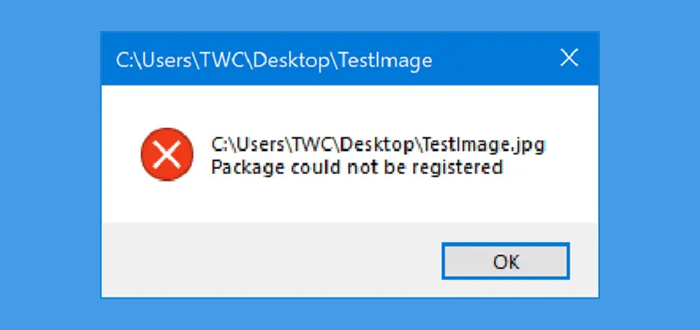
Package could not be registered in Windows 11
The following suggestions may help in fixing this error in the Windows Photos app. However, you should know that this error can appear for any Microsoft Store app, and in that case, a similar procedure should be followed to fix the issue.
- Use System File Checker and DISM.
- Reset the Microsoft Store App.
- Reinstall the Microsoft Store app using Windows PowerShell.
- Use the Windows Store Apps troubleshooter.
1] Use System File Checker and DISM
To fix any file corruption issue, we recommend using System File Checker (sfc /scannow) and DISM. Both inbuilt tools will replace system files with fresh copies.
Once these commands are executed in the given order, restart your computer and try again.
2] Reset the Microsoft Store App
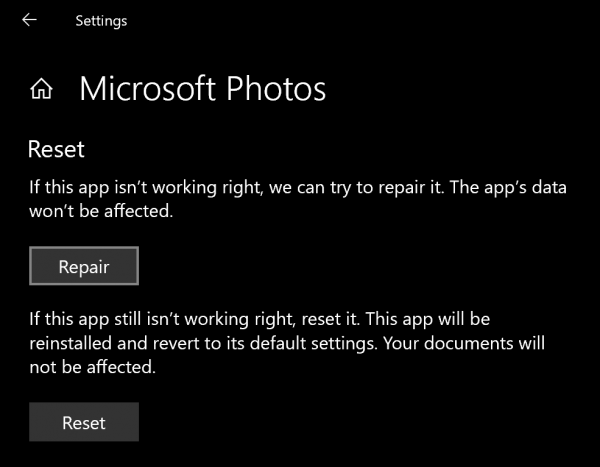
- Open the Windows Settings App with Win + I combination.
- Navigate to Apps > Apps & features.
- Look out for the entry of the Microsoft Photos app, select it and select Advanced Options.
- Scroll down to select the button labeled as Reset.
3] Reinstall Microsoft Store app using PowerShell
Run Windows Powershell as an Administrator and then execute the following command to uninstall the Microsoft Photos app and then hit Enter:
get-appxpackage Microsoft.ZuneVideo | remove-appxpackage
Let the process complete and then reboot your computer.
Type in the following command to reinstall the Microsoft Photos app and then hit Enter.
Get-AppxPackage -allusers Microsoft.ZuneVideo | Foreach {Add-AppxPackage -DisableDevelopmentMode -Register “$($_.InstallLocation)\AppXManifest.xml”}
Let the process complete and reboot your computer, open the image inside of the Photos app and check if the error is gone.
4] Use Windows Store Apps troubleshooter
Microsoft has released a dedicated Microsoft Store apps Troubleshooter. You need to download and run it.
Alternatively, you can find it under Settings App > Update & Security > Troubleshoot.
All the best!
