
We have noticed that Outlook is automatically sending old emails, which are more than a year old. The issue is pretty annoying as most of us use Outlook in a professional environment, and resending old emails can cause interim confusion. In this post, we are going to talk about this issue and see what you can do if Outlook keeps sending old emails automatically without your consent.
Fix Outlook resending old Emails automatically
Outlook may resend old emails primarily due to synchronization glitches between local devices and email servers. These issues often stem from corrupted local cache files (OST/PST) where Outlook stores email data, causing historic messages to be reprocessed unexpectedly. This problem frequently intensifies when switching between Outlook Classic and the newer Outlook version, as transitions disrupt normal synchronization patterns and can trigger duplicate sending of previously delivered messages.
The issue can also originate from misconfigured email rules like automated “resend if undelivered” functions, or accidental user actions such as flagging old messages as tasks, which reactivates them in the system. Server-side problems with Exchange Server or Office 365 infrastructure may contribute too, where temporary outages cause email backlogs that are later released in unexpected batches. Finally, third-party interference remains a significant factor; security tools like antivirus/firewalls or productivity add-ins (CRM systems, etc.) may intermittently block outbound connections, causing Outlook to resend messages when communication is restored.
If Outlook sends old emails automatically, you can follow the solutions mentioned below.
- Clear Cache and reset Sync
- Repair or recreate the profile
- Review Rules and Flags to prevent automated sendings
Let us talk about them in detail.
1] Clear Cache and reset Sync
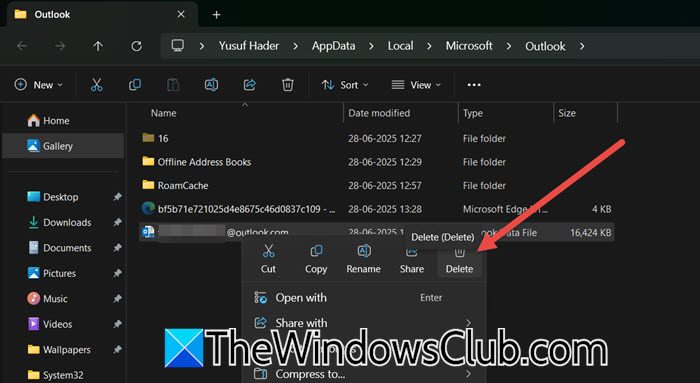
First of all, we need to clear Outlook’s cache and reset Sync. We are going to remove corrupted local data (OST files in Classic Outlook, cached data in New Outlook) and force Outlook to rebuild its synchronization with the email server, as corrupted OST files cause Outlook to remember old emails as unsent. Deleting them forces a fresh sync with the server. Resetting send/receive intervals prevents emails from getting stuck in the outbox. To do so, you can follow the steps mentioned below.
For MS Outlook
- First of all, close Outlook from the Task Manager.
- Now, open the File Explorer and go to %localappdata%\Microsoft\Outlook.
- Look for files ending in .ost (e.g., Outlook_123456.ost) and delete them.
- Now, open Outlook again, go to Send/Receive > Send/Receive Groups.
- Select your account group and then check Schedule an automatic send/receive every [10] minutes.
- Click Ok.
For Outlook New or Outlook Web
- Open Run by Win + R.
- Type olk.exe –devtools and click Ok.
- This will open Outlook and a new window called DevTools.
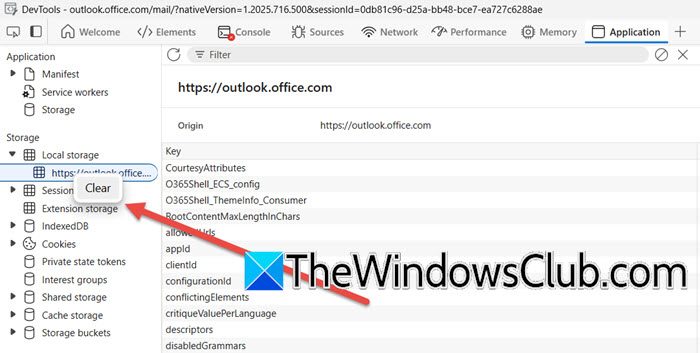
- Go to the Application tab.
- Expand Local Storage from the Storage menu, right-click on your Outlook account, and click on Clear.
- Now, open Outlook, go to Settings (gear icon) > Accounts.
- Toggle OFF or remove the affected account > Wait 10 seconds > Toggle ON or add it again.
Finally, check if the issue is resolved.
2] Repair or recreate the profile

Corrupted Outlook profiles cause erratic behavior like resending old emails. To repair or recreate the profile, follow the steps outlined below.
MS Outlook
- Open Control Panel.
- Change View by to Large icons and click on Mail (Microsoft Outlook).
- Select your account and click on Properties.
- Click on Email accounts.
- Select your profile and click on Repair.
- You can even click on Add to add a new account if the repair doesn’t work.
Outlook New
In the Outlook New app, you need to remove and add the account, as there is no option to repair the profile.
Hopefully, this will do the job for you.
3] Review Rules and Flags to prevent automated resending
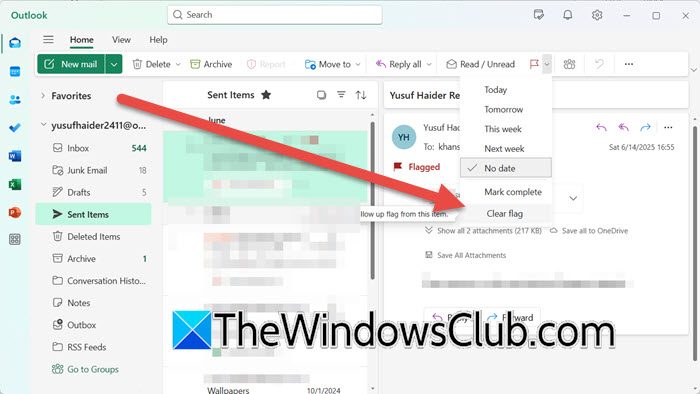
In this solution, we check misconfigured automation triggers (rules) and manual markers (flags) that reactivate old emails.
If you are on MS Outlook, go to File > Manage Rules & Alerts > Email Rules. Now, look for rules containing:
- Resend
- Forward
- If not delivered
- Delay delivery
In Outlook New, go to Settings (cog icon) > Mail > Rules. Look for problematic rules, in addition to the ones mentioned for Outlook Classic, check the following for Outlook New.
- Resend after [time period]
- Forward to (address) without restrictions.
You need to look for something similar as well. And if you find anything that can resend old emails, delete that rule.
Next, we need to check the Flags.
- MS Outlook: Open the Sent Items folder, sort by the Flag column (click column header), and clear the flag.
- Outlook New: Go to Sent items, click on the Filter icon, and select Flag. Then, clear the flag.
Hopefully, with the help of these solutions, your issue will be resolved.
Read: Your mailbox is almost full Outlook 365 message
Why do old emails keep coming back in Outlook?
Old emails may reappear in Outlook due to synchronization errors between your local device and the email server, where corrupted cache files or profile data cause Outlook to “forget” these messages were already processed and mistakenly treat them as unsent items. This issue is often triggered by switching between Outlook versions, server outages, or misconfigured rules that accidentally reactivate old messages for resending. The problem typically resolves after repairing your Outlook profile, clearing local cache, or removing problematic automation rules that reintroduce these emails.
Read: How to archive Emails & retrieve archived emails in Outlook
How do I stop Outlook from synchronizing old emails?
To prevent Outlook from synchronizing old emails, start by recreating your Outlook profile through the Control Panel’s Mail settings. This resets the connection between your local client and the email server, eliminating corrupted sync data. Additionally, clear your local cache by deleting OST files in Outlook Classic or resetting the app in New Outlook to remove outdated email snapshots that trigger resynchronization. Finally, review and disable any email rules designed to resend or forward messages, as these can reactivate old emails. Ensure your account settings avoid syncing beyond a practical date range to exclude historical messages. This way, you can stop old emails from reappearing while preserving your current mailbox data.
