
When you are trying to use Outlook and it refuses to connect to the internet while you are using a VPN, you are not alone. Some people who work remotely experience this issue. When you try to check an important email or send something, the VPN suddenly seems to be working against you in MS Outlook or the new Outlook app. The VPN that is supposed to protect your internet is breaking your Outlook connection. Fortunately, you can fix it easily. In this guide, we show you how to fix when Outlook is not working with a VPN.
Outlook not working with VPN on Windows PC
If you find that Outlook stops working after connecting to a VPN in Windows 11/10, follow the methods below to fix it easily.
- Change the VPN location
- Enable Split tunnelling
- Change VPN protocol
- Check Microsoft’s server status
- Disable the firewall or antivirus temporarily
- Reinstall VPN
- Contact your admin
Let’s get into the details of each method.
1] Change the VPN location
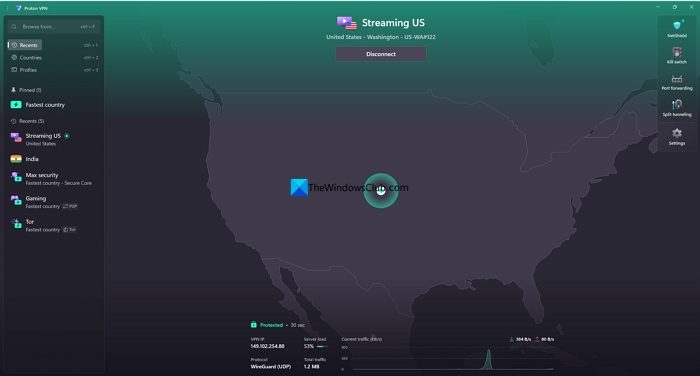
There is a possibility that your VPN is connected to a country that is not ideal for accessing Microsoft services. Some IP addresses are flagged regularly for security purposes. Even when the load on the server you have connected to might be throttling your internet speed and making it hard to connect to Microsoft servers. Just change to a known location, and that will fix many issues.
2] Enable Split tunneling
If changing the location does not help fix the issue with the Outlook app, enable split tunneling in your VPN app’s settings. When you enable split tunneling and exclude the Outlook app, or MS Outlook, from the VPN connection, it connects to the internet directly by bypassing the VPN connection. The rest of the apps and services connect to the internet via VPN as usual.
To enable split tunneling and exclude Outlook from using the VPN, open your VPN app’s settings. Under the Connection or Advanced settings, you will see Split Tunneling.
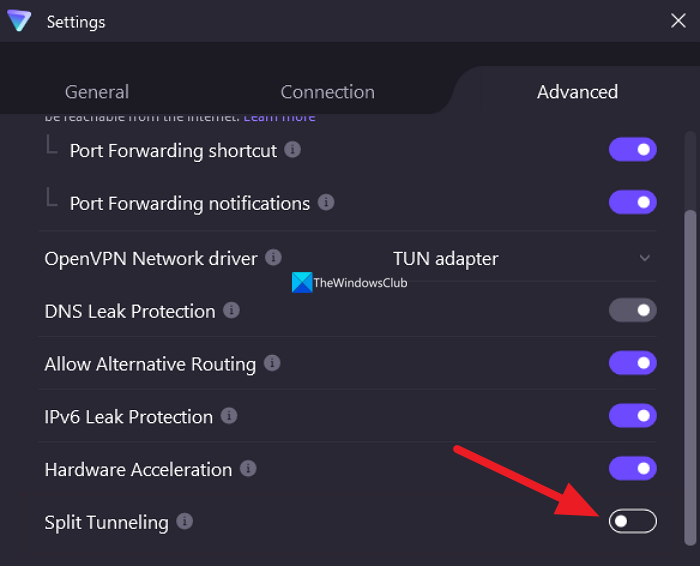
Enable it and exclude the Outlook app or MS Outlook using the split tunneling options.
3] Change VPN protocol
VPNs rely on UDP and TCP-based protocols. UDP-based VPN protocols are faster, but corporations block those connections, often viewing them as suspicious. TCP-based protocols are slow, but firewalls let them through.
Those protocols sometimes block a few ports to prevent spam and abuse. This might also be one of the reasons Outlook isn’t working with your VPN.
Every VPN supports the OpenVPN (UDP and TCP) and WireGuard (UDP-only) protocols. Some VPNs may include their in-house-developed protocols for greater privacy and control.
Open your VPN and go to Connection settings. Then, find Protocol options, and set it to OpenVPN – TCP. Then, reconnect the VPN.
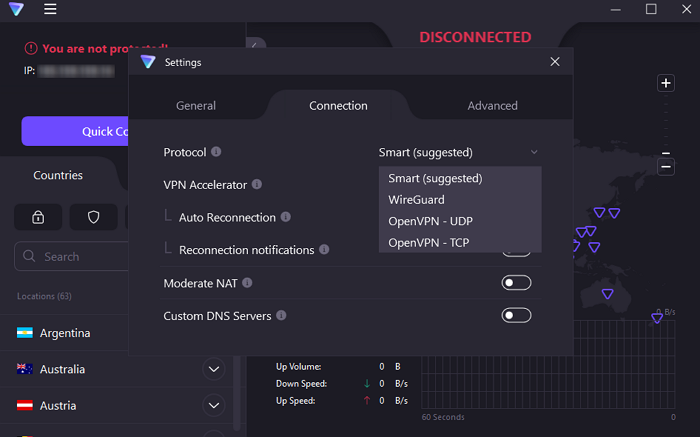
If it is already connected to OpenVPN-TCP, switch it to WireGuard or your VPN’s in-house protocol.
4] Check Microsoft’s server status
Sometimes it might not be an issue from your side. The VPN connection and Outlook are working fine. However, if there is an issue with Microsoft servers or they are having downtime, you would experience this issue.
Open DownDetector in your web browser and check Microsoft Outlook’s status. If other users have reported any issues with it, you will see that “User reports show possible problems with Microsoft Outlook”.
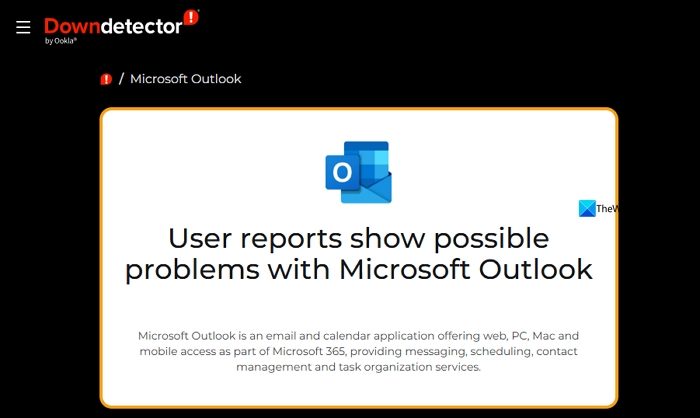
If there is an issue with the server, you need to wait until it is fixed.
5] Disable the firewall or antivirus temporarily
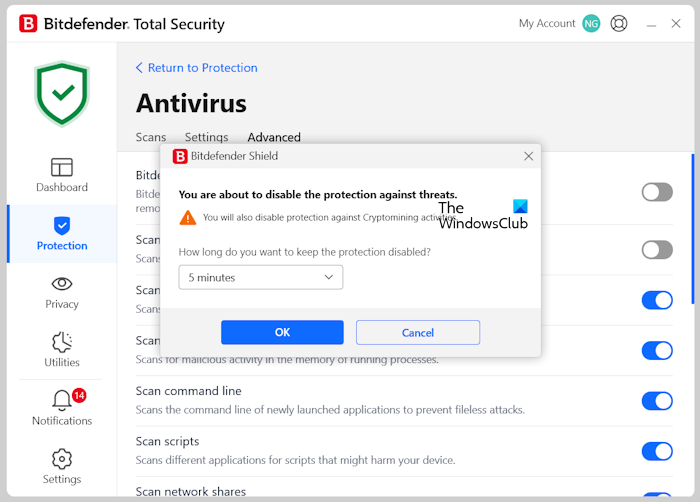
The antivirus or firewall on your PC may be blocking the VPN connection to the Outlook app as part of its online protection features. Temporarily disable the antivirus and see if it helps.
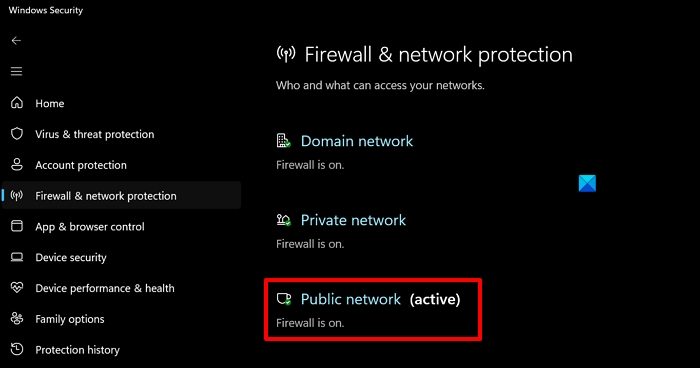
If you do not have any third-party antivirus installed on your PC, open the Windows Security app, and click Firewall & network protection. Click the network with (active) next to it.
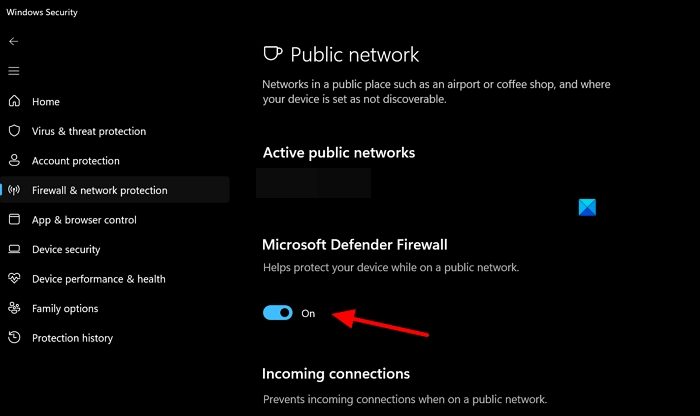
Under Microsoft Defender Firewall, toggle the button to turn the firewall off.
Confirm the disabling in the pop-up that appears, and check whether Outlook is connecting to the internet. If it works, fine, allow the Outlook app through the firewall or antivirus, and enable it again.
6] Reinstall VPN

If the issue is not fixed yet, uninstall the VPN app on your PC, delete the temporary files, and reinstall the app by downloading it from the official source. Sign in with your credentials and start using it. At times, this could resolve all issues with the previous installation and allow you to connect the Outlook app to the servers.
7] Contact your admin
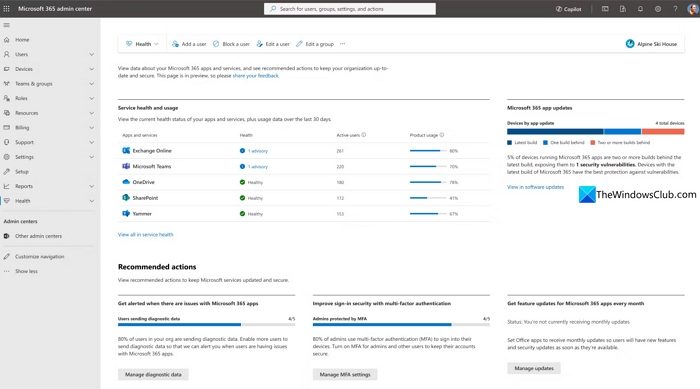
If nothing worked for you to fix the issue, it might be a problem at the admin level in your organization. They might have restricted access via a VPN or have some other security issues. Contact your admin, and they will fix the issue for you.
Related: Cannot send Email when connected to VPN.
Does Outlook not work with VPN?
Generally, there is no such thing as Outlook not working with a VPN connection. At times, VPN protocols, connected countries, and organizational restrictions make it hard for the Outlook app to work with a VPN. You need to fix those issues, or just exclude the Outlook app from the VPN by enabling split tunneling.
How to use a VPN for Outlook email?
There is no such thing as configuring VPN separately for Outlook email. If you want to use VPN exclusively for the Outlook app, you can enable split tunneling and include the Outlook app. Then the remaining programs and services connect to the internet without a VPN. The Outlook app connects using the VPN.
Read: Outlook not sending emails with or without attachments.
