
It can be both frustrating and surprising to see Outlook displaying the wrong time. As a result, meeting invites don’t align. messages appears out of order, and recent emails look old. This issue can occur on any version of Outlook, web or desktop, and is usually due to mismatched time or time zone settings, making it easily fixable with a few setting tweaks. In this article, we will explore the plausible causes and identify ways to fix it.
Why does my Outlook email show the wrong time?
Outlook may display the wrong time due to a mismatch between the computer’s clock, Outlook’s time zone setting, and the email server’s time zone. This is a common issue that occurs when these systems are configured for different time zones or handle Daylight Saving Time rules differently. For example, if the device is set to London time but Outlook uses New York settings, then all email timestamps will be offset.
Outlook email shows wrong time
If the Outlook email shows the wrong time, try the solutions below.
- Fix the device’s Time and Zone
- Correct the Time zone in Outlook
- Update the software
- Create a new Outlook profile
- Contact the IT department or the Server
Let’s get started with the troubleshooting guide.
1] Fix the device’s Time and Zone
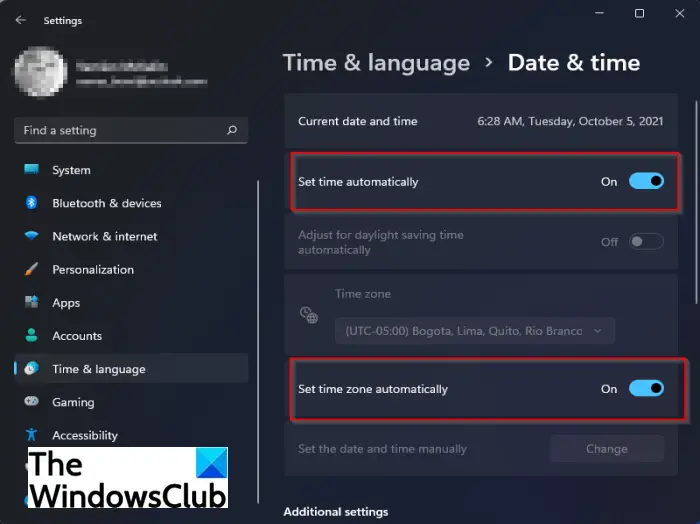
If Outlook is showing the wrong time, the first thing to look at is Windows itself. If Windows is slightly off, Outlook will faithfully show an incorrect timestamp. Follow the steps mentioned below to check and set your timezone.
- Click Win + I to open Settings, navigate to the Time and Language tab, and click the Date and Time section.
- There, ensure the Set time automatically and Set time zone automatically options are switched on.
- If they are switched on and the time is still incorrect, toggle them off, manually select the correct time zone from the dropdown menu, then turn the switches back on.
Launch the app, and if the issue persists, slide to the next solution.
2] Correct the Time zone in Outlook
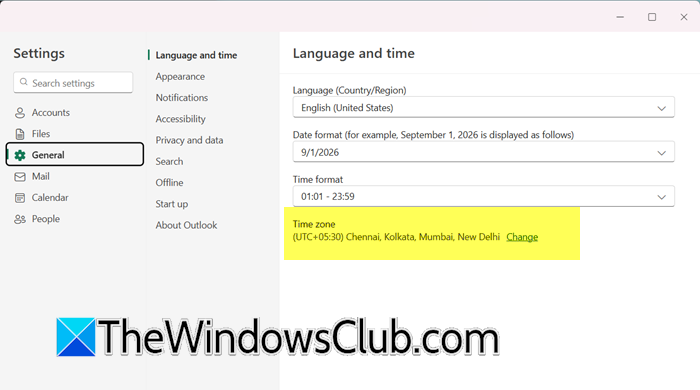
Outlook can still apply its own time zone even when the system time is correct. A mismatch here can cause emails and calendar events to show incorrect times. To fix this, we will correct the Time zone in Outlook.
For Outlook (New)
- Launch the app, and click on Settings from the top right corner.
- Select the General > Language and time.
- Click on Change
- Now, select a correct Timezone from the list.
For Classic Outlook
- Open the app, click on the File tab, and select Options.
- In the Outlook options window, select the Calendar tab, and scroll down to find the Time zone section.
- Under the Current time zone section, use the dropdown menu to select the correct zone, and click the OK button.
For Outlook on the web
- Launch the browser, navigate to Outlook.com or your organisation’s Outlook on the web portal, and sign in to the account.
- Click on Settings from the top right corner, and in the menu that appears, click on the View all Outlook settings option at the bottom.
- Click on Calendar, select View, and then find the Time zones section.
- Expand the Display my calendar in time zone drop-down to select the correct local time zone, and hit the Save button to apply the changes.
Once done, see if time is displayed correctly on emails. If not, see the next solution.
3] Update the software
Operating systems and Outlook regularly provide updates that include important fixes for time zone and daylight saving rules. If the system has not updated in a while, we recommend updating it, as it may still be using outdated definitions, which leads to incorrect email timestamps.
To update Windows, go to Settings, click on Windows Update, and select the Check for updates option. Install all available updates, and then launch the Outlook app. Navigate to the File tab, click on Office Account, and select Update Options. Next, select Update Now to install the latest patches. After completing the process, check if the time in the emails is fixed. Navigate to the next step if it is incorrect.
4] Create a new Outlook profile
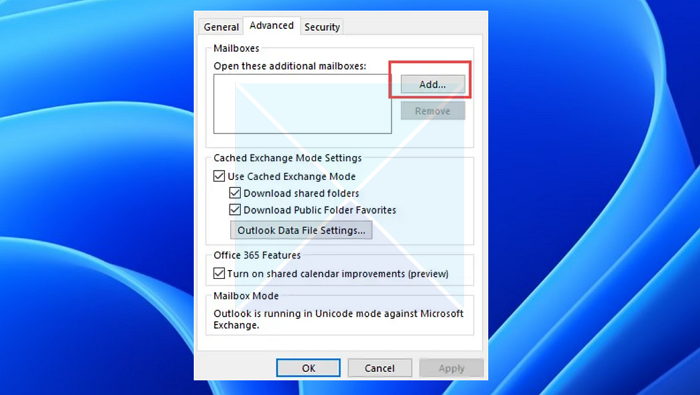
A corrupted Outlook profile can store faulty settings that can cause persistent display errors. In this case, creating a new Outlook profile creates a fresh, clean configuration file, forcing Outlook to rebuild all settings from scratch.
- Close Outlook completely, then click Win + R to open the Run dialogue box, type Control, and hit Enter to open Control Panel.
- Set View by to Small icons, search and open Mail (Microsoft Outlook), and click on Show Profiles.
- Click Add, name the new profile, and follow the prompts to re-add the email account.
Set this new profile as the default and restart Outlook. If this doesn’t resolve the issue, go to the next solution.
Read: How to change Time Zone in Outlook
5] Contact the IT department or the server
Last but not least, in a corporate or work email setup, the time displayed in emails is directly linked to the mail server itself. If that server’s regional or time zone settings are incorrect, it processes every email with the wrong timestamp, irrespective of the system’s correct settings. To move this forward, contact your organisation’s IT support team and explain to them that the email timestamps are consistently off. They can correct the server’s time zone configuration to match the organisation’s actual location. Hopefully, after this, the time on emails will be displayed correctly.
Read: How to display two Time Zones in Outlook Calendar
Why is Outlook email not updating in real time?
Outlook may not be updating in real time due to cached Exchange mode, which is causing synchronization delays between the device and the server. To fix this, first check the connection, and then use the Send/Receive All Folders button to force a manual sync.
Also Read: Display your working hours to your colleagues in Outlook.
