
In this post, we will show you how to change the Time Zone in MS Outlook, new Outlook app, Outlook 365 and Outlook.com. Outlook allows users to easily change their time zone. This is perfect for those who plan to travel to a different country or to a location within their own country with a different time zone. For those using a mobile device, all you have to do is change the time zone on your smartphone and the Outlook app will adapt.
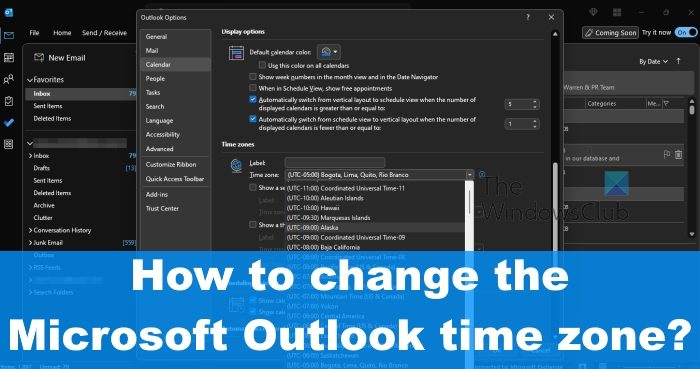
How to change the Time Zone on Outlook desktop
Learning how to change the time zone in MS Outlook is key for some users. Follow the method below to get started.
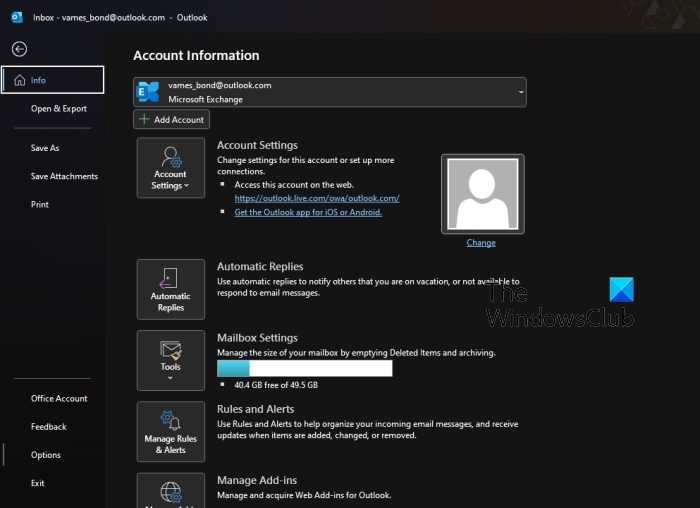
When it comes down to changing the time zone on Outlook for the desktop, please ensure you have the latest version of the app installed on your computer. Once that is done, we can then proceed to the relevant steps:
- First, you must open the Outlook app on your computer.
- Once the app is up and running, please click on File, located at the top-left corner of the display.
- From the left side panel, choose Options.
- A window known as Outlook Options should now be visible.
- Look at the window for Calendar via the left panel, and be sure to click on it.
- Go to the right pane and scroll down until you’ve come across Time Zones.
- Click the Time Zone dropdown menu, and from there, please choose your preferred zone.
- Hit the OK button to initialize the changes and right away Outlook on the desktop will now use the newly selected time zone.
How to change the Time Zone in new Outlook app
- Open Outlook (New App) and go to Settings
- Click the gear icon in the top-right corner.
- Navigate to Calendar Settings
- Select Calendar from the left-hand menu and choose View.
- Under Time zones, find the option Display my calendar in time zone.
- Select your desired time zone from the dropdown list.
- You can also add a custom label (e.g., “India Standard Time”) to make it easier to identify.
- Save & exit.
Read: How to change Language in Outlook
How to change Time Zone in Outlook 365
For Microsoft 365 users, it is pretty easy to change your time zone settings in Outlook on Windows systems. Here are the steps to do that:
- Open Outlook.
- Click on the File menu.
- Tap on Options.
- Go to the Calendar tab.
- Change Time Zone as per your requirement.
- Press the OK button.
Firstly, open Outlook 365 on your computer. Now, click on the File menu and then choose Options.
Inside the Outlook Options window, move to the Calendar tab.
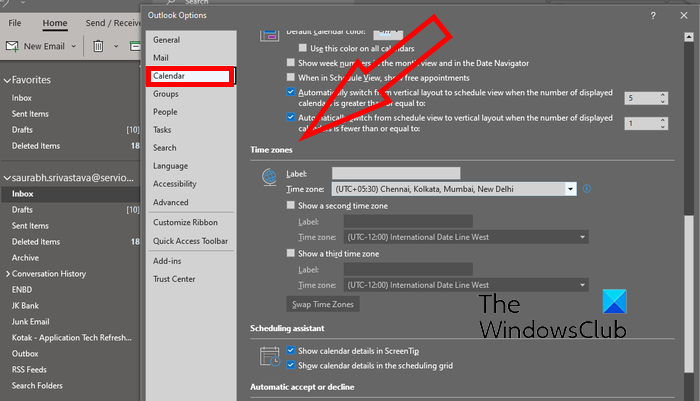
Next, scroll down toward the Time zones section. After that, click on the Time zone drop-down menu button and select the desired time zone to set up for your Outlook. You can also add a custom label for the chosen time zone.
You can also add second and third time zones if required. simply tick the Show a second time zone/Show a third time zone checkbox and choose the desired time zone. It also provides an option to swap positions of time zones in case of multiple time zones.
When done, click on the OK button to save changes.
So, this is how you can change the time zone settings in Outlook 365 on Windows 11/10.
How to change the Time Zone for Outlook on the web
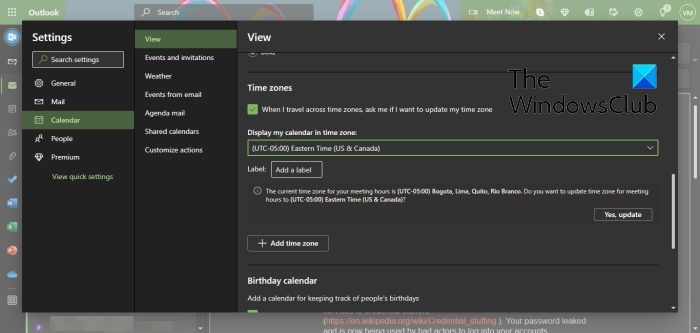
Outlook.com also lets users change their time zones. Let us discuss how to accomplish this with ease.
- Begin by opening your favorite web browser.
- After that, navigate to the official Outlook Web homepage.
- Sign in with your Microsoft Account is requested.
- Once your Outlook account is up and running, click the Settings icon.
- A menu will now appear. At the bottom of that menu, please click View All Outlook Settings.
- From the Settings menu, navigate to Calendar > View.
- In the right pane, select Display My Calendar in Time Zone.
- Select your preferred time zone from the dropdown menu.
- Hit the Save button once you’re done with the selection process.
The Outlook service will then ask if you want to change meeting hours to the newly chosen time zone. If you want to do this, click on Yes, Update.
Read: Set time zone automatically greyed out in Windows.
READ: How to prevent Outlook from saving credentials for Basic Authentication
What time zone does Outlook use?
Outlook for the desktop uses the same time zone as the primary Windows operating system. So in most cases, you may never have to change the time zone unless in extreme circumstances.
Why is my Outlook Calendar showing a different time zone?
Chances are the time zone is not aligned with the time zone of Windows, therefore, you will have to navigate to the Settings area and manually change the time zone yourself. Bear in mind that if you changed the time zone during your travels, always revert the changes after returning home, or else this problem could recur.
