
NVIDIA GPUs are like gold for gamers, however, not all of them offer top-of-the-line performance, and even if you have the flagship GPU, by optimizing it, you can improve its performance. By tweaking some settings we can optimize NVIDIA Control Panel for gaming to have a constant frame rate and get rid of abrupt crashing and other issues. So, if you have an NVIDIA GPU, this post is for you.
Optimize NVIDIA Control Panel settings for gaming performance
Before tweaking the settings, you need to first launch NVIDIA Control Panel. The best way to do this is to right-click the desktop and select NVIDIA Control Panel. Then, go to 3D Settings > Manage 3D Settings. This is the panel where you can make all the changes:
- Image Sharpening
- Ambient Occlusion
- Antialiasing
- DSR Factors
- Low Latency Mode
- Max Frame Rate
- Multi-Frame Sampled AA
- OpenGL rendering GPU
- Power Management Mode
- Texture Filtering
- Vertical Sync
Let’s see the function of each setting.
1] Image Sharpening
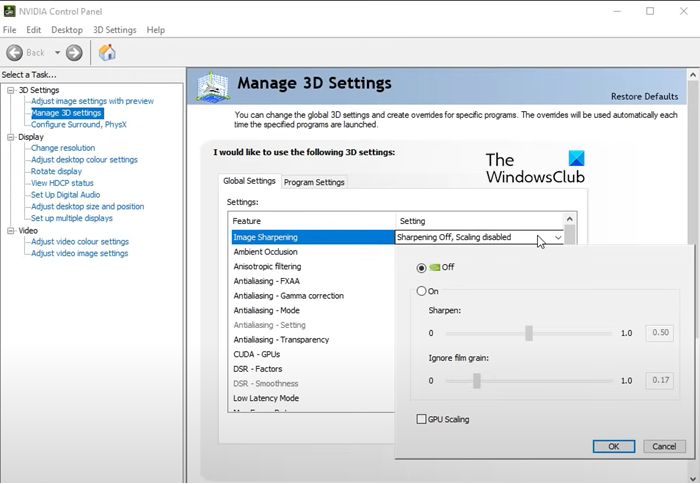
Image Sharpening may sound exciting to you, as it adds a bit of extra sharpness to your game. One of the arguments that goes in its favor is that you can lower the game’s resolution and enable Image Sharpening, and you are good to go without putting a lot of load on your computer. However, in reality, the added bit of sharpness is barely perceivable, and the performance increase is not substantial; in some cases, turning on Image Sharpening can put extra load on the GPU, decreasing its sustainable performance. You can find this feature in NVIDIA Control Panel > 3D Settings > Manage 3D Settings > Image Sharpening. We recommend you disable this feature if it’s enabled.
Read: Best Router settings for PC Gaming; Optimize Router for better Gaming
2] Ambient Occlusion
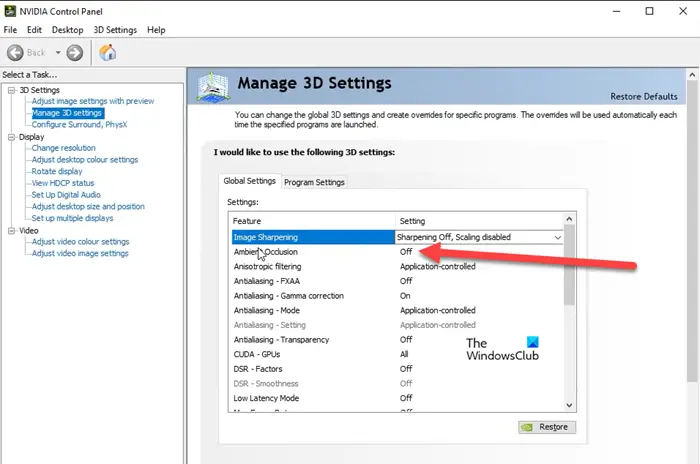
Ambient Occlusion enhances the Shadow effect allowing you realistic gameplay by improving the physics of the game. This way, you will be able to notice every little detail that wasn’t noticeable before. There are three options: SSAO (Screen Space Ambient Occlusion), HBAO (Horizon-Based Ambient Occlusion), and HDAO (High-Definition Ambient Occlusion). In reality, this setting isn’t very helpful, that’s why it should be turned off. If your game has a similar feature, just enable it from the game’s settings, as that will be more beneficial. The Settings are under the Manage 3D Settings option.
3] Antialiasing
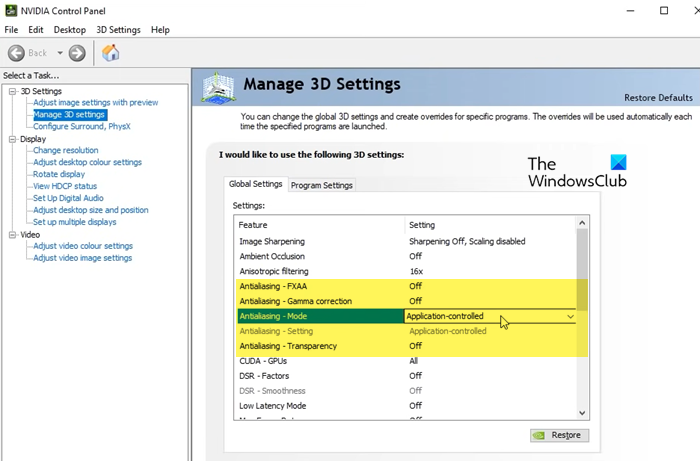
If you want smooth edges, go for Antialiasing. There are three kinds of Antialiasing in NVIDIA Control Panel. Let us talk about all of them.
- Antialiasing- FXAA: It should be turned off as most games don’t support this feature, but if you know there is a game in your library that supports FXAA, you can enable it.
- Antialiasing- Gama Correction: Enabling it will help your game to manage Gama.
- Antialiasing- Mode: Set it to Application-controlled to avoid any conflict.
- Antialiasing – Transparency: Turn it off as it puts way too much load on your system and decreases its FPS
Just configure all the Antialiasing menus according to the aforementioned way and you will be good to go.
Read: Tips to improve gaming performance in Windows PC
4] DSR Factors
From the name “Dynamic Super Resolution,” we can infer how it works. If you are thinking about changing the resolution using DSR Factor then you are right. DSR Factor is almost similar to Radeon Virtual Super Resolution. With this setting, you can have 4K resolution on a 1080P screen, hassle-free. Just keep in mind, if you have an inferior computer, avoid this setting, or don’t go all the way to 4K. You can also tweak the DSR Smoothness option to adjust the graphics.
Read: Bottleneck in Gaming explained
5] Low Latency Mode
Depending on the type of latency you are experiencing, you can enable or disable this feature. If you experience input lag, go ahead and turn it on; if not, leave it turned off. Just make sure this setting is global, as it can affect all games in an unprecedented way.
6] Max Frame Rate
Max Frame Rate is a one-in-all feature that will help you if you want to save power or achieve low latency. You can find Max Frame Rate in NVIDIA Control Panel > 3D Settings > MaxFrame Rate. It allows you to set the game frame rate and reduces the GPU frequency when used together with Power Management set at Optimal Power, thus long battery life. However, if you want low latency, enable Max Frame Rate with Power Management set to Prefer Maximum Performance. However, make sure to set this globally as well. Configure it on a game-to-game basis and see if you notice any performance difference.
Read: How to optimize Windows for Online Gaming.
7] Multi-Frame Sampled AA
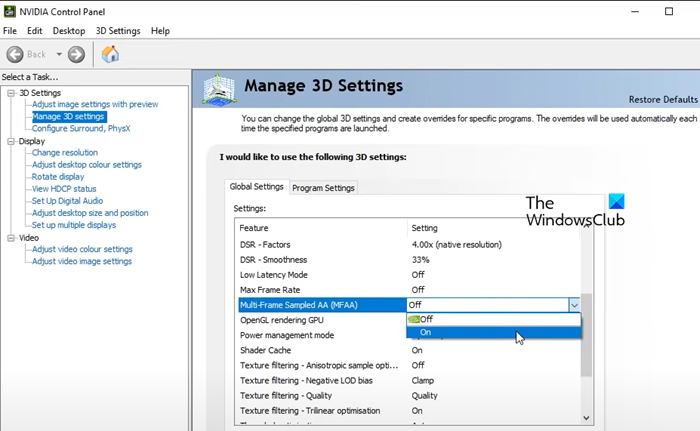
If you want an MSAA-like Antialiasing feature without compromising performance, Multi-Frame Sampled AA (MFAA) should be your pick. Although there will be a slight difference in the visual quality, you will have better performance, and for gaming, that matters a lot.
Keep in mind that MFAA can only be used when an application that supports 2x MSAA or greater is rendering a file. To enable MFAA, launch the NVIDIA Control Panel, then click on Manage 3D Settings > and switch on Multi-Frame Sampled AA (MFAA). You can keep this feature enabled globally, as there will be no conflict.
8] OpenGL rendering GPU
If you are running an OpenGL application on your PC and have multiple GPUs, OpenGL Rendering GPU is the one for you. The feature come in handy when you have two GPUs but don’t know which one to use for better performance. In such cases, you can click on Auto Click to allow the driver to select the best GPU for that particular purpose. However, if you are certain which one is the best, pick the same from the drop-down menu.
9] Power Management Mode
Power Management Mode lets you control your GPU while playing DirectX or OpenGL games. Adaptive, Prefer maximum performance and Optimal performance are the three options that you can use accordingly to optimize NVIDIA for gaming.
10] Texture Filtering
Texture Filtering, as the name suggests, is used to determine the texture quality of the screen, and you will have a better gaming experience. In Texture Filtering, there are four options. Let us talk about each one.
- Texture Filtering – Negative LOD Bias: Set it to Clamp if you don’t want glitches.
- Texture Filtering – Quality: Set it to Quality.
- Texture Filtering – Trilinear Optimization: Choose On.
- Texture Filtering – Anisotropic Sample Optimization: Turn it off.
Once you have made these changes, let us go to the final settings.
11] Vertical Sync
Vertical Sync or commonly known as VSync adjusts the refresh rate according to the frame rate of your monitor. Doing so allows you better image quality as this stops screen tearing and there will be no more glitches and horizontal tearing on your screens. However, keep in mind, since it synchronizes the game’s FPS to that of your Monitor, keeping it as a global setting can cause serious conflicts, so, go to the game you want to configure and then enable this feature.
These were some of the best settings that you can configure in the NVIDIA Control Panel. We have mentioned all of them, as they should not be changed and left to their default settings. Keep in mind, you may not have to make all the changes mentioned here, or perhaps not all of them will work for you.
NOTE:
- The NVIDIA Control Panel is officially retired for Game Ready and Studio Drivers. For NVIDIA RTX PRO users, the NVIDIA Control Panel will continue to be supported until all professional features have been moved to the NVIDIA app.
- NVIDIA has also confirmed that the classic Control Panel remains available for download via the Microsoft Store. This allows users who prefer the traditional interface to continue working as they always have.
Read: NVIDIA Control Panel missing on Windows
