
Is your OneNote Web Clipper refusing to load or getting stuck in a login loop? This widely reported issue, often marked by a flashing purple box, endless spinner, or blank Notebooks list, is almost always rooted in authentication failures, browser privacy settings, or extension corruption. In this post, we will see what you can do if OneNote Web Clipper is not working or loading.
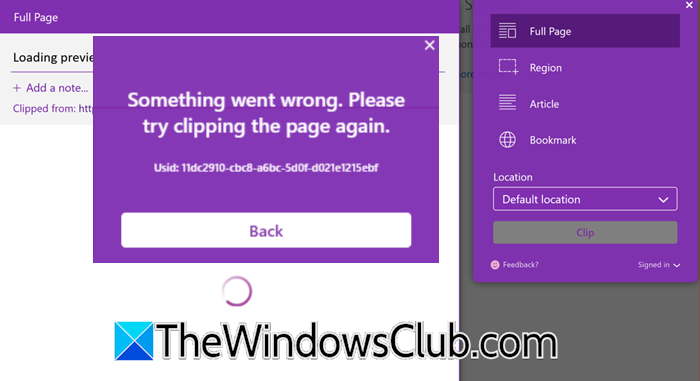
Something went wrong. Please try clipping the page again.
When the Web Clipper doesn’t work, it’s usually not because OneNote is broken. The extension depends on an active Microsoft account session stored in your browser. If this session is outdated, damaged, or blocked by a privacy setting, the clipper can’t log in. This can cause it to either keep loading or crash. Common reasons for these issues include updated browser settings that block third-party cookies, interference from ad-blocking or anti-tracking extensions, being logged into a different account than the one associated with your notebooks, or a partially updated extension with leftover corrupted files. In rare cases, a damaged browser profile or problems with hardware acceleration can also stop the extension from working properly.
Fix OneNote Web Clipper not working or loading
If OneNote Web Clipper is not working or loading, follow the solutions mentioned below.
- Clear cookies for related sites
- Allow third‑party cookies and create explicit exceptions for Microsoft services
- Reinstall the extension with a full browser restart
- Disable all other extensions to isolate the issue
Let us discuss them in detail.
1] Clear cookies for related sites
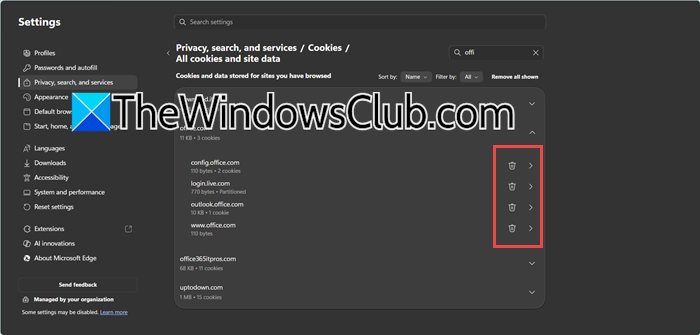
Instead of deleting all your cookies, you can just remove the specific cookies related to the clipper’s sign-in session. If your notebook list is blank or you keep seeing a login loop, the issue is often a stale or conflicting cookie from login.live.com, login.microsoftonline.com, or office.com. By clearing these specific cookies, you force the clipper to get a new, valid token without logging you out of all your other websites.
You need to clear cookies for the following websites.
- login.live.com (personal Microsoft account)
- account.live.com
- login.microsoftonline.com (work/school Microsoft 365 account)
- office.com
- onenote.com
- www.onenote.com
- onedrive.live.com
Once all are removed, restart the browser completely (close every window or quit the app). Reopen the browser, click the Web Clipper icon, and sign in again with the correct Microsoft account.
2] Allow third‑party cookies and create explicit exceptions for Microsoft services
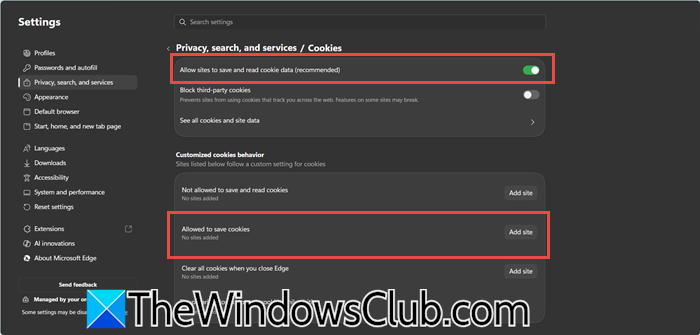
Modern browsers block third-party cookies by default. This affects the Web Clipper’s login pop-up, which runs in an iframe calling Microsoft’s authentication. When cookies are blocked, the sign-in process fails, often flashing away or repeatedly asking for sign-in. To resolve this, temporarily enable third-party cookies or add exceptions for Microsoft’s sign-in domains to allow the clipper handshake while maintaining privacy on other sites.
Go to Settings > Privacy, search, and services > Third‑party cookies (Chrome) or Cookies (Edge). Select Allow third‑party cookies for testing (you can revert this later). Now, look for the option that says Allowed to save cookies or Sites allowed to use third-party cookies and then add the following URLs:
- [*.]microsoft.com
- [*.]microsoftonline.com
- [*.]onenote.com
- [*.]live.com
Ensure that the setting Block third‑party cookies in Incognito is unchecked if you also use InPrivate/Incognito mode for testing. Restart the browser, open the clipper, and complete the sign‑in.
3] Reinstall the extension with a full browser restart
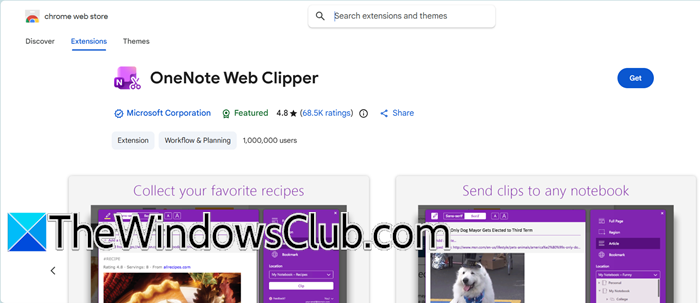
Many users find that the clipper works only once after a reinstall, then goes back to flashing box behavior. This happens because remnants of the old extension can remain. To fix this, uninstall the extension, close all browser processes, and then reinstall it to ensure no residual files disrupt the new installation.
Open the extensions list (chrome://extensions or edge://extensions) and remove the OneNote Web Clipper.
Now, close your browser, end all its processes from the Task Manager. Then, launch the browser again and install the OneNote Web Clipper fresh from the official store (Chrome Web Store or Microsoft Edge Add‑ons). Click the extension icon, sign in with the Microsoft account tied to your notebooks, and accept the requested permissions when prompted.
4] Disable all other extensions to isolate the issue
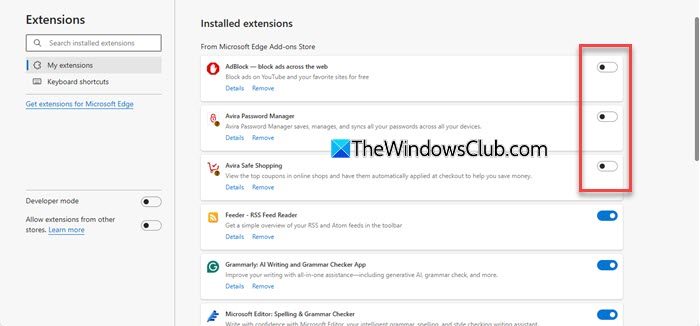
Ad‑blockers, tracker blockers, script stoppers, and even some “cookie‑banner” removers can inadvertently intercept the Microsoft authentication redirects or strip the cookies that the clipper needs. If the clipper works in a clean browser profile but not in your regular profile, a conflicting extension is almost always to blame.
Follow the steps mentioned below to do the same.
- Open chrome://extensions (or edge://extensions).
- Toggle off every extension except the OneNote Web Clipper.
- Restart the browser and test the clipper.
- If it now works, toggle the extensions back on one by one, restarting and testing after each until you find the culprit.
For the conflicting extension, look for a whitelist option that allows you to exempt microsoft.com, microsoftonline.com, and onenote.com rather than keeping it permanently disabled.
Read: Fix E000283C OneNote sync error
How to enable screen clipping in OneNote?
Screen clipping is natively enabled through Windows Snipping Tool. Press Win+Shift+S, select your snip shape, and after capture, click the OneNote notification to send it to a notebook. In the Web Clipper extension, simply click the icon, pick Screen Clipping from the mode menu, drag to capture a region, and hit Clip.
Read: How to change View in OneNote on Windows PC
How to use OneNote Clipper?
Install the extension, click its toolbar icon, and sign in with your Microsoft account. Choose a clipping mode, Full Page, Region, Article, Bookmark, or Screen Clipping, then optionally pick a notebook and section. After customizing, click the Clip button. The selected content will instantly appear in the chosen OneNote section, ready for annotation, search, or sharing.
Read: Use OneNote Web Clipper extension to take notes while browsing.
