
OneNote search is a powerful feature that lets you find information anywhere in your notebooks. However, OneNote Search is not working for some users on Windows 11. There can be many causes of this issue, such as OneNote syncing issues, indexing issues, or issues with the Windows Search Service. If you encounter this issue with OneNote, the solutions provided in this article will help.

OneNote Search is not working in Windows 11
Use the following suggestions if OneNote Search is not working on your Windows 11 computer:
- Restart your computer and OneNote
- Sign out and sign in again
- Update Office
- Restart Windows Search Service
- Rebuild OneNote Search
- Manually sync your notebooks
- Clear OneNote cache
- Repair OneNote
- Uninstall and reinstall OneNote
All these fixes are explained in detail below.
1] Restart your computer and OneNote
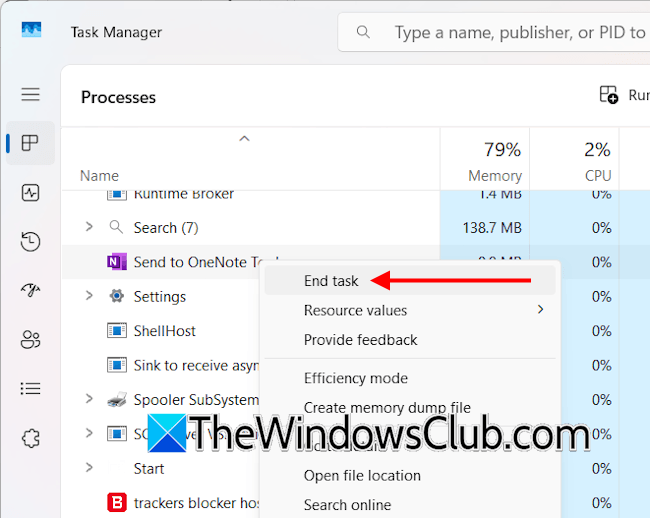
Sometimes issues occur due to a minor bug. In such a case, restarting the Windows computer usually helps. First, close OneNote and relaunch it. After closing OneNote, its process keeps running in the background. Therefore, open Task Manager and navigate to the Processes tab. Scroll down and locate the OneNote process. Right-click on it and select End Task to terminate the process. Now, relaunch OneNote. If the issue persists, restart your system.
2] Sign out and sign in again
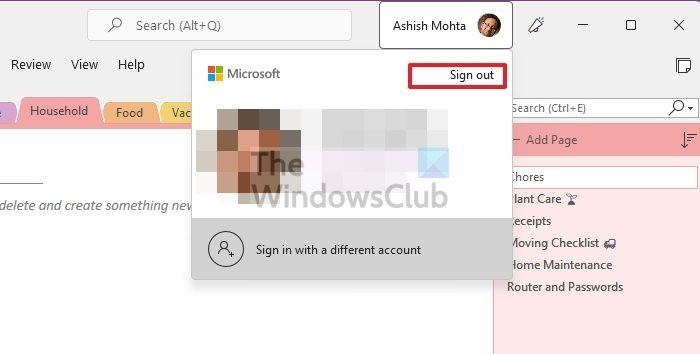
If restarting OneNote does not work, signing out and signing back in can help. Launch OneNote and click your profile icon in the top right. Select Sign Out. This step will sign you out of all other Office applications. Therefore, save your pending work before proceeding. Close OneNote and relaunch it. Sign back in and see if the issue is fixed.
3] Update Office
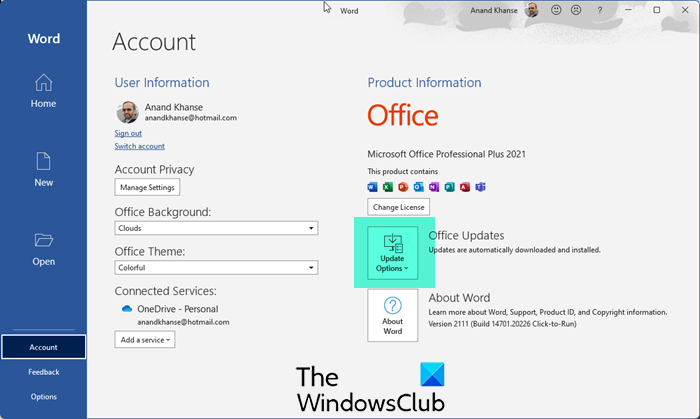
An outdated Office suite can also cause several issues. Check for Office updates manually and install if available.
4] Restart Windows Search Service
The Windows Search service provides content indexing, property caching, and search results for files, e-mail, and other content. If this service is not running or stopped, you may encounter issues with the Windows Search feature. Therefore, check the status of this service.
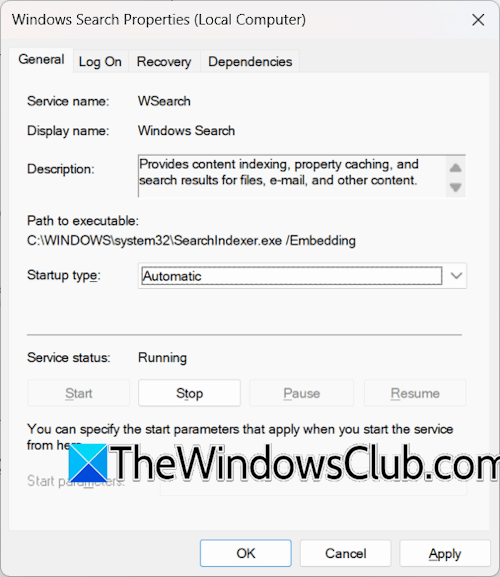
Follow these steps:
- Open Windows Services Manager.
- Locate the Windows Search service.
- Check its status. If it is already running, restart it. Right-click on the service and select Restart.
- If it is not running, right-click on it and select Start.
After starting the service, open its properties from the right-click context menu and navigate to the General tab. Select Automatic in the Startup type, and click Apply. Click OK to save changes.
5] Rebuild OneNote Search
If the issue persists even after restarting the Windows Search Service, I suggest you rebuild OneNote Search.
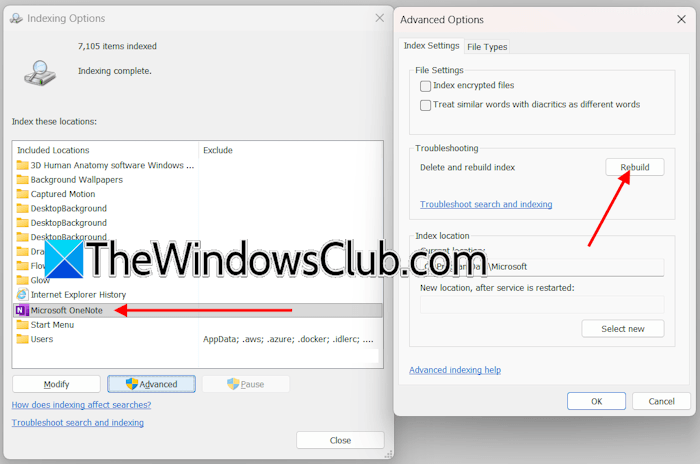
The following instructions will help you:
- Click Windows 11 Search and type Indexing Options.
- Select Indexing Options from the search results.
- Select Microsoft OneNote and click Advanced.
- Click Rebuild and then click OK.
Rebuilding the index might take a long time to complete. Do not interrupt the process.
6] Manually sync your notebooks
You can manually sync your notebooks and see if it fixes this issue. The following instructions will guide you on this:
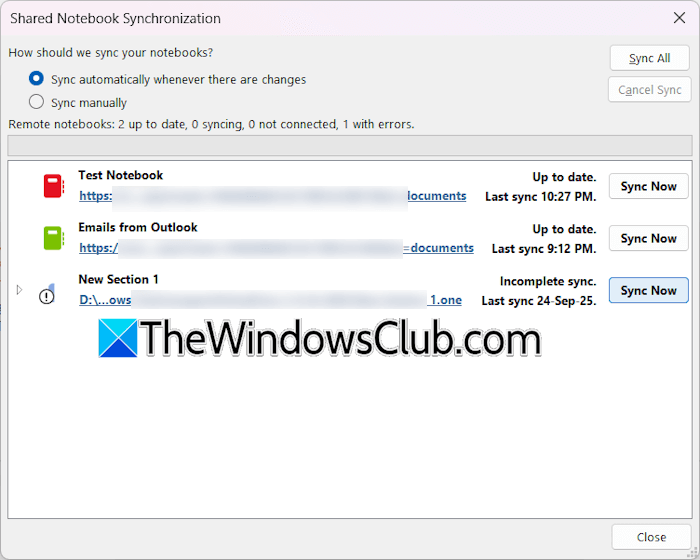
- First, open all your notebooks.
- Navigate to File > View sync status.
- Click Sync all.
When OneNote completes syncing your notebooks, check if the search feature is working.
7] Clear OneNote cache
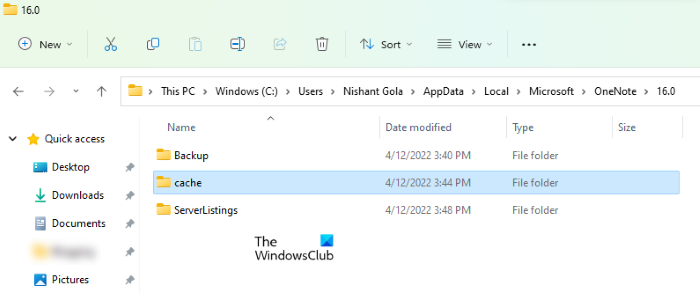
Your OneNote cache files might have been corrupted, causing issues with OneNote Search. In such a case, clearing the OneNote cache files can help. For this, you have to delete all the files inside the cache folder. After deleting the OneNote cache, close and relaunch OneNote. Now, open all the notebooks and see if the search feature starts working.
8] Repair OneNote
If none of the above fixes worked, OneNote might have some corrupt files that need to be repaired. Repair OneNote. Follow these steps:
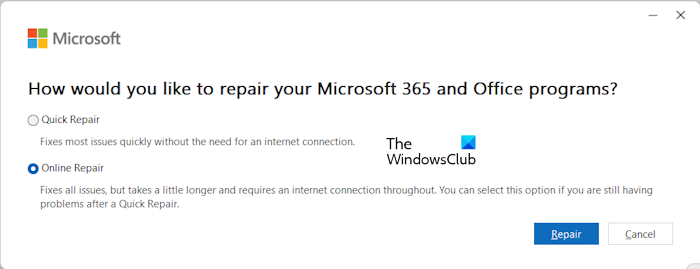
- Open Windows Settings.
- Go to Apps > Installed apps.
- Search for OneNote.
- Click the three dots next to OneNote and select Modify.
- Click Yes in the UAC prompt.
- Select Online Repair and click Repair.
9] Uninstall and reinstall OneNote
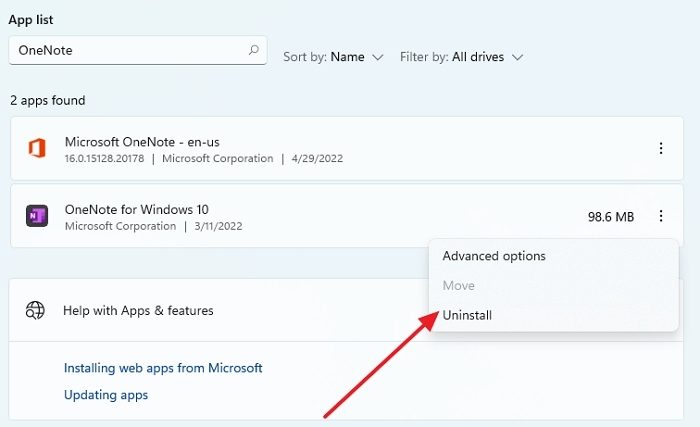
You can also try uninstalling and reinstalling OneNote. Open Windows 11 Settings and navigate to Apps > Installed apps. Search for OneNote, click three dots, and click Uninstall. Restart your computer and reinstall OneNote.
That’s it. I hope this helps.
Why is OneNote not searching properly?
There can be multiple reasons why OneNote is not searching properly. Indexing issues are among the most common causes of this problem. Additionally, there might be corrupt OneNote cache files, or the issue may be with the Windows Search Service itself.
How to search in OneNote for Windows 11?
In OneNote, you can search for a keyword or a phrase in all your notes. Use the Ctrl + E shortcut to expand your search to all notebooks. The Ctrl + F shortcut in OneNote is used to search only within the current page.
Read next: OneNote can’t connect to the server.
