
Some users cannot sync their OneNote notebooks because of the “OneNote can’t connect to the server” error. The error message indicates that OneNote is having trouble connecting to the server, usually due to an unstable internet connection. This error can also appear if there is a connection or authentication issue between OneNote and Microsoft’s cloud services. If you encounter this error on OneNote, the solutions provided in this article will help.
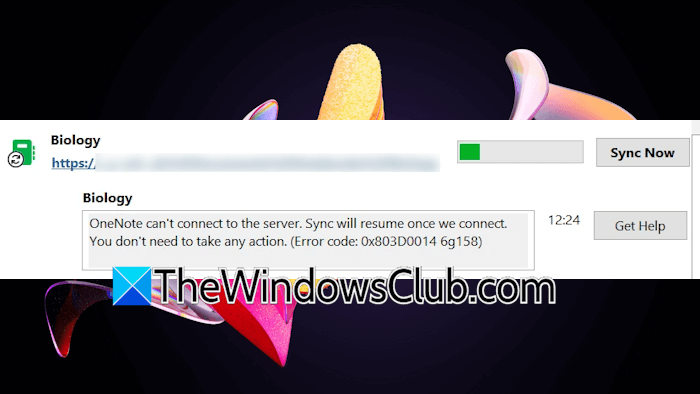
The complete error message is:
OneNote can’t connect to the server. Sync will resume once we connect. You don’t need to take any action. (Error code: 0x803D0014 6g158)
The error code in the above message may be different in your case. However, the ways to fix it are the same.
OneNote can’t connect to the server; Sync will resume once we connect
Use the following suggestions to fix the “OneNote can’t connect to the server” error in OneNote:
- Check your internet connection
- Sign out and sign back in
- Clear OneNote cache
- Open OneNote desktop from the web
- Disable your antivirus and disconnect from a VPN (if applicable)
- Export the notebook with another name
Before you begin, check if the Microsoft Services are up or down.
1] Check your internet connection
The error message indicates that OneNote cannot connect to the server. This usually happens when the internet connection is unstable. Check your network connection. Connect your system to another available network, such as Wi-Fi or your mobile data (via a mobile hotspot).
If your notebooks start syncing after connecting your system to another network, the problem is with your WiFi. You can power cycle your WiFi router to fix network issues. Follow these steps:
- Turn off your WiFi router.
- Unplug the adapter.
- Wait for a few minutes and turn on the router.
2] Sign out and sign back in
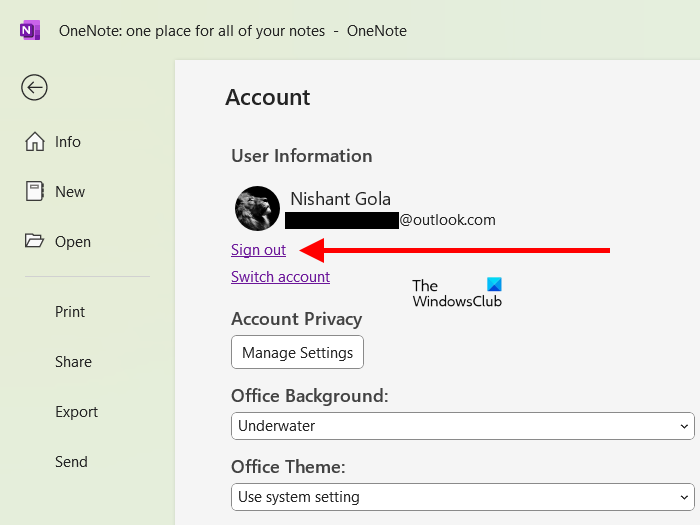
Sign out of OneNote and sign back in. In OneNote desktop, click on your profile icon on the top right corner and select Sign out. Click Yes in the confirmation box. You will also be signed out of all other Office applications. Close and re-launch OneNote. Sign in again with the same Microsoft account.
3] Clear OneNote cache
Corrupt cache files cause several issues. Clear OneNote cache and see if it helps. By default, OneNote cache files are located at the following location:
C:\Users\<user>\AppData\Local\Microsoft\OneNote\16.0
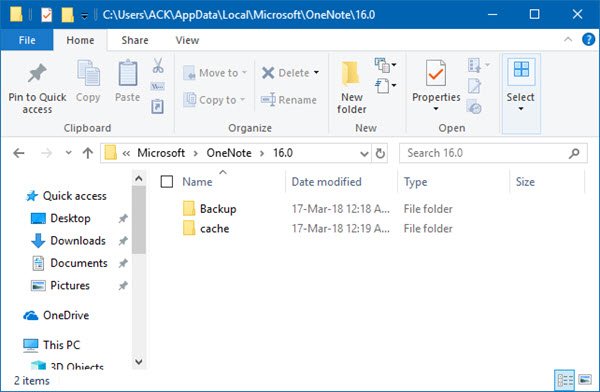
In the above path, replace <user> with your username. To view the OneNote cache location, open OneNote and select File > Options > Save & Backup. You will see the complete path of OneNote cache files under the Cache file location section. To clear cache files, open the cache folder and delete all the files inside it.
4] Open OneNote desktop from the web
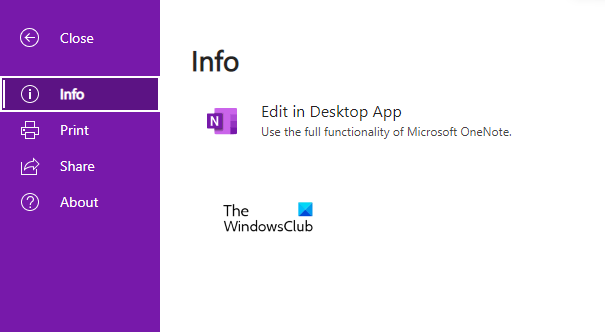
You can try opening the affected notebook from the web. Open a web browser and sign in to OneNote with the same Microsoft account. Now, open the affected notebook, then click File > Edit in Desktop App. The notebook will be opened in the OneNote desktop app. Now, sync it manually and see if the error occurs.
5] Disable your antivirus and disconnect from a VPN (if applicable)
VPN slows down the internet speed. If you use a VPN, disconnect from it. If this fixes the error, then the VPN was causing it. In this case, you can switch to another VPN service if you are under the free plan.
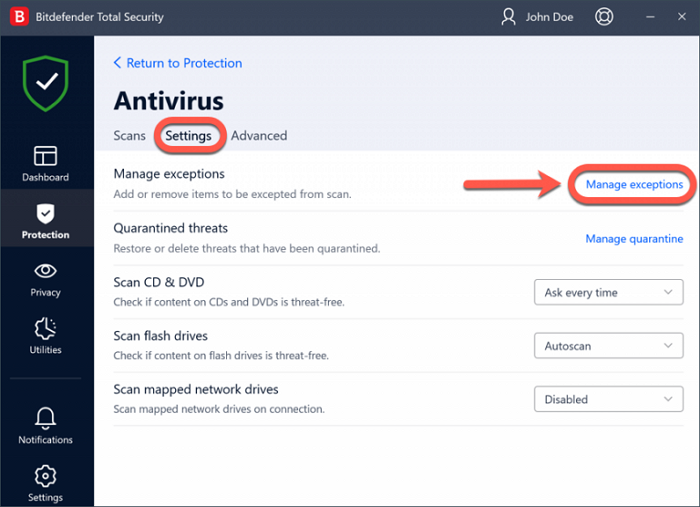
Sometimes, antivirus software blocks genuine applications from accessing the internet. This is a false positive from the antivirus, which can be avoided. In your case, your third-party antivirus might be blocking OneNote from establishing a connection to the server, resulting in the “OneNote can’t connect to the server” error. To confirm this, disable your antivirus and sync the notebook manually. If this works, you have to add the OneNote exe file to your antivirus exception list.
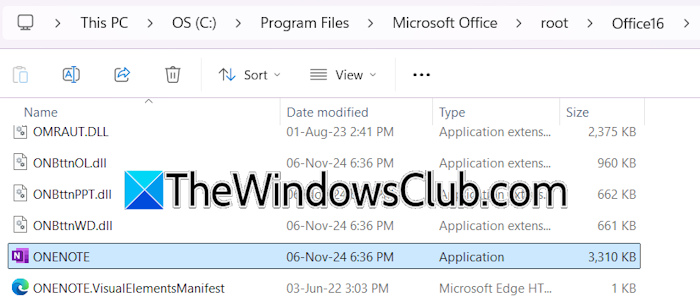
To locate the OneNote exe file, click Windows Search and type OneNote. Right-click on OneNote in the search results and select Open file location. If this opens OneNote shortcut in File Explorer, right-click on that shortcut and select Open file location again.
6] Export the notebook with another name
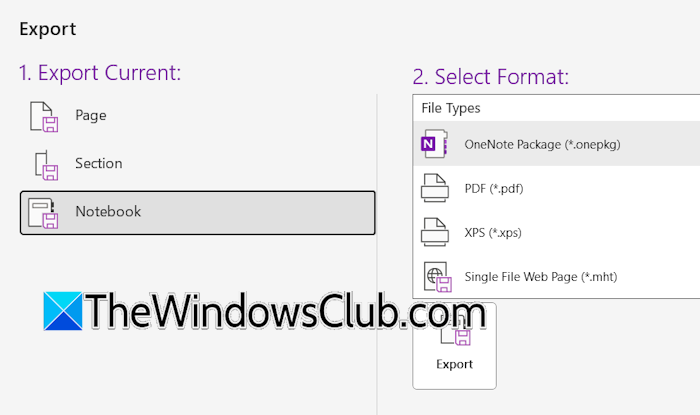
If the problem persists, you can export the notebook with another name. For this, go to File > Export. Select Notebook and then select OneNote Package. After that, click Export. You will be prompted to create a notebook. Click Create. After exporting the notebook with a different name, double-click it to open it in OneNote. Now, sync that notebook manually. If the notebook syncs without showing the error, you can keep using that notebook and delete the earlier one.
That’s it. I hope this helps.
Related: The server couldn’t complete this action: Error 0x88ffc009, 0x803d0005, or 0x803d000a
Why won’t my OneNote connect to the server?
The most common cause of this problem is a weak or unstable internet connection. Connect to another available internet connection to confirm this. Sometimes antivirus software prevents applications from connecting to the server. To confirm this, temporarily disable your antivirus.
How long does OneNote take to sync across devices?
The time it takes for OneNote to sync data across devices depends on factors such as your internet speed and notebook size. If your OneNote notebook is large, OneNote may take a few minutes to sync data across the devices.
Read next: OneNote is cleaning up from last time it was open.
