
This article lists some working fixes for the “OneNote is cleaning up from the last time it was open” error. According to the reports, this error occurs in OneNote in different scenarios. Some users experienced it when launching OneNote, while some encountered it when opening a particular notebook. If you cannot use OneNote due to this error, use the fixes provided in this article.
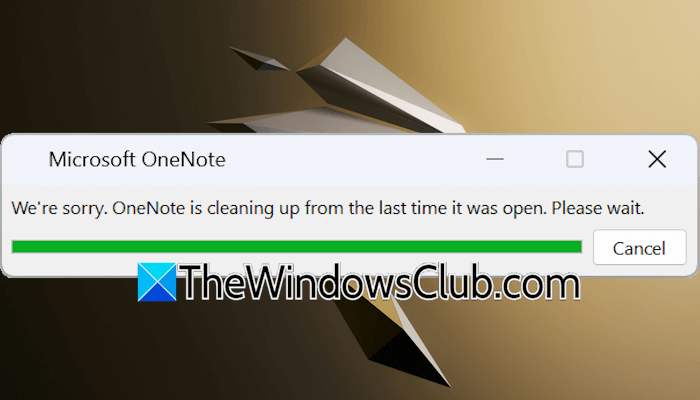
The complete error message is:
We’re sorry. OneNote is cleaning up from the last time it was open. Please wait.
OneNote is cleaning up from the last time it was open
Use the following fixes for the “OneNote is cleaning up from the last time it was open” error.
- Close and relaunch OneNote
- Clear OneNote cache
- Switch to another network
- Delete the junk files
- Edit your notebook online
- Try a workaround
- Repair or reinstall OneNote
All these fixes are explained in detail below.
1] Close and relaunch OneNote
Sometimes, problems arise from a minor glitch. Close and relaunch OneNote. Use these steps:
- Exit OneNote.
- Open Task Manager and terminate all the services related to OneNote.
- Restart your computer.
Now, launch OneNote and see if the error appears.
2] Clear OneNote cache
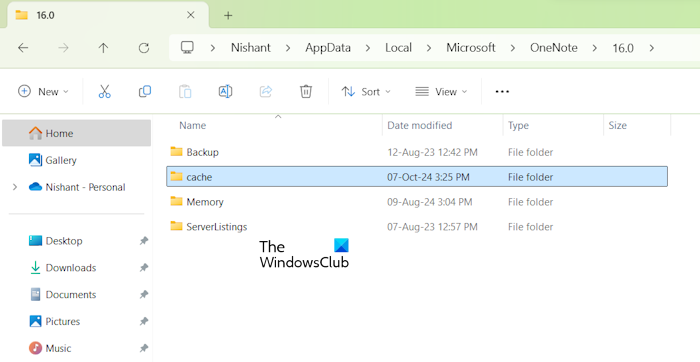
Corrupt OneNote cache files can also cause this problem. Try clearing OneNote cache and see if it works.
You can view the default cache location for OneNote by following these steps:
- In OneNote, navigate to File > Options.
- Select Save & Backup from the left pane.
- You will see the cache file location on the right side.
3] Switch to another network

One possible cause of this error is an unstable internet connection. If your network is unstable, OneNote cannot sync changes and get stuck on the “OneNote is cleaning up from the last time it was open” message. To check this, you can switch to another available internet connection. If another network is unavailable, you can use your mobile data to connect your system via Mobile Hotspot.
4] Delete the junk files
Temporary files create many issues on a Windows computer. This might be the case with you. First, completely close OneNote, and then clear all junk files from your system. After that, restart your system and launch OneNote. The issue should not occur this time.
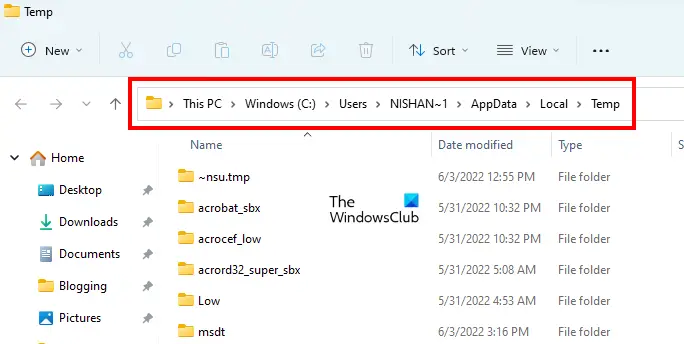
Do not forget to delete all the files in the Temp folder. If you cannot delete some files, boot in Safe Mode and then delete them.
5] Edit your notebook online
If you cannot make changes to your notebook in OneNote desktop, you can edit it online. Open your web browser, then visit onenote.com. Sign in with your Microsoft account and open the required notebook. Now, you can edit the notebook online. When you finish editing, you can open it in OneNote desktop directly from your web browser.
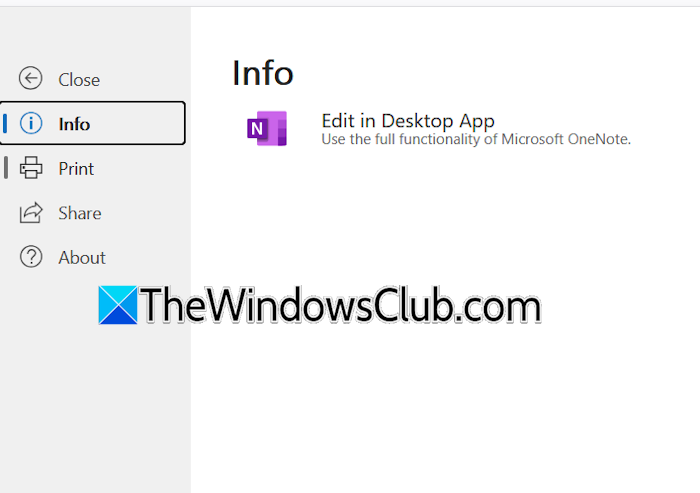
In your web browser, click File > Info. Now, click Edit in Desktop App. A small pop-up window will open in your web browser asking you to open OneNote desktop. Click Open Link. Once you click Open Link, the notebook will open automatically in OneNote desktop. Now, check whether it starts syncing or shows the same error again.
6] Try a workaround
If the issue persists, you can try a workaround. Completely close OneNote and disconnect your computer from the internet.
Now, follow these steps:
- Open OneNote. Since you are disconnected from the internet, OneNote will not display that message.
- Now, open the notebook and edit it offline.
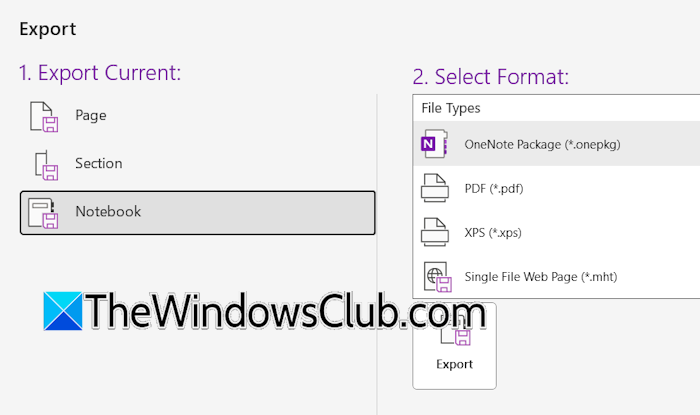
- Once you edit the netbook, export it. To do so, select the notebook and then navigate to File > Export. Now, select Notebook under the Export Current section and then select OneNote Package as the file type.
- Click Export. Save the exported file on your hard drive.
- Close OneNote and go to the location in File Explorer where you have exported the notebook. Change its name.
Now, connect your computer to the internet and open the exported notebook. It will open as a separate notebook. OneNote will start syncing the new notebook automatically. Once the sync is complete, you can close the previous notebook and start using the new one.
7] Repair or reinstall OneNote
If none of the above-mentioned fixes help you, you can repair OneNote. Follow these steps:
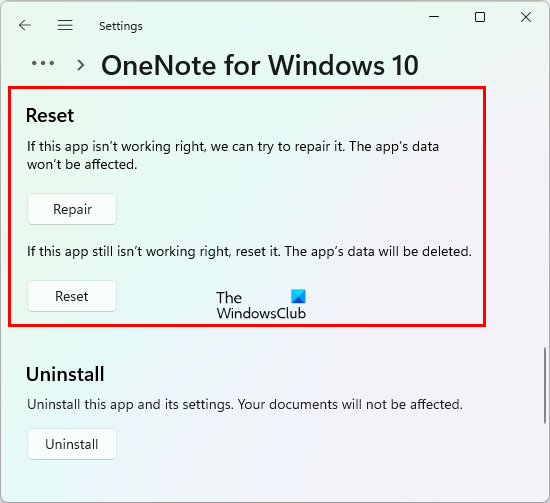
- Open Windows 11 Settings.
- Go to Apps > Installed Apps.
- Search for Microsoft OneNote. Click on the three dots next to it and click Modify.
- Select Online Repair and click Repair.
If this does not resolve the issue, uninstall and reinstall OneNote.
That’s it. I hope this helps.
Can I recover my notes from OneNote?
Yes, you can recover your deleted notebooks from OneNote. If you have deleted some sections of your notebook, you can recover them from that notebook’s Recycle Bin. If you have deleted a notebook, you can recover it from OneDrive Recycle Bin. If the notebook is not in the OneDrive Recycle Bin, check the backup folder on your PC and recover it there.
How to fix a corrupted OneNote?
If your OneNote notebooks or sections are corrupted, you can try to fix them. However, there is no guaranteed solution to fix the corrupted OneNote notebooks or sections. Create a new notebook and copy all sections from the affected notebook into it.
Read next: We can’t move or export pages that have problems OneNote error.
