
This article shares some fixes for the “We can’t move or export pages that have problems” error in OneNote. This error occurs while exporting a notebook from the OneNote desktop app. If you encounter this error, use the fixes provided in this article.
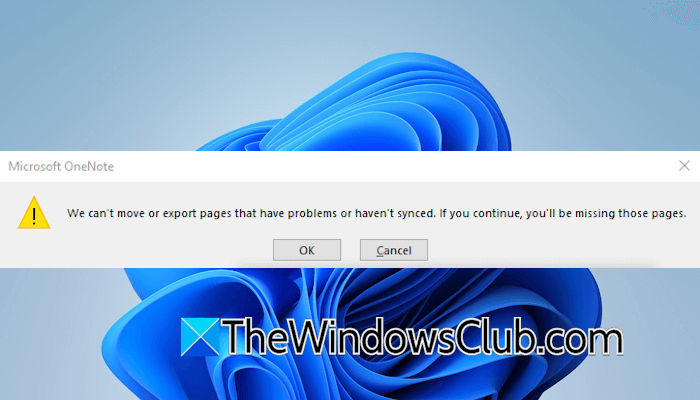
The complete error message is:
We can’t move or export pages that have problems or haven’t synced. If you continue, you’ll be missing those pages.
We can’t move or export pages that have problems
Apply the following suggestions to fix the “We can’t move or export pages that have problems” error in OneNote.
- Clear OneNote cache
- Copy all the sections to a new notebook
- Export the notebook using another account
- Try to narrow down the issue
- Repair OneNote
All these fixes are explained in detail below:
1] Clear OneNote cache
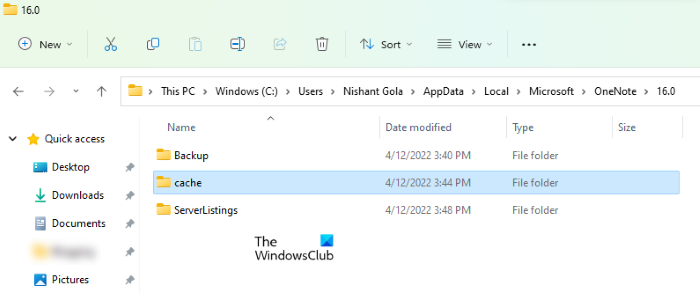
The issue might be occurring due to the corrupt OneNote cache. Clearing the cache can fix this issue. To view the location of the OneNote cache, open OneNote and go to File > Options > Save & Backup. You will see the cache file location in the right pane. To clear the OneNote cache, delete the Cache folder.
2] Copy all the sections to a new notebook
Create a new copy of your notebook and see if you can export the new notebook. OneNote does not have an option to create a copy of the entire notebook with a single click. Therefore, you have to copy all sections one by one to the new notebook. This process will take time, depending on the number of sections your notebook has.
Follow these steps:
- Go to File > New to create a new notebook.
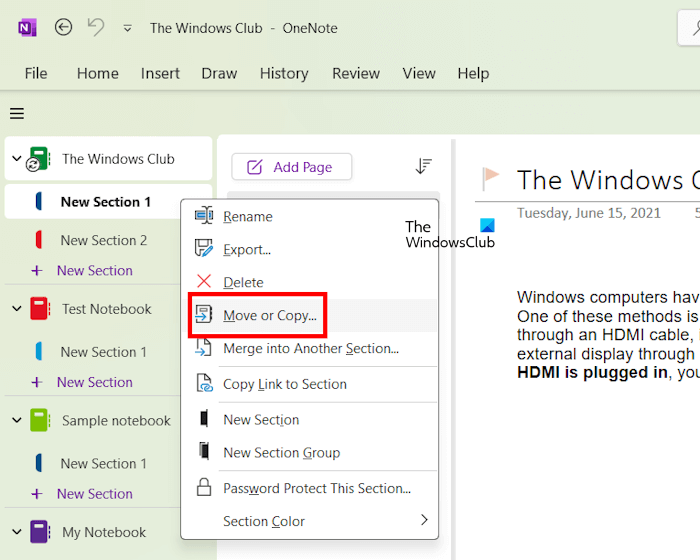
- Right-click on a section and select Move or Copy.
- Select the new blank notebook and click Copy.
- Repeat the above steps until you copy all the sections to the new notebook.
- Now, export the new notebook.
3] Export the notebook using another account
You can try exporting the notebook using another account. For this, you have to sign out of your current Microsoft account in OneNote and sign in with another Microsoft account.
Signing out of OneNote will also remove your Microsoft account from other Office applications. Additionally, it will remove all customizations, and your documents and notebooks will not sync to the server until you sign back in. Therefore, before signing out of OneNote, make sure that all your notebooks are synced to the cloud. You can sync all the notebooks manually by following these steps:
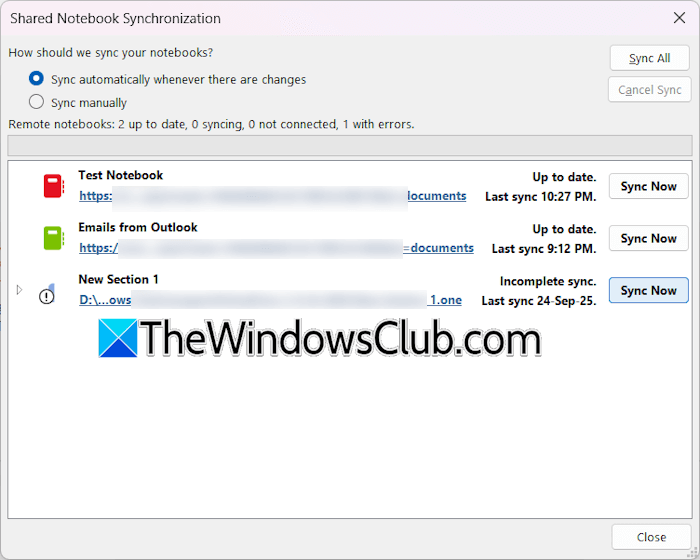
- Click File > View Sync Status.
- Click Sync All.
Now, click on your profile icon and select Sign Out. Click Yes in the confirmation box. Close and relaunch OneNote. Now, check if you can export the notebook.
4] Try to narrow down the issue
If the “We can’t move or export pages that have problems” error occurs while exporting the notebook using another Microsoft account, the problem may be with some sections or pages of your notebook. Here, you need to narrow down the issue.
First, create a copy of your notebook. Create a new notebook and copy each section of your notebook to the new notebook. Now, delete any one section of your notebook and export it. If the error occurs, delete another section of your notebook and export it again. When your notebook is exported without the error, the section you have just deleted was corrupted. Or it might have a corrupt page.
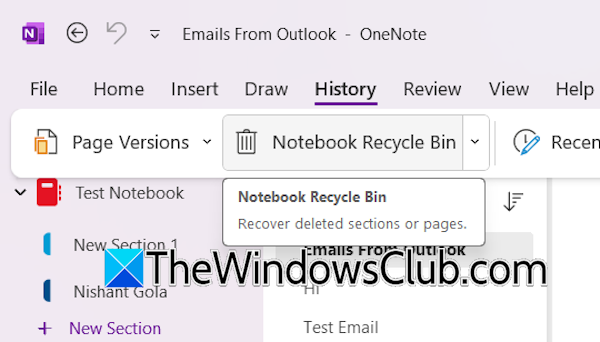
If that section contains multiple pages, you can narrow down the issue further. Start deleting the pages one by one and then exporting the notebook. You can restore the deleted pages and sections from OneNote Recycle Bin.
5] Repair OneNote
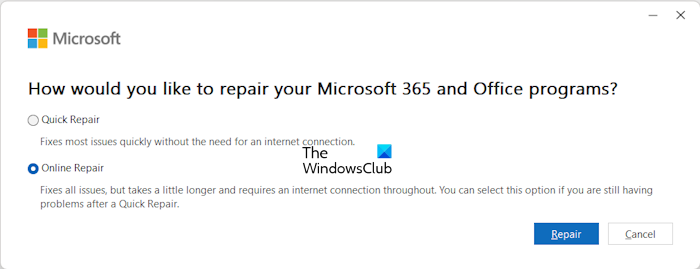
If the issue persists, repair OneNote. If the error is occurring due to the corrupt OneNote files, repairing OneNote will help. Open Windows 11 Settings and go to Apps > Installed Apps. Search for OneNote. Click on the three dots next to OneNote and select Modify. Select Online Repair and click Repair. This process will take some time.
That’s it. I hope this helps.
How do I move pages in OneNote?
You can easily move pages and sections in OneNote. To move a page, open the notebook and select its section. All the pages appear on the right side. Now, right-click on the page you want to move and select Move or Copy. You can also use the keyboard shortcut, Ctrl + Alt + M. The Move or Copy Pages pop-up window will appear. Here, you have to select the section to which you want to move the page. After that, click Move.
How to resolve misplaced sections in OneNote?
Misplaced sections appear in a notebook when OneNote tries to sync changes to a notebook section but cannot find the section file. To resolve the misplaced sections in OneNote, you can move those sections to another notebook. If you do not need those misplaced sections, you can delete them.
Read next: OneNote notebook not showing up in the app.
