
OneNote is a note-taking application for Windows users. The notebooks you create in OneNote are stored in OneDrive and sync automatically to the cloud. Some users found some of their notebooks missing in the OneNote app. If your OneNote notebook is not showing up in the app, the solutions provided in this article will help you.
OneNote notebook not showing up in the app
Use the following suggestions if the OneNote notebook is not showing in the app.
- Browse and open the OneNote notebook
- Clear OneNote cache
- Check the backup folder
- Check the OneDrive Recycle Bin
- Open the notebook from OneNote for the Web
- Download the notebook from OneDrive
- Repair OneNote
All these fixes are explained below in detail.
1] Browse and open the OneNote notebook
This is the simplest fix. Open OneNote and follow these instructions:
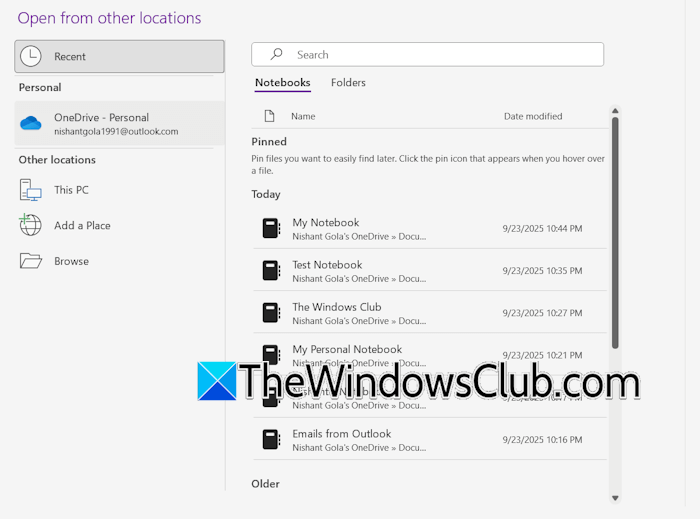
- Go to File > Open.
- You will see all your notebooks there. Click on the netbook to open it in the app.
2] Clear OneNote cache
Sometimes, it can be the corrupt cache in OneNote that causes issues. Clear OneNote cache and see if it works.
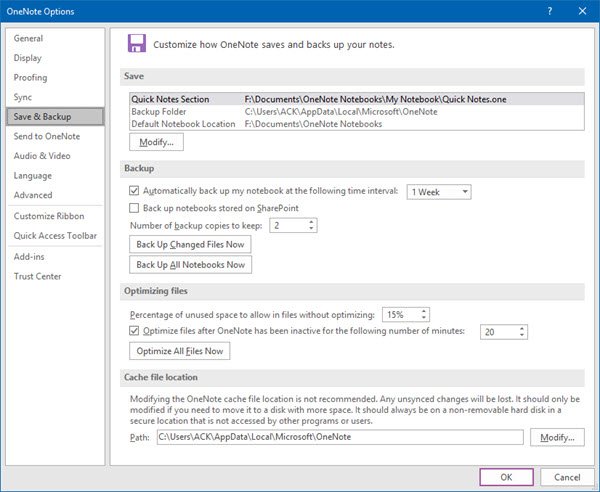
To view the OneNote cache folder location, go to File > Options in OneNote. Now, select the Save & Backup category from the left side. Now, copy the path of the cache file location. Open File Explorer and paste the copied path in the address bar and press Enter.
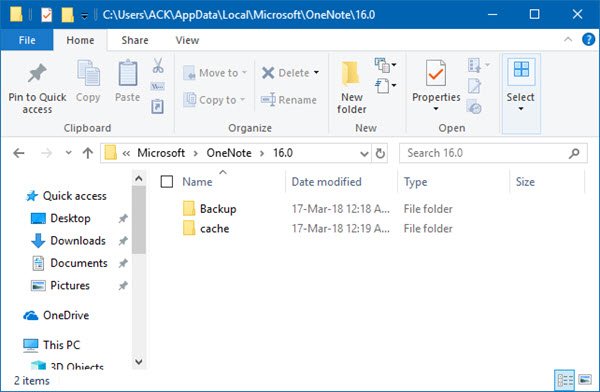
Open the 16.0 folder and delete the cache folder.
3] Check the backup folder
OneNote automatically creates backups of all notebooks and stores them in a separate backup folder. If you do not find your notebooks in OneNote and OneDrive, you can check the backup folder and restore your missing notebooks from there.
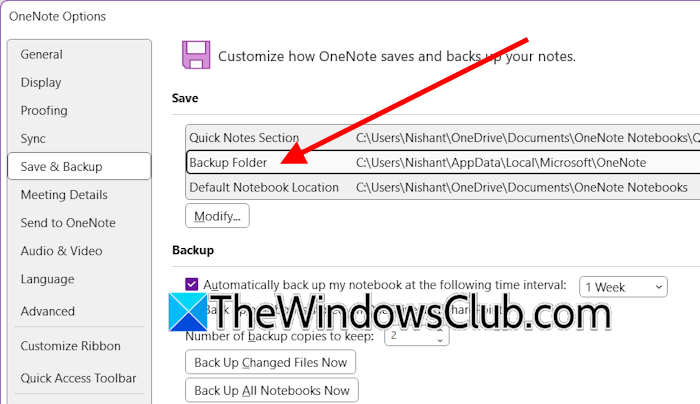
Follow these steps:
- Open the OneNote app.
- Go to File > Options.
- Click Save & Backup on the left side.
- Note down the path of the Backup Folder.
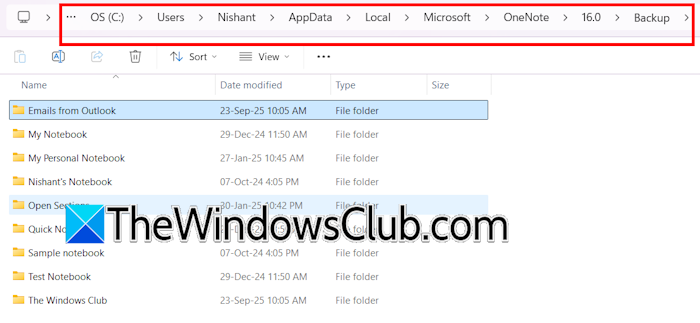
Now, open File Explorer and go to the same path. Open the 16.0 folder and then open the Backup folder. You will see the folders of all your OneNote notebooks. Open the required folder and double-click the notebook to open it in the app.
4] Check the OneDrive Recycle Bin
If you have a shared computer, someone might have accidentally deleted your notebook. Check OneDrive Recycle Bin. The following steps will help you with that:
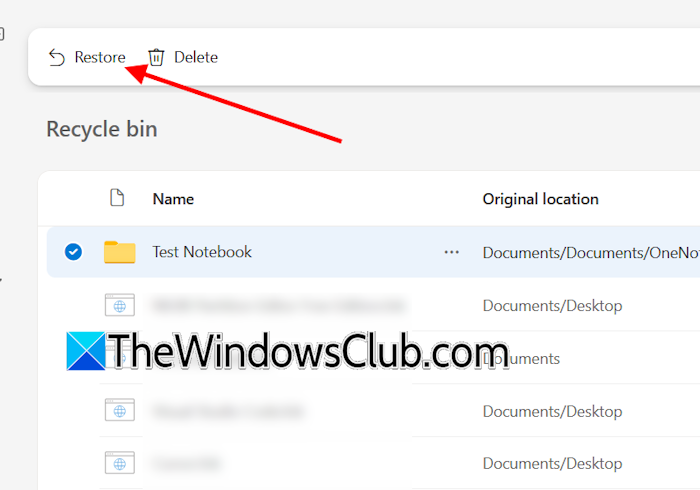
- Click on the OneDrive icon on your Taskbar.
- Click the Recycle Bin.
- A new tab will open in your default web browser. Sign in with your Microsoft account.
- The OneDrive recycle Bin will open in your browser. If not, you can select it from the left pane.
- If any of your OneNote notebook(s) is available there, select it and click Restore.
Now, open the OneDrive app on your PC and double-click on the restored notebook to open it in OneNote.
5] Open the notebook from OneNote for the Web
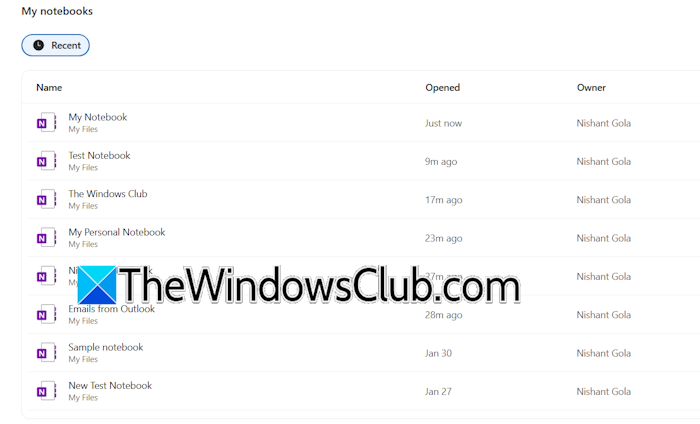
You can also open your notebooks directly from the OneNote for the Web app. Check if your notebooks are showing in OneNote for the Web. Sign in to OneNote for the Web in your web browser. You will see the interface as shown in the above screenshot.
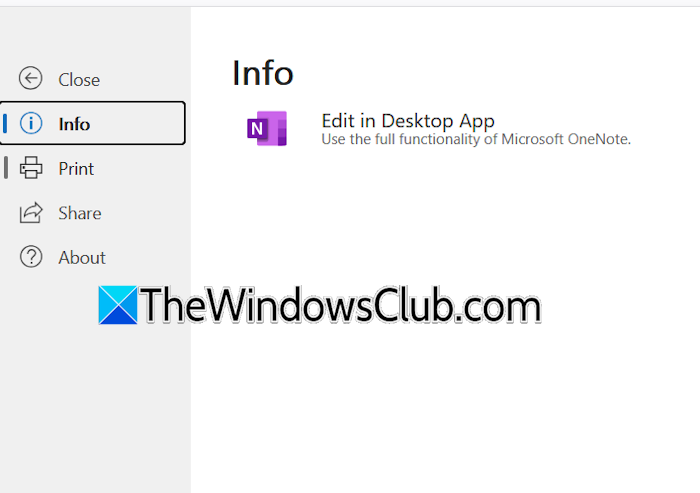
If you see your missing notebook there, click to open it in your web browser. Now, select File > Edit in Desktop App. A small prompt will appear in your web browser. Click the Open link. This will open the chosen notebook in the OneNote desktop app.
6] Open the notebook from OneDrive
If your notebook does not show up in the app but is available in OneDrive, you can open it from there. First, see the default OneNote location by following these instructions:
- In OneNote, go to File > Options.
- Select Save & Backup from the left pane.
- Note down the default OneNote location.
- Open File Explorer and go to the default OneNote path.
- Double-click the notebook to open it.
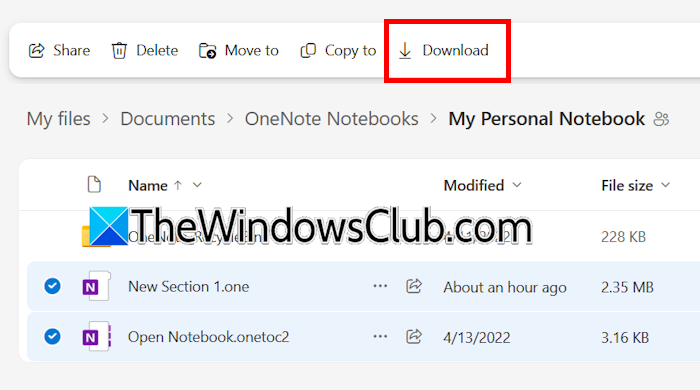
If the notebooks are available as a shortcut, they will open in your default web browser. Now, sign in to your OneDrive account. You will see all the sections of your notebook there. Select all the sections and click Download. All the sections will be downloaded in a zip file. Extract the zip file and open all the sections in the OneNote app. In the OneNote app, all these sections will appear as Open Sections.
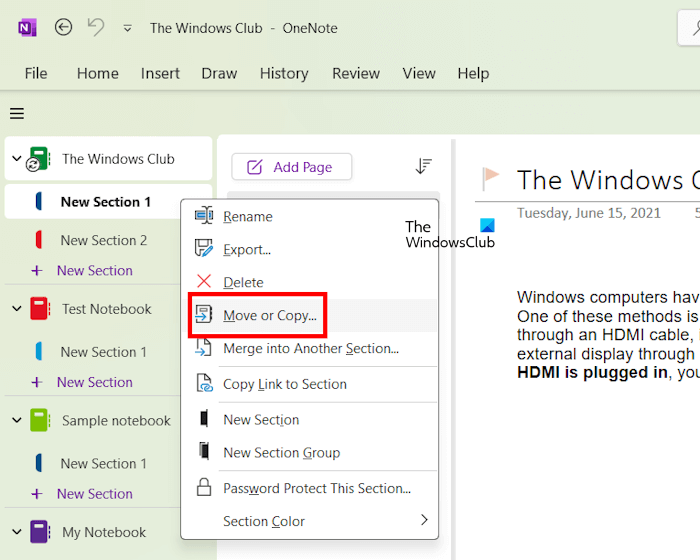
Now, follow these steps:
- Create a new notebook in OneNote.
- Right-click on each of these sections and select Move or Copy.
- Select the newly created notebook and click Move or Copy.
7] Repair OneNote
If the issue persists, you can repair the OneNote app. Open Windows 11 Settings and go to Apps > Installed apps. Search for OneNote and click on the three dots next to it. Select Modify. The Repair Office window will appear.
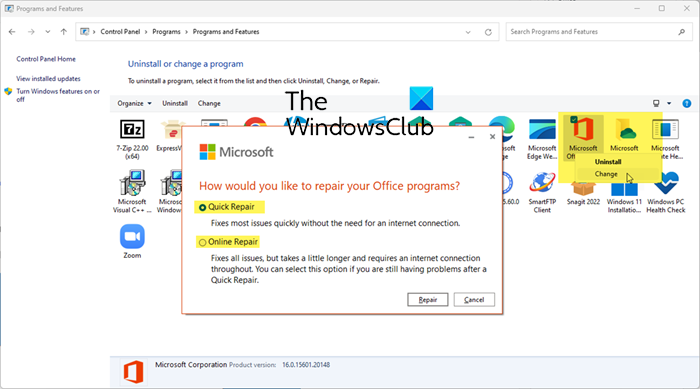
Select Online Repair and click Repair.
That’s it. I hope this helps.
How do I sync my OneNote with my mobile app?
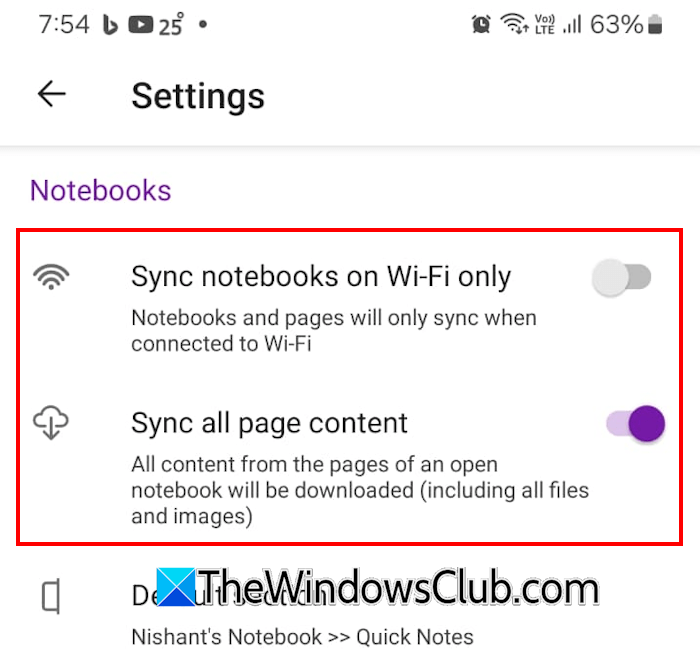
OneNote automatically syncs your data to the cloud. When you open your mobile app, it retrieves the synced data from the cloud and shows you the updated version. The changes you make in the OneNote mobile app are also saved automatically to the cloud, provided you are connected to the internet. If the mobile app is not syncing data, open the notebook in the mobile app, click on the three dots on the top right side, and tap Settings. Turn on Sync all page content option.
Why is my OneNote app not syncing?
An unstable internet connection is the main cause of syncing issues in OneNote. Check your internet connection. You can also try to sync your notebooks manually. If your notebook is stored on SharePoint, contact the administrator.
Read next: How to sync Samsung Notes with OneNote.
