
OneNote often flickers, flashes black, or becomes unreadable when moved to a second monitor due to mismatched display settings. This issue is specific to the connection between the second screen and the primary display. In this article, we will see what you can do if OneNote is flickering or not working on the second monitor.
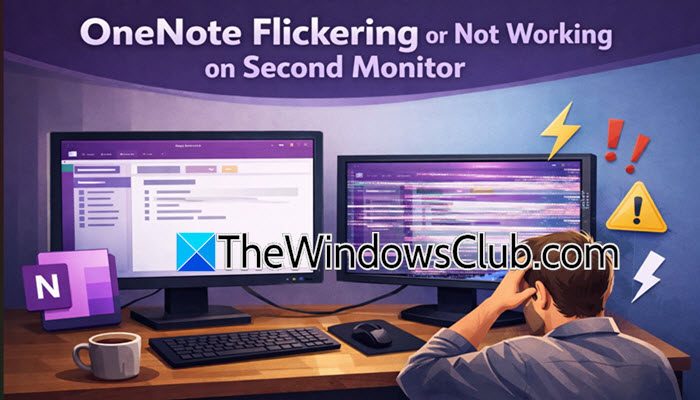
OneNote flickers because of a conflict in the DPI (Dots Per Inch) scaling settings on your dual-monitor setup. If your main monitor is set to 150% scaling and your second monitor is set to 100%, OneNote has trouble adjusting when you move the window between the screens. The application gets stuck trying to show the interface using the resolution of the monitor you just left. This causes severe flickering, large black rectangles covering the content, or a frozen and confusing layout until you either minimize the window or move it back to the primary screen.
Fix OneNote flickering or not working on second monitor
If OneNote is flickering or not working on the second monitor, follow the solutions mentioned below.
- Update OneNote
- Disable Hardware Graphics Acceleration
- Match Monitor Scaling Settings
- Clear the OneNote Cache
Let us talk about them in detail.
1] Update OneNote
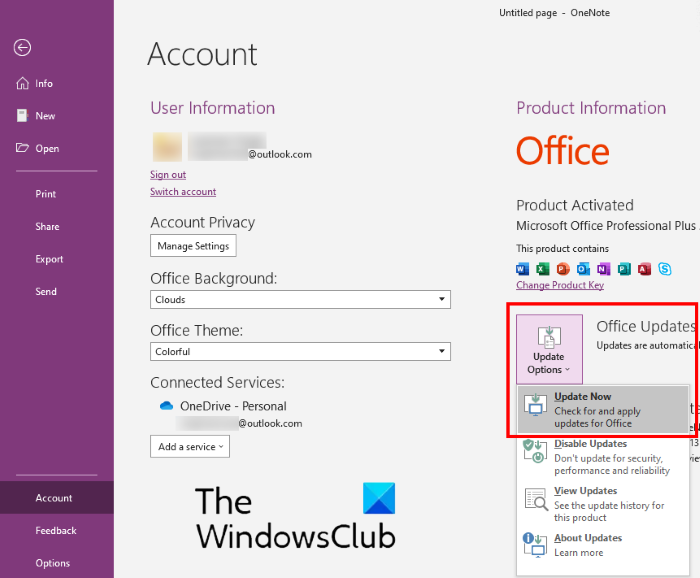
Microsoft has released a specific fix called Dynamic DPI support. This updates the rendering engine so OneNote adjusts instantly to any monitor resolution. You can follow the solutions mentioned below to do the same.
- Go to File > Account.
- Now, go to Update Options > Update Now.
- Ensure you have installed Version 2504 (Build 18827.20042) or higher.
- Restart OneNote.
The flickering should cease immediately upon moving the windows.
2] Disable Hardware Graphics Acceleration
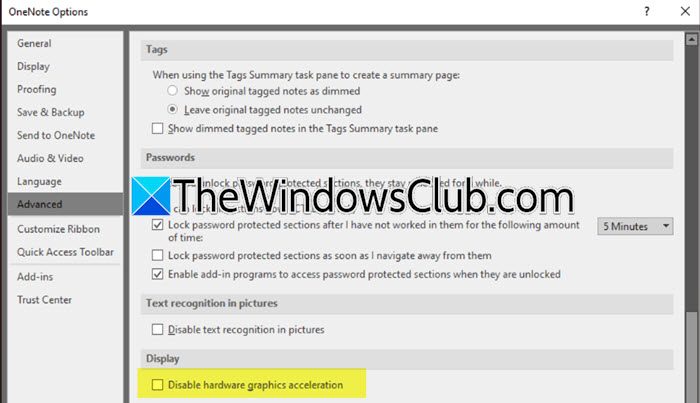
If updating is not an option, disabling GPU rendering forces OneNote to use software processing, which is less prone to flickering on secondary displays. You can follow the steps mentioned below.
- In OneNote, go to File > Options.
- Go to the Advanced tab.
- Scroll down to the Display section.
- Check the box labeled as Disable hardware graphics acceleration.
- Click OK and restart OneNote.
Finally, try moving OneNote to a different monitor and see if that helps.
3] Match Monitor Scaling Settings
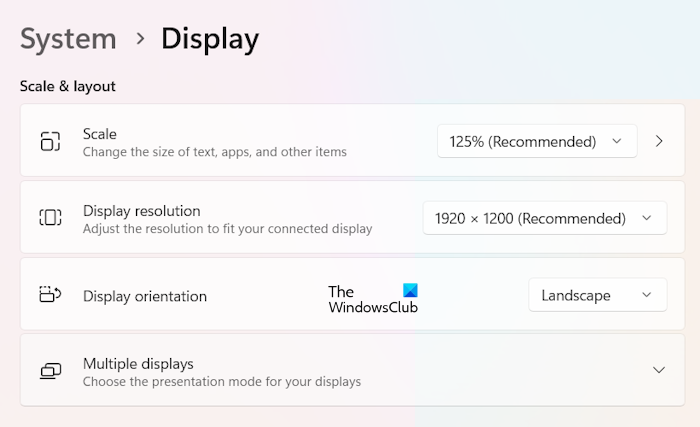
If you need an immediate fix without changing OneNote settings, temporarily set both monitors to the exact same scaling percentage (e.g., both at 125%) to eliminate the DPI conflict. Right-click on an empty area of your Desktop and select Display Settings from the context menu. In the window that opens, navigate to the Scale & Layout section and ensure that the scaling percentage selected for your second monitor exactly matches the percentage set for your primary monitor. While this forces OneNote to remain stable and flicker-free across both screens by eliminating the DPI conflict, please note that, as a side effect, the text or icon size may appear slightly too large or too small on one of the displays.
4] Clear the OneNote Cache
Corrupted local cache files can cause persistent UI glitches across multiple monitors. This forces a clean rebuild of the local data file without deleting any cloud-synced notes.
First of all, open Task Manager, right-click on OneNote, and select End Task. Now, press Windows Key + R, type %localappdata%\Microsoft\OneNote\16.0, and press Enter. Locate and rename the folder named cache to cache.old.
Reopen OneNote. It will rebuild the cache and typically resolves the visual flickering on the second monitor.
Read: OneNote lags when typing on Windows 11
Why does my screen flicker when I use a second monitor?
Screen flickering on a second monitor typically occurs due to a mismatch in refresh rates, a loose or low-quality video cable, or outdated graphics drivers struggling to render two displays simultaneously. The most common culprit in a dual-monitor setup is a disparity in DPI scaling, where the computer tries to send two different resolution signals at once, causing the secondary screen to rapidly redraw its image in an attempt to sync. This can also be exacerbated by a weak connection (especially with HDMI or DisplayPort adapters), where the signal intermittently drops and reconnects, resulting in a noticeable black flash or rapid strobe effect that is often mistaken for application-specific glitching.
Read: Flickering lines on laptop screen when plugged in
Why does my OneNote keep blinking?
OneNote may blink or flash when moving the application window between monitors due to issues with its graphics rendering engine. Older or unupdated versions can get stuck trying to use the previous monitor’s DPI (Dots Per Inch) settings, causing conflicts. As a result, the window rapidly shifts between distorted and clear states while struggling to re-render. This blinking continues until the window is minimized or moved back to a monitor with the same scaling percentage.
Read next: Fix OneNote Not working, Not opening Problems, Errors, Issues.
