
If you encounter an error message while unlocking the Personal Vault of OneDrive, stating ‘We couldn’t unlock your Personal Vault‘ with error code 0x8004db94, follow these steps to troubleshoot the issue. If you go through these solutions, you will be able to resolve this Personal Vault error, regardless of the reason you are experiencing it on your Windows 11/10 PC.
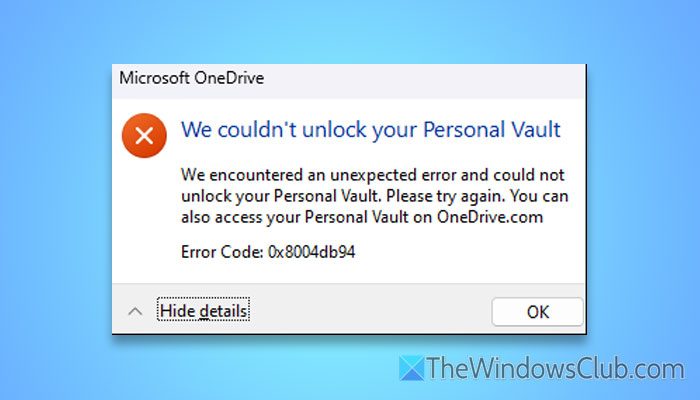
The entire error message says:
We couldn’t unlock your Personal Vault
We encountered an unexpected error and could not unlock your Personal Vault. Please try again. You can also access your Personal Vault on OneDrive.com.
Error Code: 0x8004db94
OneDrive Personal vault Error Code 0x8004db94
To fix the OneDrive Personal vault error code 0x8004db94, follow these solutions:
- Delete VaultBackupGuid registry key
- Delete Microsoft OneDrive Generic Data – Personal Vault VHD info
- Re-authenticate OneDrive credentials
- Reset OneDrive
We couldn’t unlock your Personal Vault
1] Delete VaultBackupGuid registry key
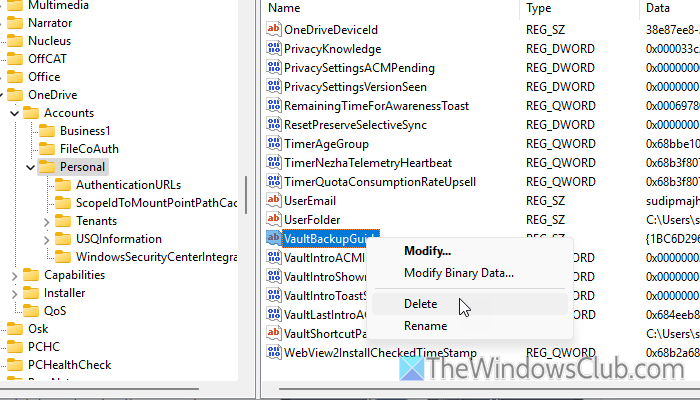
VaultBackupGuid is directly related to the Personal Vault of OneDrive. If this String value has issues, is corrupt, or is incorrectly configured, there is a high chance of encountering the error above.
On the other hand, if you see the error code 0x8004db94, the first thing you need to do is to remove that String value. For that, do the following:
First, you need to open the Registry Editor. For that, press Win+R to open the Run prompt, type regedit, hit the Enter button, and click on the Yes button.
Then, navigate to the following path:
HKEY_CURRENT_USER\Software\Microsoft\OneDrive\Accounts\Personal
Here you can find a String value named VaultBackupGuid on the right-hand side. You need to right-click on it, select the Delete button, and click the Yes button to confirm the removal.
Once done, close all the windows and restart your computer.
However, if you cannot find the VaultBackupGuid String value in the Personal key, there is nothing you need to do.
Note: Do not forget to backup your Registry files before deleting any String value.
2] Delete Microsoft OneDrive Generic Data – Personal Vault VHD info
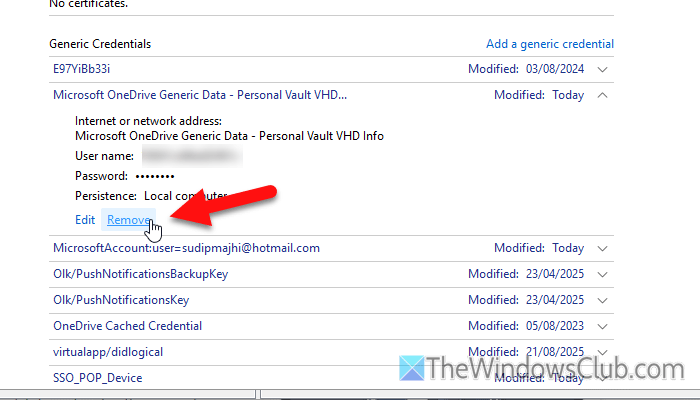
Microsoft OneDrive Generic Data – Personal Vault VHD information is a stored credential that is saved in the Windows Credential Manager when you access the Personal Vault for the first time. In other words, it saves the password in your system.
However, if you have recently changed your password and started getting the error mentioned above immediately afterward, it is most likely due to the cached version of the old password.
In that case, you need to delete the Microsoft OneDrive Generic Data – Personal Vault VHD info from the Windows Credential Manager. For that, press Win+S and search for Credential Manager.
Once it is opened, switch to the Windows Credentials and find the Microsoft OneDrive Generic Data – Personal Vault VHD info entry.
Click the Remove button and confirm the removal.
Once done, you can set up OneDrive Personal Vault from scratch.
Read: Find, add, remove, edit, backup, restore Stored Usernames and Passwords in Windows 11
3] Re-authenticate OneDrive credentials
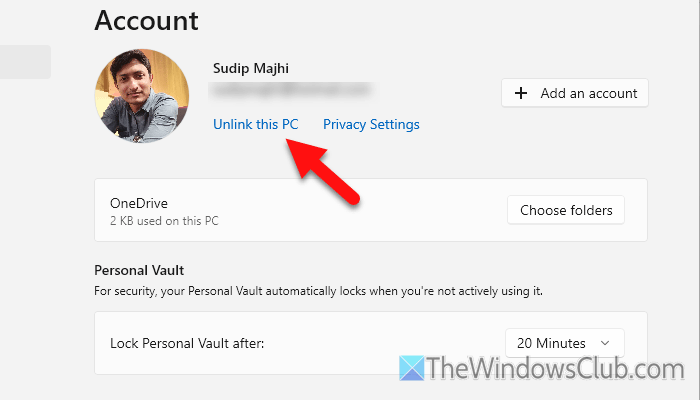
At times, OneDrive may fail to fetch your credentials, and as a result, you can encounter the error above. In that case, you can re-authenticate OneDrive credentials.
Before doing so, you need to sign out of your OneDrive account. To do this, open the OneDrive Settings wizard and switch to the Account tab.
Click the Unlink this PC option and click the Unlink account button to confirm.
Once done, you need to sign back into your OneDrive account.
Read: OneDrive error 0x8004e4be, There was a problem signing you in
4] Reset OneDrive
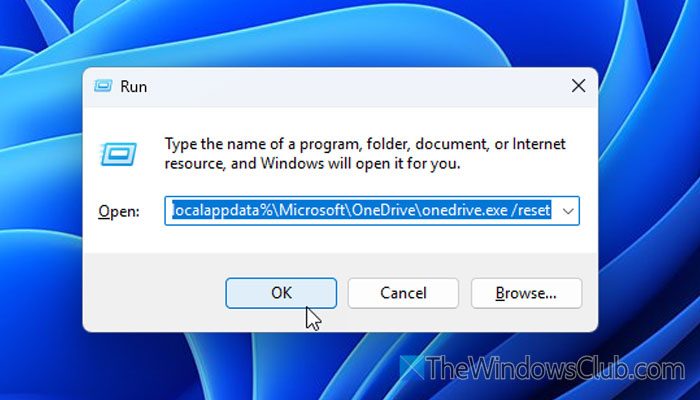
To reset OneDrive in Windows 11, follow these steps:
First, open the Run prompt by pressing Win+R. Then, enter this command:
%localappdata%\Microsoft\OneDrive\onedrive.exe /reset
However, if this command doesn’t work or shows an error or something else, you can execute this command:
C:\Program Files\Microsoft OneDrive\onedrive.exe /reset
Once done, close all windows, restart your computer, and then reopen OneDrive.
Read: OneDrive Personal Vault Error Code 0x80070490
Why can’t I open my Personal Vault?
The most common reasons why you can’t open Personal Vault are:
- Enter the correct password for re-authentication.
- You have faulty Registry entries that are related to the Personal Vault.
- Your system is fetching old passwords or credentials.
- OneDrive app has some issues.
How to permanently unlock Personal Vault?
Currently, there is no way to permanently unlock the Personal Vault. However, you change the auto-lock time. To do this, open the OneDrive Settings and navigate to the Account section. Then, expand the “Lock Personal Vault” after the drop-down menu and choose a time that suits your needs.
