
Over the many years, we’ve covered a lot of audio editors, quite a few were too complicated for the average Joe or Jane to use properly. With that in mind, we decided to search around for something more user-friendly. After much searching, we found a tool known as Ocenaudio, a cross-platform audio editor that functional and filled with all the right features. No doubt we were very excited to see what it brings to the table.
Easy, fast, free and powerful audio editor
The big question, then, is whether or not Ocenaudio is up to the task of becoming the best we’ve ever used. What we can say right now is that it’s not the smallest in terms of file size, but it’s also not the largest either.
In terms of installation, this was swift, more so than we expected, but if you do not have a fast computer, then it could take a while. Furthermore, it didn’t take long to launch, and from what we can tell, there is no optional crapware, which is good. As for the user interface, well, it’s simple-looking and gives the impression that it won’t take a long time to understand, and that’s exactly the case here.
Ocenaudio for Windows PC
Let us take a look at some of its features.
1] Drag and Drop
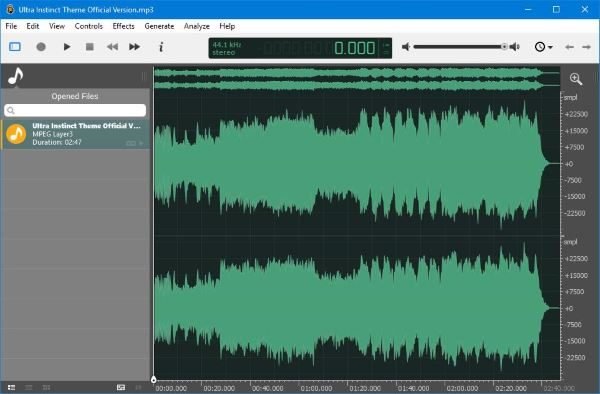
Adding a file for editing is as simple as dragging it directly into Ocenaudio, or clicking the File tab and selecting Open or Quick Open. From there, search for the audio file and add it to the program.
2] View
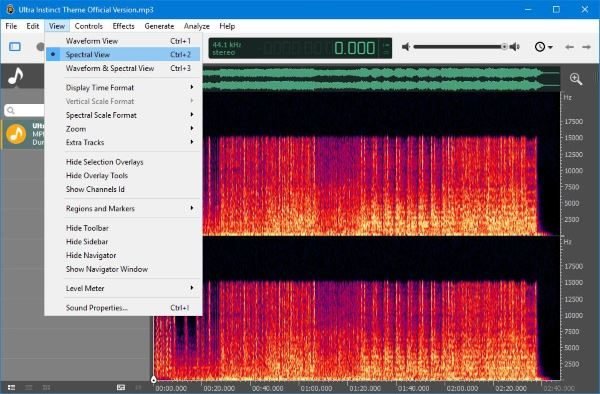
In the View tab, the user can change the look of the editing screen. By default, whenever audio is added, it shows off the waveform graphics, but if that’s not your thing, then change it to spectral View or a mix of both spectral and waveform.
For those who want to change the Display Time Format, and Vertical Scale Format. Additionally, if a user is not into overlays, then we suggest removing the overlay right away via the View settings.
There’s a lot more under the View tab for folks to play around with, so don’t be afraid to experiment.
3] Controls
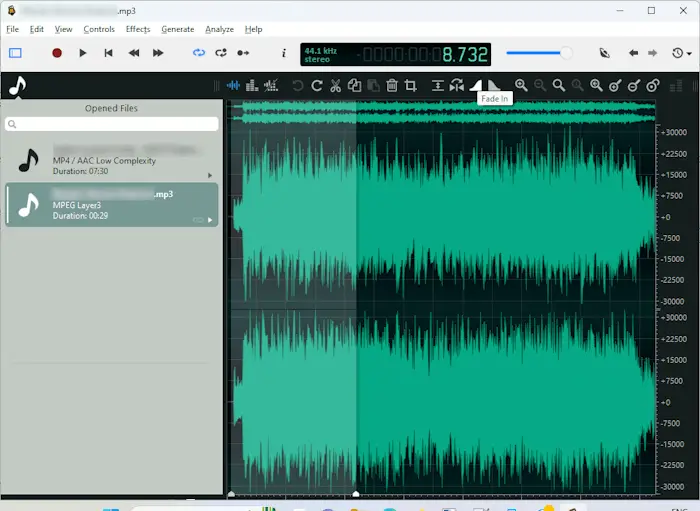
The Controls menu has options like Play, Play and Select, Playback Options, Record, etc. The Play and Select is an interesting and useful feature. Using this option, you can make changes to specific parts of the audio. Select this option and play the audio. Now, stop where you want. After you stop the audio, you will see the part from where you started and where you stopped highlighted and selected. Now, you can edit that part using the different tools displayed in the interface.
4] Effects
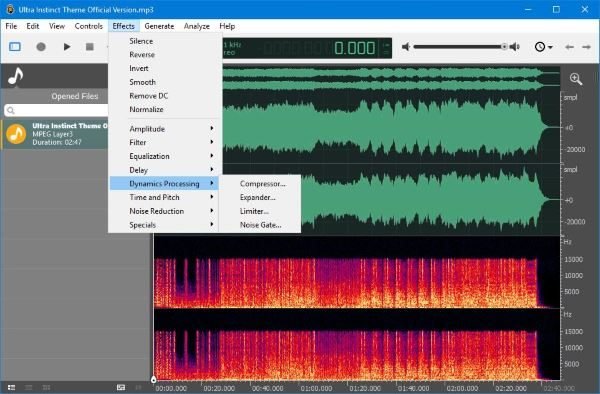
Editing audio is not all about cutting and pasting but adding effects to put some spice into sounds. Now, we have yet to come across an option to add your own effects, so, as it stands, users may have to work with what is available.
Click on the Effects tab and choose from the many options via the list. We like that there’s an option to reduce noise, since a lot of audio comes with background noise. No serious audio editor wants to deal with background noise; therefore, it makes a lot of sense to eliminate it.
In truth, users might need some experience with audio editing to understand the use cases for some of the effects on hand.
5] Preferences
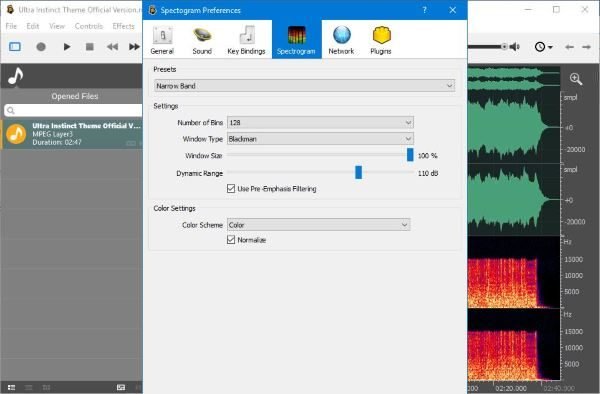
What can we expect to find under the Preferences tab? Well, nothing out of the ordinary, of course. This is where the user will see options to change the theme of ocenaudio and other aspects of the user interface.
Are you interested in changing the mixer backend from the default DirectSound? No problem, editor, this can be done quite easily. Additionally, users can change the record and playback device.
As we’ve stated before, this tool is feature-rich, and as such, we’ve seen options that we do not understand. Still, the Help file should aid in understanding everything available for use.
Download ocenaudio from the official website right now.
Which is the best audio editor for PC?
Audacity is one of the most popular audio editing software for Windows 11/10. It is a free digital audio editor and recorder that has lots of useful features. In addition to this, there are several free audio editing software available on the internet. You can also try these free open-source audio editor software for Windows 11/10.
How do I trim a voice recording in Windows 10?
Audio editor programs come with many features. One of these features is trimming or cutting an audio file. This feature is available in almost all audio editing software. You can install any free audio editing software to trim your voice recording on Windows 11/10.
Read next: Best free software to sync Audio and Video.
