
In this post, we’ll talk about different solutions you can try if the OBS Game captures a black screen on your Windows 11/10 PC. OBS Studio is a popular video streaming and recording application. It is used to record games and stream them online across different platforms, such as YouTube. But being the best in the category doesn’t mean the product is free of problems. OBS Studio has a long list of issues, and black-screen game capture is among them. Many users have reported seeing only a black screen when previewing the recorded game. Worry not if you’re facing the same problem; we’ve got you covered. Try the solutions mentioned in this post to solve the problem.
Why does OBS Game capture black screen on Windows?
There can be multiple reasons why you are seeing a black screen while previewing a recorded game. But among them, the most common reasons are below.
- The problem in question is primarily experienced by users with a dedicated graphics card installed on their system.
- If you haven’t granted the Studio administrative rights, you will encounter the mentioned problem.
- The problem will occur if you have downloaded the incorrect version of OBs Studio.
- If OBS Studio is not compatible with the installed Windows version, you will see a black screen upon previewing the recorded game.
- If your system has any other game-capturing application installed, it can interfere with OBS Studio’s operation and cause the problem.
Now that you know what causes the problem, let’s check out how you can resolve it.
Fix OBS Game capture black screen on Windows 11
Below is a list of all the effective solutions you can try to fix the OBS Game captures a black screen on your Windows 11/10 computer:
- Choose the correct version of OBS Studio
- Change OBS Studio compatibility
- Disable other OBS Studio-like applications
- Run OBS Studio as an administrator
- Switch OBS Studio GPU
- Reinstall OBS Studio
Now, let’s take a look at all the solutions in detail.
1] Choose the correct version of OBS Studio
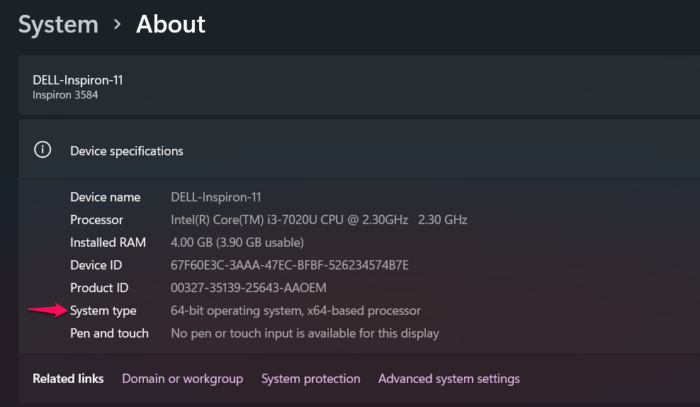
If you have downloaded the incorrect version of the application on your system, you will face the issue. As it turns out, OBS Studio has two versions: 32-bit and 64-bit. You will have to download the same version as your Windows version. For instance, if you have a 64-bit operating system, you will need to download the 64-bit version of OBS Studio. You can check your Windows version by following the steps below.
- Right-click on the This PC icon and choose the Properties option.
- Under Device specification, you will see the installed Windows version on your system next to System type.
Download that version of OBS Studio on your system.
2] Change OBS Studio compatibility
As per users, the latest Windows version is not compatible with OBS Studio. Users have to change the compatibility to Windows 7 to run the application without any problem. You can do the same and check if it solves the problem. Here’s how it’s done.
- To begin with, open the Start Menu and type OBS Studio.
- Right-click on OBS Studio and choose Open file location from the result.
- Now, right-click the OBS Studio exe file and select Properties.
- Click on the Compatibility tab.
- Click on the drop-down present under Compatibility mode.
- Choose Windows 7 from the list.
- Click on Apply > OK.
Now, check if the problem is fixed or not.
See: OBS Studio is the best video recording and live streaming software
3] Disable other OBS Studio-like application
As mentioned, if you have any other game-capturing or streaming application installed on your system running in the background, you are most likely to face the problem. To solve the issue, you will have to disable all such applications. You can do so by following the steps below.
- Press the Ctrl + Shift + Esc hotkeys to open the Task Manager.
- Right-click on all the similar applications running in the background.
- Choose End Task.
Once you have closed all the applications, launch OBS Studio and record any game. Check if you’re still experiencing the black screen issue when previewing. If yes, try the next solution.
See: Fix OBS Display Capture not working properly
4] Run OBS Studio as administrator
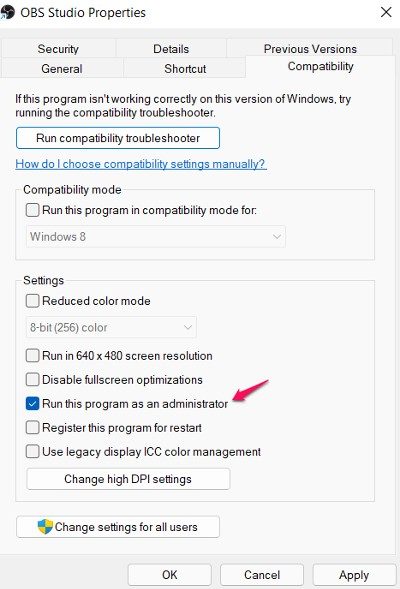
Not having administrative privileges can be another significant reason behind the problem in question. As it turns out, OBS Studio needs a long list of permissions to run without any issue. You can try running the application in administrator mode and check if it solves the problem. If yes, always run OBS Studio in administrator mode. Here’s how it’s done.
- Right-click on the OBS Studio icon, and choose the Properties option.
- Switch to the Compatibility tab.
- Here, checkmark the Run this program as an administrator option.
- Click on Apply > OK.
That’s it. Check whether the problem is fixed.
5] Switch OBS Studio GPU
The next thing you can try is to switch the OBS Studio GPU. It provides more flexibility and runs the application which superior graphics. Here’s how it’s done.
- Launch the NVIDIA Control Panel on your system.
- Click on View and then Add the “Run with graphics processor” option to the context menu.
- Right-click on the OBS Studio and select the Run with graphics processor option.
- Select the High-performance NVIDIA processor.
That’s it. Restart your system, and launch OBS Studio. Do the needful, and check if it solves the problem.
Read: Fix OBS Studio keeps crashing on Windows PC
6] Reinstall OBS Studio
If none of the steps were helpful, the last thing you can try is to reinstall OBS Studio. There may be issues in the application files that are causing the problem. If this is the case, the best thing you can do is reinstall the application.
Why is Game Capture not working with OBS?
If OBS Studio is not capturing the game, you can try the following solutions: download the latest graphics driver update, run OBS Studio as an administrator, change the compatibility mode, perform a Clean Boot, and run the SFC scan. If nothing helps, you can reinstall the Studio to solve the problem.
Is Display capture better than Game capture?
As the name suggests, Game Capture only captures the game. For instance, if you are running the game in windowed mode, Game capture will only capture the game window; it doesn’t matter how many other Windows are open in the background. On the other hand, Display capture will capture everything displayed on the monitor. So, when it comes to deciding between Display capture and Game capture, it all comes down to which best satisfies your needs.
