
In this post, we will explain what to do if OBS is not capturing game video on a Windows PC. OBS Studio is among the best video recording and streaming applications. You can use it to record video games and stream online on different platforms like YouTube. However, like any other application, it has its own share of problems. Many users have reported that OBS is not capturing video from Windows PCs. So, if you are also struggling with the same problem, try out the below-mentioned workarounds to fix the issue.
Fix OBS not capturing Game Video on Windows PC
Below is a list of effective solutions you can try if OBS is not capturing game video on Windows 11/10.
- Restart the OBS Studio
- Run as Administrator
- Disable Other OBS Studio-like Application
- Turn Off the Game Mode
- Change Graphics Settings
- Reinstall OBS Studio
So, now let’s check out all these solutions in detail.
1] Restart the OBS Studio
Sometimes, a simple restart can do wonders. There may be a temporary bug causing the problem mentioned. And, the best way to get rid of it is to restart OBS Studio. Thus, restart the studio, and check if it makes any difference.
2] Run as Administrator
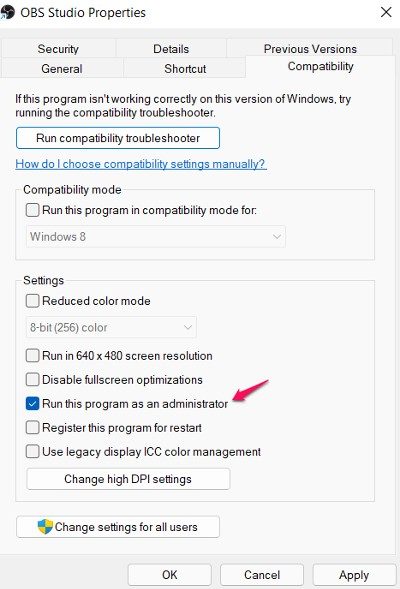
OBS Studio needs a long list of permissions to run without a problem on the system. In such a situation, the best thing you can try is to grant OBS Studio full administrative privileges. Do it, and check if it solves the problem. If yes, always run OBS Studio in administrator mode. Here are the steps you need to follow to give administrative privileges to OBS studio.
- Right-click on the OBS Studio icon and choose Properties.
- In the Properties window, click on the Compatibility tab.
- Checkmark the Run this program as an administrator option.
- Click on Apply > OK.
Launch OBS Studio, and record any game. Check if the problem still exists.
3] Disable Other OBS Studio-like application
If you have any other streaming or video recording application on your system, it is likely interfering with OBS Studio’s operation. If that’s the case, it’s no surprise that OBS Studio is struggling to record the game video. As a solution, disable or uninstall a similar application to fix the problem.
Furthermore, an antivirus program can also interfere with the smooth functioning of OBS Studio. So, turn off the antivirus whenever you use the studio, and see if it makes any difference.
4] Turn Off the Game Mode
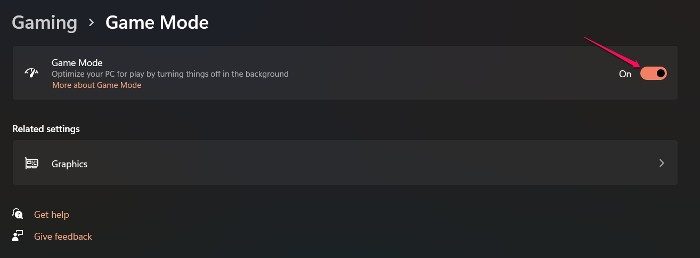
Windows 11 comes with a dedicated game mode feature. It enhances the gaming experience up to a great extent. However, it can also be another reason OBS Studio is not capturing game videos. Thus, you can disable the game mode feature to fix the problem. Here are the steps you need to follow.
- Open the Windows settings by pressing Windows + I hotkeys.
- Tap on the Gaming option present at the left of the screen.
- Choose Game Mode.
- Toggle off the Game Mode option.
That’s it. Restart your system, open OBS Studio, and record a game. Check whether the problem is fixed.
5] Change Graphics Settings
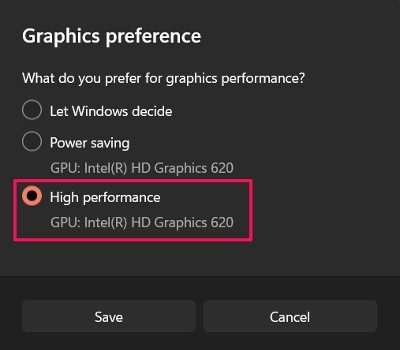
If your PC has an integrated GPU, you are most likely to encounter the problem mentioned. The reason is, the OBS Studio will choose a different GPU than what your game is using. Thankfully, you can get around it by simply changing the graphics settings. Here are the steps you need to follow.
- Open the Settings menu.
- Tap on System > Display.
- Click on Graphics.
- Tap on Browse and navigate to the path where you have installed the OBS Studio.
- Select the .exe file of the OBS Studio, and click on Add.
- Tap on Options.
- Click on High Performance in the dialogue box that pop’s up.
That’s it. Check whether the problem is fixed.
6] Reinstall OBS Studio
If you are still facing the problem, the last thing you can try is reinstalling OBS Studio. There may be a problem in the installation process, causing the issue. Thus, reinstall the application and check if it fixes the problem.
Read next: Fix OBS not capturing Game Audio on Windows 11.
Why OBS Studio is not capturing game videos?
There can be multiple reasons why OBS Studio is not capturing game videos on Windows 11/10. From different GPUs, a lack of administrative privileges, to third-party or similar applications running in the background, can be the reason you are facing the problem. In addition, the problem may also be caused by Windows’ Game Mode feature.
What can I do if OBS Studio does not capture game audio?
There are several things you can try if OBS Studio is not capturing the game audio. You can set desktop audio to default, correct the audio track, and disable the audio enhancement to fix the problem. It is very simple to troubleshoot this issue.
