
In this post, we will show you how to fix Object reference not set to an instance of an object error prompt which you may see in Microsoft Visual Studio.
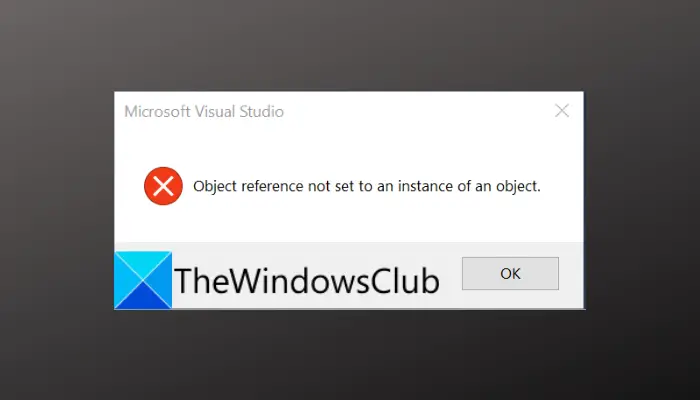
What is the meaning of Object reference not set to an instance of an object?
It is a relatively common error in Visual Studio, known as a null exception error. The error is triggered when the object that you are referring to doesn’t exist, is deleted, removed, or is classified as null. Now, it mostly occurs due to human error, in cases where there is an error in your code. While this is a popular scenario, there are instances where this error occurs for other reasons.
What causes Object reference not set to an instance of an object in Microsoft Visual Studio?
Apart from human error in code, here are some other popular causes that may trigger the error in hand:
- It can be triggered due to bugs and glitches in the program. In case you are using an outdated version of Visual Studio, consider updating it.
- Corrupted user data and cache for Microsoft Visual Studio can also be a reason for the error. You can try resetting the user data to resolve the error.
- It can also be caused in case the program is missing administrator rights to run. So, relaunch it with admin access and see if you stop receiving the error.
- The installed extensions can also be a problem. So, update all of them and see if the error is fixed.
In any case, if you are receiving the same error, you have landed on the correct page. Here, we will discuss various solutions to resolve the “Object reference not set to an instance of an object” error in Microsoft Visual Studio. Let us check out.
Fix Object reference not set to an instance of an object error in Microsoft Visual Studio
Here are the methods to fix the “Object reference not set to an instance of an object” error in Microsoft Visual Studio:
- Review your code.
- Relaunch Microsoft Visual Studio as an administrator.
- Reset User Data.
- Update Microsoft Visual Studio.
- Update extensions.
- Install Microsoft ASP.NET and Web Tools.
1] Review your code
The first thing you should do is thoroughly check your code to ensure that there are no referred objects with null values. This error is most likely to trigger when there is a problem within the code itself. So, do check and review your code and ensure it is good to go.
If your code is fine and you keep getting the same error, the cause might be something else other than human error. Hence, you can try the next potential fix to resolve the error.
2] Relaunch Microsoft Visual Studio as an administrator
Lack of sufficient permissions to run the program can be a cause of the error you are receiving. If the scenario is applicable, you can relaunch Visual Studio with administrator privileges. For that, you can simply close Microsoft Visual Studio and related processes by going to the Task Manager. After that, go to the Microsoft Visual Studio’s executable and right-click on it. From the right-click context menu, select the Run as administrator option. See if this fixes the “Object reference not set to an instance of an object” error for you.
If yes, you can make Microsoft Visual Studio always run as an administrator instead of repeating the above procedure every time you launch it. Here is how you can do that:
- Firstly, open File Explorer using Win+E hotkey and navigate to the installation directory of Microsoft Visual Studio.
- Now, right-click on the Visual Studio’s executable and then select the Properties option.
- Next, in the Properties window, go to the Compatibility tab and enable the Run this program as an administrator checkbox.
- Then, click on the Apply > OK button to save changes.
- Finally, you can run Visual Studio and it will always run with administrator rights.
In case you are still experiencing the same error in Microsoft Visual Studio, try the next potential fix.
Read: The program can’t start because VCRUNTIME140.DLL is missing.
3] Reset User Data
User data can potentially cause the “Object reference not set to an instance of an object” error. In case it is corrupted, you are likely to encounter this error. Now, it is difficult to know the particular content that is causing the error. Hence, you will have to reset the user data to fix the error if and only the scenario is applicable. However, do remember that this will result in losing all your settings including layouts, linked Microsoft accounts, and other content.
Here are the steps to reset the user data for Microsoft Visual Studio:
- Firstly, open File Explorer using Windows+E hotkey and then go to the following location in the address bar:
C:\Users\%userprofile%\AppData\Local\Microsoft\VisualStudio
- Now, select all the content at the above location using the Ctrl+A hotkey and then press the Delete button to remove all data.
Try restarting Visual Studio and check if you stopped receiving the “Object reference not set to an instance of an object” error.
4] Update Microsoft Visual Studio
The next step to resolve the error is to update Microsoft Visual Studio to the latest version. This error can be caused due to old bugs and glitches in the application. The new updates address such bugs and fix them. Hence, if you are using an older version of Microsoft Visual Studio, it is time to update it.
Here are the steps to update Microsoft Visual Studio:
- Firstly, click on the taskbar search button and then type Visual Studio Installer in the search box; open the respective app from the results.
- Now, in the opened window, locate the edition you are currently using.
- Next, in case there is an update available to the Microsoft Visual Studio edition you have installed, you will see an Update option associated with it. Simply tap on this option and follow the instructions to update it.
After updating the Visual Studio application, relaunch it and check whether or not the error is gone.
See: Fix AppModel Runtime Errors 57, 87, 490, etc.
5] Update extensions
If you have installed some extensions in Microsoft Visual Studio and they are out-of-date, you should consider updating them. Outdated extensions can trigger errors like “Object reference not set to an instance of an object” and others. Therefore, ensure that you have updated extensions in Visual Studio. Here are the steps to do that:
- Firstly, open Microsoft Visual Studio and go to the Extensions menu.
- Now, select the Manage Extensions option.
- Next, in the Manage Extensions window, go to the Updates section from the left side pane to see the extensions for which updates are available.
- After that, from the top of the installed extensions, click on the Update All button to update all the extensions.
- Once the process is complete, reboot your PC.
- On the next startup, launch Visual Studio, and hopefully, you won’t see the “Object reference not set to an instance of an object” error anymore.
6] Install Microsoft ASP.NET and Web Tools
Tools, including Microsoft ASP.NET and HTML/JavaScript tools, enable you to generate dynamic webpages and can prevent errors like “Object reference not set to an instance of an object.” You can then install these tools and see if they resolve the error. You can easily install these tools in Visual Studio by following the steps below:
- Firstly, open Visual Studio and navigate to the Tools menu on the top.
- Now, select the Get Tools and Features option from the drop-down options.
- In the new window, look for the “ASP.NET and web development” tool and select it.
- Next, click on the Modify > Install button from the bottom of the window and let it install the package.
- After installing the package, relaunch Microsoft Visual Studio and check whether or not the error prompt has stopped now.
We hope this article helps you resolve the “Object reference not set to an instance of an object” error prompt in Microsoft Visual Studio.
Read: The object invoked has disconnected from its clients.
How do I fix object reference not set to an instance of an object in Excel?
The “Object reference not set to an instance of an object” error in Excel might occur while trying to delete or remove a table. To delete the table without error, you can access Data View and, on the tab strip at the bottom of Data View, right-click on the table you want to delete. And then, select the Delete option and press Yes on the UAC prompt to confirm the deletion.
How do I stop NullReferenceException?
There are some tips you can follow to avoid the NullReferenceException error. You can use the IF statement or use Null Conditional Operator to check the property prior to accessing instance members. Other than that, you can use GetValueOrDefault(), Null Coalescing Operator, etc. to avoid NullReferenceException.
Now read: Visual Studio Code crashing on Windows.
