
If your installed NVMe SSD is not being detected in Windows 11 or Windows 10 computers, here is how you can resolve the issue. There could be several reasons why your computer is not detecting an NVMe SSD. Here, we have outlined some possible reasons and solutions to help you resolve the issue in moments.
NVMe SSD not detected in Windows 11/10
If NVMe SSD is not detected in Windows 11/10, follow these steps:
- Reinstall the SSD
- Format SSD
- Change drive letter
- Install drivers
To learn more about these steps, continue reading.
1] Reinstall the SSD
It is the first step you need to take. If there are hardware issues, you won’t be able to resolve them by following the other solutions below. As an NVMe SSD gets installed directly on the motherboard, you need to check two things. First, if there is an issue with the motherboard port. Second, whether the SSD’s port has any issues.
If you notice any issues at first glance, contact the manufacturer or visit the appropriate service center. However, before doing that, it is recommended to unplug the SSD and reinstall it.
If you are not comfortable with hardware, seek professional help, as a minor change could cause significant issues.
Read: Diskpart not recognizing SSD in Windows
2] Format SSD
There are multiple ways to format a hard drive, SSD, or NVMe SSD. This solution works when the SSD is visible in the Disk Management, but it won’t appear in the File Explorer.
The best way to format an SSD is by using the Disk Management tool. It is pretty straightforward and less time-consuming. Alternatively, you can use the DiskPart tool to complete the task.
3] Change drive letter
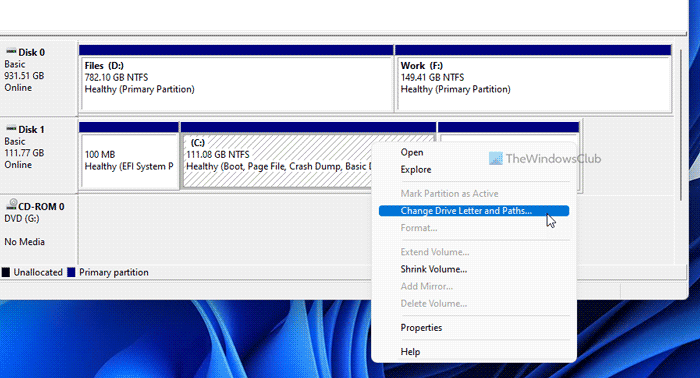
Like formatting an SSD, you can change the drive letter in different ways. For example, you can use Disk Management, Windows PowerShell, Command Prompt, Registry Editor, etc. The main goal of this solution is to assign a different drive letter to the SSD. At times, your computer may encounter a conflict due to a previous drive letter assignment. If so, you can resolve the issue by changing the drive letter.
4] Install drivers
Every motherboard comes with a driver CD, which is mandatory when using NVMe SSD. Unlike other drives, NVMe SSD needs to establish a connection between your system and motherboard. The best way to do that is by installing the drivers. Therefore, it is recommended to insert the motherboard’s driver CD and install all the mandatory drivers.
In case you have already done that, it is suggested to check for the driver update and install them if available.
In addition to these solutions, you can check the BIOS. Some manufacturers include an option to show or hide the NVMe SSD. If your motherboard has this option, use it to display the SSD.
Why is my PC not detecting my NVME SSD?
As said earlier, there could be various reasons why the NVMe SSD is not detected on your computer. From faulty hardware or rust to a lack of drivers, anything could be held responsible for this error. That is why it is recommended to follow all the aforementioned solutions one after another.
How do I get Windows 11 to recognize a new SSD?
Windows 11 and Windows 10 automatically detect a new SSD or other hard drive. However, if it is not detecting, you need to do two things. First, open Disk Management and change the drive letter. Second, open Disk Management and format the SSD.
Read Next:
