
NVIDIA Overlay (GeForce Experience / ShadowPlay) displaying the wrong FPS or GPU is a common issue. The error mostly occurs due to software conflicts, driver issues, or misconfigured settings. However, fixing the issue isn’t really complicated, and here are a few solutions that you can try out.
NVIDIA Overlay shows wrong FPS and GPU
If NVIDIA Overlay shows incorrect FPS and GPU information in Windows 11/10, then here is how you can fix the issue.
- Restart NVIDIA services
- Toggle the overlay on/off
- Check multiple GPUs
- Update Graphics drivers and GeForce Experience/NVIDIA app
Make sure to use an administrator account to get these done.
1] Restart NVIDIA services
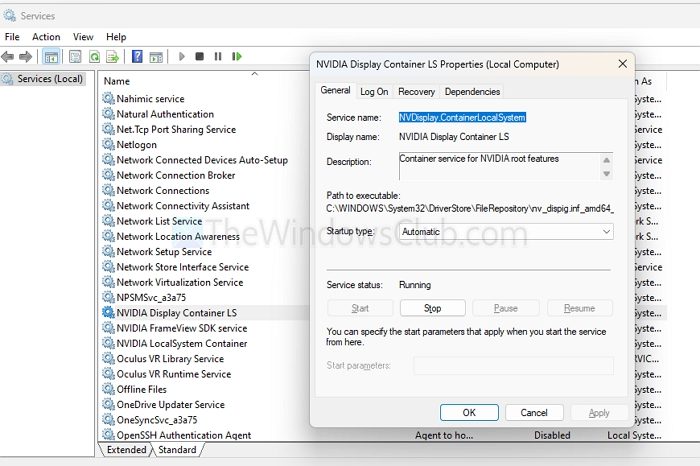
Start by restarting NVIDIA services, so in case there is a glitch, it will get resolved.
- First, press Win + R to open RUN, type services.msc, and press Enter.
- Over here, look for NVIDIA Display Container LS, right-click, and restart it.
You might have to stop and then restart if the direction option is not available.
2] Toggle the overlay on/off

- Start by opening GeForce Experience or the NVIDIA App.
- Go to Settings > Features
- Look for the In-Game Overlay option.
- Toggle it off, and after a few moments, toggle it back on.
Read: A supported game is required to use this feature NVIDIA GeForce Experience error
3] Check multiple GPUs
If you have integrated graphics along with the NVIDIA GPU, the overlay might be getting the FPS data from the wrong GPU. So, ensure that you have selected the right one.
- Open NVIDIA Control Panel.
- Go to Manage 3D Settings > Preferred graphics processor
- Select the High-performance NVIDIA GPU option.
4] Update graphics drivers and GeForce Experience/NVIDIA app
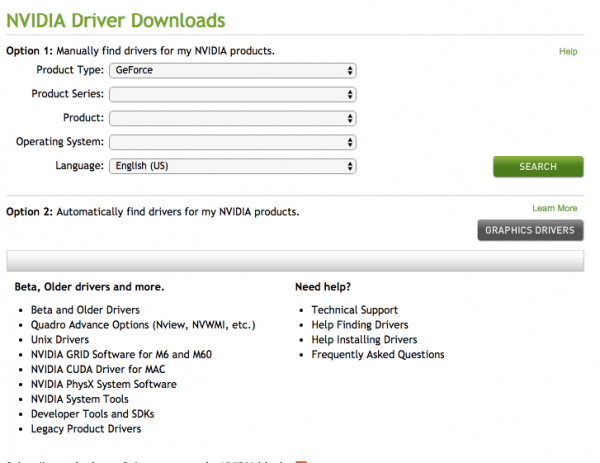
As mentioned earlier, the issue is most likely due to outdated graphics card drivers or the GeForce Experience app. To fix this, consider updating both.
- Start by downloading the latest graphics drivers from the official NVIDIA website for your specific GPU. Also, download the latest version of GeForce Experience.
- Next, right-click on the Windows icon and select Device Manager.
- Uninstall all the NVIDIA drivers from here one by one.
- Next, reboot your PC.
- Finally, install the latest downloaded drivers and GeForce Experience/NVIDIA App, and check if it has resolved the issue or not.
Read: NVIDIA Graphics driver automatically uninstalls after reboot on Windows 11
So, those were some quick fixes to get rid of the NVIDIA overlay showing the wrong FPS and GPU. Make sure you have selected the right GPU in the NVIDIA settings and are using the updated drivers.
Why is NVIDIA Overlay showing FPS only in some games but not others?
NVIDIA Overlay may not show FPS in certain games due to differences in rendering modes like DirectX 12 or Vulkan, or because of how the game launches through various clients. Some anti-cheat systems may also block overlays to prevent cheating. Running the game in borderless windowed mode and avoiding conflicts with other overlays can help resolve this issue.
Can third-party monitoring tools interfere with NVIDIA Overlay FPS readings?
Third-party tools like MSI Afterburner, Rivatuner, or HWMonitor can conflict with the NVIDIA Overlay by using similar system hooks or injecting their overlays. This can lead to inaccurate or missing FPS data in the NVIDIA overlay. Temporarily disabling these tools can help identify if they’re causing the problem.
