
Some users have reported that when they try to access a shared folder, they receive a Windows cannot access network error with error code 0x800704f8. For some users, this error occurred while accessing a network drive or NAS after upgrading their Windows to the next version. The main cause of this problem is SMB signing (also known as security signatures), which is enabled by default after the update. As a result, the SMB client rejects insecure guest logins, which causes this error.
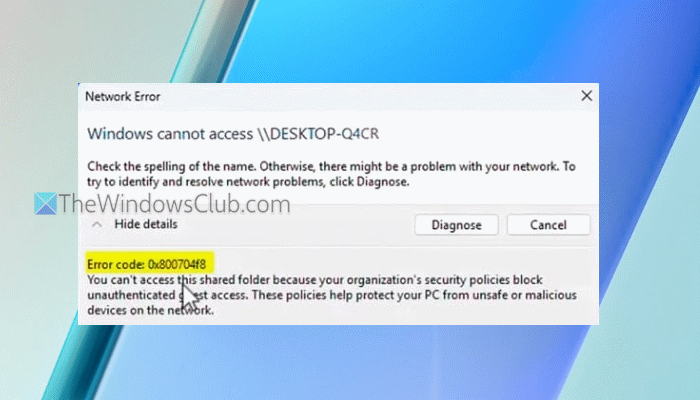
The entire error message goes like this:
Network Error
Windows cannot access \\networkpath
Check the spelling of the name. Otherwise, there might be a problem with your network. To try to identify and resolve network problems, click Diagnose.
Error code: 0x800704f8
You can’t access this shared folder because your organization’s security policies block unauthenticated guest access. These policies help protect your PC from unsafe or malicious devices on the network.
If you also face this problem, the working solutions covered in this post will be helpful.
Before proceeding, check and turn on file and printer sharing, and see if it works. Also, make sure your antivirus or Windows Firewall isn’t blocking the sharing, and you are using the correct path, username, and/or password for the shared folder. Additionally, run Network and Internet Troubleshooter in the Get Help app to ensure there aren’t any network problems. If the issue persists, use the fixes given below.
Network Error 0x800704f8, Windows cannot access
Use these solutions to fix the network error code 0x800704f8 when trying to access a shared folder:
- Disable SMB signing using Windows PowerShell
- Disable SMB signing using Local Security Policy
- Configure SMB signing Registry entries using Registry Editor
- Enable insecure guest logons using Local Group Policy.
Let’s check each solution in detail.
1] Disable SMB signing using Windows PowerShell
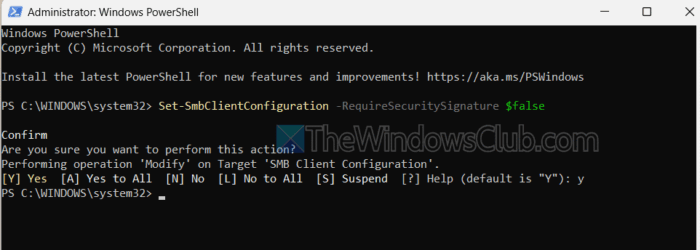
Open an elevated PowerShell window. To disable SMB signing (client) for outbound connections, execute the following command:
Set-SmbClientConfiguration -RequireSecuritySignature $false
Press Y, then press Enter to confirm the action.
To disable SMB signing (server) for inbound connections, execute the following command:
Set-SmbServerConfiguration -RequireSecuritySignature $false
Restart PC if required.
Related: Fix Network Error Code 0x800704b3 on Windows PC
2] Disable SMB signing using Local Security Policy
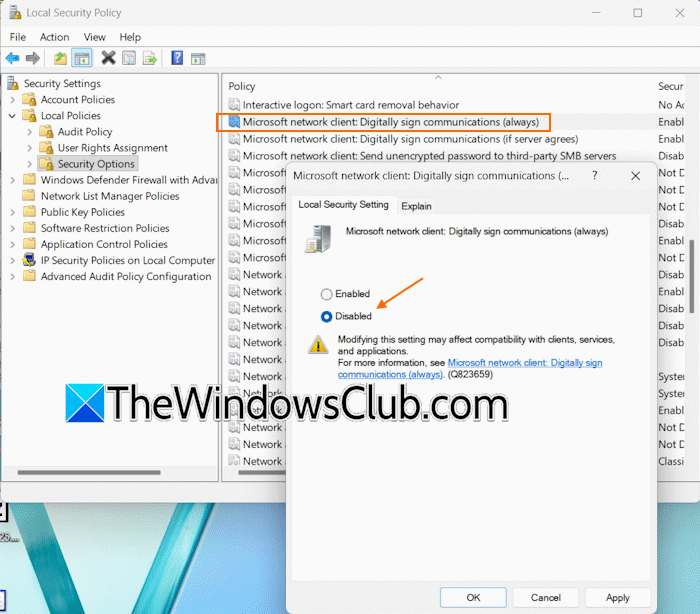
Here are the steps:
- Press Win+R hotkey to open the Run Command box
- Type secpol.msc and hit Enter to open the Local Security Policy window
- Navigate to Security Settings > Local Policies > Security Options
- Double-click the Microsoft network client: Digitally sign communications (always) policy. A box will open
- Select Disabled in the Local Security Setting tab in that box
- Press the Apply and OK buttons
- Double-click on the Microsoft network client: Digitally sign communications (if server agrees) policy
- Select Disabled
- Press the Apply and OK buttons.
TIP: These policies can also be accessed in the Local Group Policy window using the following path: Computer Configuration > Windows Settings > Security Settings > Local Policies > Security Options.
3] Configure SMB signing policies using Registry Editor
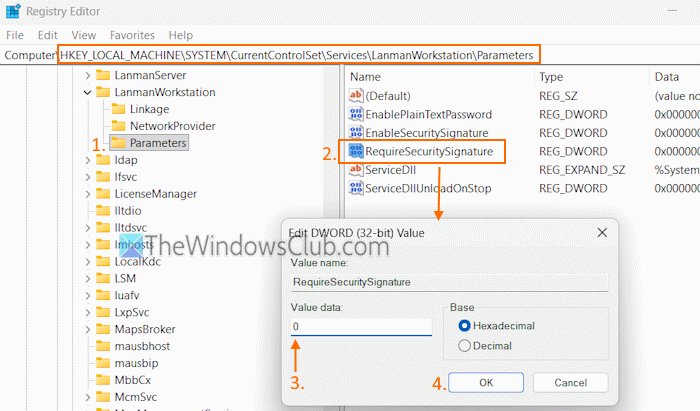
You can also configure the above-mentioned SMB signing policies using the Registry Editor, as there is a corresponding Registry entry for each policy. We will disable SMB signing policies for outbound connections. Backup Windows Registry and follow these steps:
- Type regedit in the Search box and press Enter to open the Registry Editor
- Access the Parameters Registry key. Here is the path:
HKEY_LOCAL_MACHINE\SYSTEM\CurrentControlSet\Services\LanmanWorkstation\Parameters
- Double-click on the RequireSecuritySignature DWORD (32-bit) Value
- Set the Value data to 0
- Press OK
- Double-click on the EnableSecuritySignature DWORD (32-bit) Value
- Add 0 in the Value data text field
- Press OK.
Also read: Fix Your system requires SMB2 or higher error on Windows PC
4] Enable insecure guest logons using Local Group Policy
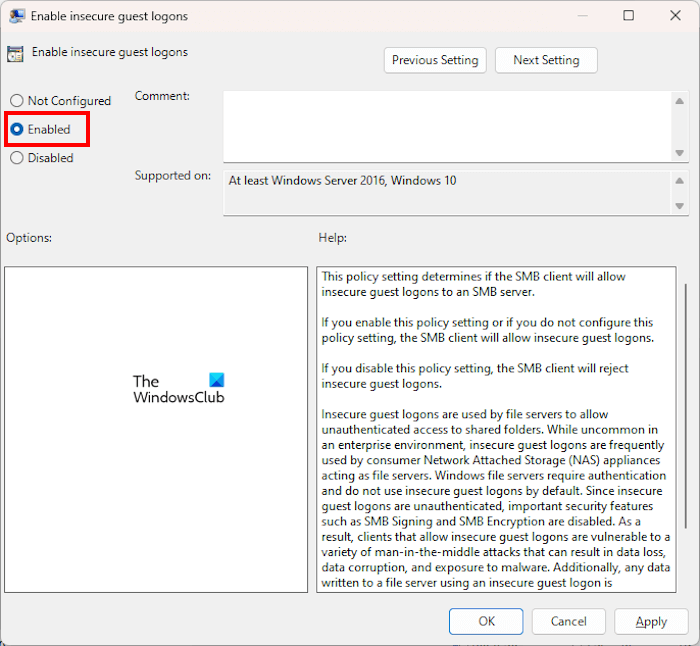
SMB signing (when enabled) also disables guest accounts, which can be the reason that you can’t access a shared folder and receive network error 0x800704f8. So, you must enable guest logons. This can be done using the Local Group Policy in Windows 11. Here are the steps:
- Open the Local Group Policy Editor window
- Access the Lanman Workstation folder. Here is the path:
Computer Configuration > Administrative Templates > Network > Lanman Workstation
- Double-click on the Enable insecure guest logons setting
- Set it to Enabled or Not Configured
- Press the Apply button and the OK button
- Restart your PC.
That’s all.
Now read: Network Error: Unable to access Network drive, Error 0x80004005
How do I fix Windows cannot access error?
To fix Windows cannot access the Network error on your Windows 11/10 PC, temporarily disable your firewall and antivirus tool, and try again. Also, enable Network discovery and File and printer sharing. If these fixes don’t work, reset the network cache, disable IPv6, and restart the target device.
How to fix Windows cannot connect to the network?
If you can’t connect to a WiFi network in Windows 11/10, update network drivers, and try again. Additionally, you can use the Get Help app to run the Network and Internet troubleshooter to find and fix issues. If the problem persists, flush DNS, reset IP, or perform a network reset.
Read next: Wireless Network Connection Error 0x00028002.
