
This post covers various workarounds you can try if Modern Warfare multiplayer is not working on Windows PC. Modern Warfare is one of the best games released under the Call of Duty franchise. But this doesn’t mean it is free of errors or issues. Many users have reported having trouble accessing the multiplayer mode in Modern Warfare. If you are also facing the same issue, don’t worry; we’ve got you covered. This post covers different solutions to solve the problem.
Why is Modern Warfare multiplayer mode is not working?
There can be multiple reasons why Modern Warfare multiplayer mode is not working on your Windows PC. But among all, the most common ones are listed below.
- If you haven’t downloaded the latest graphics driver update, you will most likely encounter the problem mentioned.
- If the multiplayer mode in Modern Warfare is not working, there is a high likelihood of a regional network issue.
- If the game files have been corrupted or are missing, you will face different problems, including the multiplayer mode issue.
Now that you have prior knowledge about the problem, let’s look at all the solutions to eliminate them.
Modern Warfare Multiplayer not working on Windows PC
Here’s how to fix Modern Warfare Multiplayer not working on Windows 11/10 PC
- Restart the PC
- Launch the game directly
- Clear the Cache data
- Download the latest Network Driver update
- Change the DNS server
- Reinstall the game
Now, let’s take a look at all these solutions in detail.
1] Restart the PC
The first thing you should do is restart your Windows PC. If you cannot access the multiplayer mode of Modern Warfare, the probability is high that there is some temporary system glitch that is causing the issue. And the best thing you can do in the situation is restart your system. So, do it and check if it makes any difference. If yes, you are good to go. But if the problem persists, try the technical workarounds listed below.
2] Launch the game directly
The problem has occurred ever since Modern Warfare Multiplayer and Warzone merged into Call of Duty: Cold War. So, as perusers, the multiplayer mode problem mainly occurs while launching the game using the Cold War launcher. Thus, you can launch the game directly without using the Cold War launcher to solve the issue.
3] Clear the Cache data
The next thing you can do is try to clear the cache data. As it turns out, a large amount of cache data can be the primary reason your facing the problem. But note that this applies only if you launch the game via Battle.net. Follow the steps below to clear the cache.
- To begin with, close Battle.net and close all the related services. You can do so by accessing the Task Manager.
- Now, open the Run dialogue box using the Windows + R hotkeys.
- In the space provided, type %ProgramData% and press the enter key. It will open the ProgramData folder.
- Locate BlizzardEntertainment and Net folders.
- Select both the folders and right-click on them.
- From the context menu, choose the Delete option.
That’s it. Now restart your system, and launch the game. Check whether you can play Multiplayer mode. If not, try the next solution.
See: Fix Memory Error 13-71 in Call of Duty Modern Warfare and WarZone
4] Download the latest Network Driver update
Downloading the latest network driver update can be another effective solution in the situation. Not having the latest driver can the mentioned problem. The best way would be via the Windows Driver & Optional Updates feature.
Once the update process is complete, check whether the problem is fixed.
See: Fix Modern Warfare Warzone’s High CPU Usage on PC
5] Change the DNS server
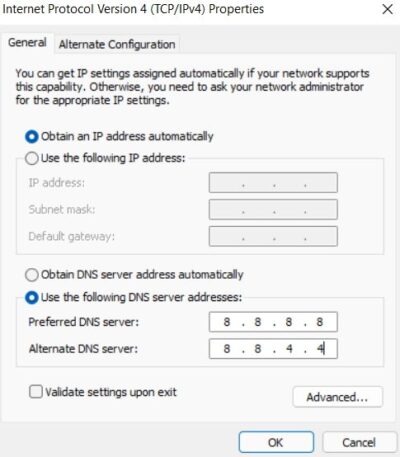
You can change the DNS settings to fix the problem. For now, Google and Cloudflare Public DNS are the best options to try when playing games. Here’s how you can connect to these servers.
The steps mentioned below will only be helpful if you are connected with an IPv4 network.
- Tap on the Windows icon to open the Start Menu
- In the search bar, type View network connections and press Enter.
- Right-click the connected network and choose Properties.
- Choose Internet Protocol Version 4 (TCP /IPv4) and click on Properties.
- Choose the Use the following DNS server addresses option.
- Now, to connect with the Google public DNS server, enter 8.8.8.8 in the Preferred DNS Server section, and 8.8.4.4 in the Alternate DNS Server section.
- Alternatively, to connect with Cloudsfare’s public DNS server, enter 1.1.1.1 in the Preferred DNS server section, and enter 1.0.0.1 in the Alternate DNS server.
- Lastly, click on OK to save the settings.
If you connected with an IPv6 network, follow the below steps.
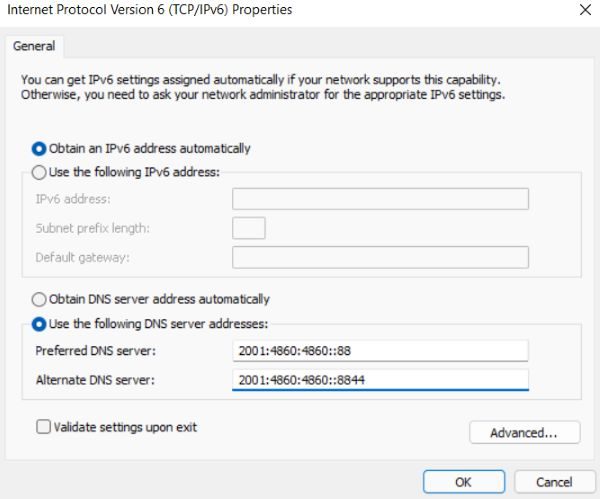
- Follow the above steps to open the Properties window of the connected network.
- Choose Internet Protocol Version 6, followed by selecting Properties.
- Choose the Use the following DNS server addresses option.
- Now, to connect with the Google public DNS server, enter 2001:4860:4860::88 in the Preferred DNS Server section, and 2001:4860:4860::8844 in the Alternate DNS Server section.
- Alternatively, to connect with the Cloudsfare’s public DNS server, enter 2606:4700:4700::1111 in the Preferred DNS server section, and enter 2606:4700:4700::1001 in the Alternate DNS server.
- Click on OK to save the settings.
Once done, restart the system, and check for the problem. If it persists, try the next workaround.
6] Reinstall the game
If none of the above solutions were helpful, the last thing you can try is to reinstall the game. There may be an installation error that is causing the problem. In this case, you can solve the issue by reinstalling the game.
Read: COD Modern Warfare DEV ERROR 6068, 6606, 6065, 6165, 6071
How do I switch from Warzone to multiplayer?
It’s very easy to switch from Warzone to multiplayer. In Warzone options, navigate to the Lobby. Here you’ll find the Stocked Up, Locked Down 24/7 playlist. That’s it; now, you can access the multiplayer mode via a random choice.
Why is Modern Warfare not working on PC?
There can be multiple reasons why Modern Warfare is not working on your Windows PC. If your system doesn’t match the minimum requirements, you will fail to launch the game. Additionally, the problem will occur if you don’t have the latest graphics driver installed on your system.
Read Next: Fix Dev Error 6456 in Call of Duty Modern Warfare.
