
Several users have been reporting that Microsoft Teams keeps asking them to sign in with their password repeatedly. If you face this issue, then this post is sure to help you.
Why does Microsoft Teams keep asking for my password?
In all likelihood, a corrupted Teams cache can cause this issue, where Teams keeps asking you for your password. Caches are some of the most common causes that can lead to password-related issues. If you get this problem on a Windows PC, you can follow the mentioned tips and tricks to get rid of this issue.
Microsoft Teams keeps asking me to sign in with password
If Microsoft Teams keeps asking you for the password on your Windows computer, try the following suggestions:
- Restart Microsoft Teams
- Update Microsoft Teams
- Clear Teams Cache
- Repair or Reset Microsoft Teams
- Reinstall Microsoft Teams
Let us talk about them in detail.
1] Restart Microsoft Teams
Let us start with the simplest solution of them all. But it is not as simple as you think. You should not only close the MS Teams client application, but also stop all its processes that are running in the background.
To do that, you need to open Task Manager by Win + X > Task Manager. In Process tab, look for Microsoft Team, right-click on it and select End Task.
Finally, restart your computer and then Teams client app and see if the issue persists.
2] Update Microsoft Teams
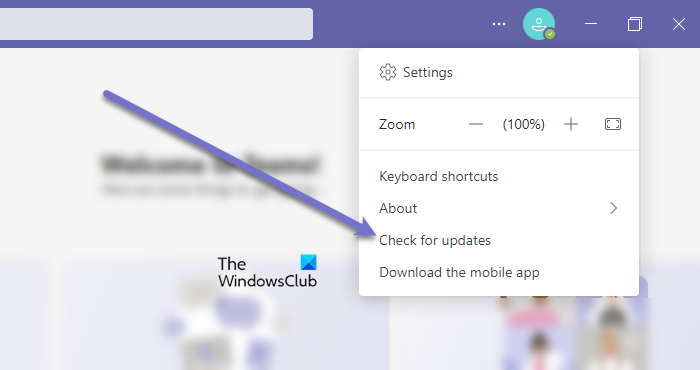
As mentioned earlier, the issue can occur because of a bug. To resolve the issue, you need to update the Microsoft Teams client application.
Follow the given steps to do the same.
- Open the Microsoft Teams client app.
- Click on the three horizontal dots.
- Select Check for updates.
It will check and install the update if available
If you are using the Teams Store app, then open Microsoft Store and Check for App Updates. Install Teams and any other app updates that may be offered. .
Note: If you want to know which version of MS Teams you are using, click on About > Version.
3] Clear Teams Cache
If the previous solutions is to no avail then maybe there is some issue with the caches. So, you have to clear the Teams cache and see if the issue is resolved.
To do that, open Run and paste the following location.
%appdata%/Microsoft/Teams
Now, select all the content of the folder and delete them. Now, restart your computer and reopen the application to check if the issue persists.
If you are using a browser, then you may want to clear the cache of that browser.
4] Repair or Reset Microsoft Teams
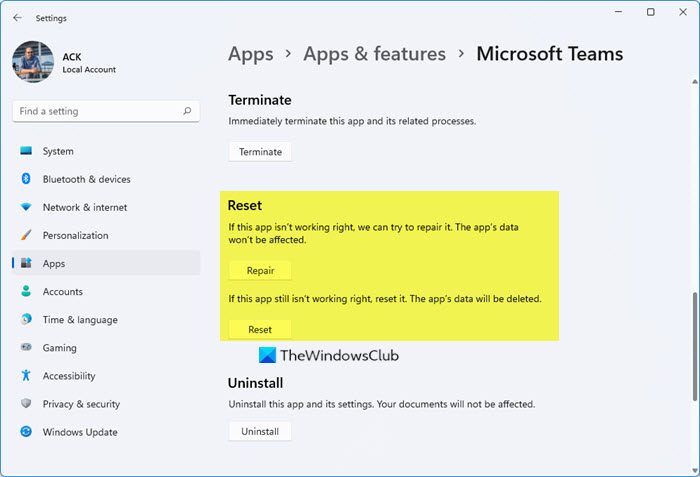
To Repair or Reset Microsoft Team in Windows 11/10, follow the given steps.
- Open Settings
- Click the Apps > Apps & Features.
- Look for Microsoft Teams.
- Click on the three vertical dots and click Advanced Options.
- From the next panel, select Repair or Reset.
4] Reinstall Microsoft Teams
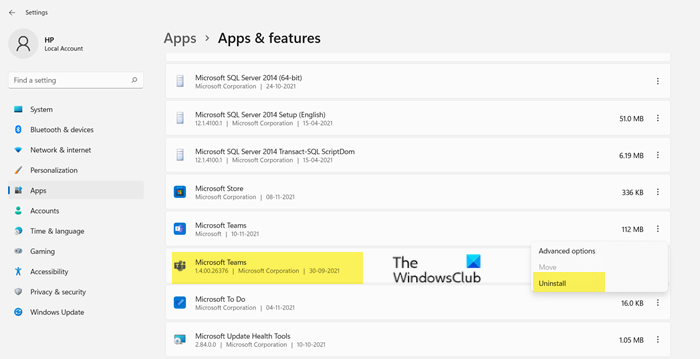
If all else fails, you will need to reinstall MS Teams. Since you have synced your data, you will not lose anything.
To uninstall Microsoft Team in Windows 11/10, follow the given steps.
- Open Settings
- Click the Apps > Apps & Features.
- Look for Microsoft Teams.
- For Windows 11: Click on the three vertical dots and click Uninstall.
- For Windows 10: Select Microsoft Teams and click Uninstall.
Now, download a fresh copy of Microsoft Teams and install it on your computer. Hopefully, this will resolve the issue for you.
Related: Fix Microsoft Teams Sign-in Error Codes 0xCAA20003, 0xCAA82EE2, 0xCAA82EE7, 0xCAA20004, 0xCAA90018.
How do I fix Microsoft Teams sign-in issue?
You can use the solutions mentioned earlier in this article to fix the sign-in issue in Microsoft Teams. However, there are alternative solutions that can help you resolve the login issue in Microsoft Teams. The most important being – Clearing the Teams cache!
Read Next: How to use Personal Features in Microsoft Teams.
