
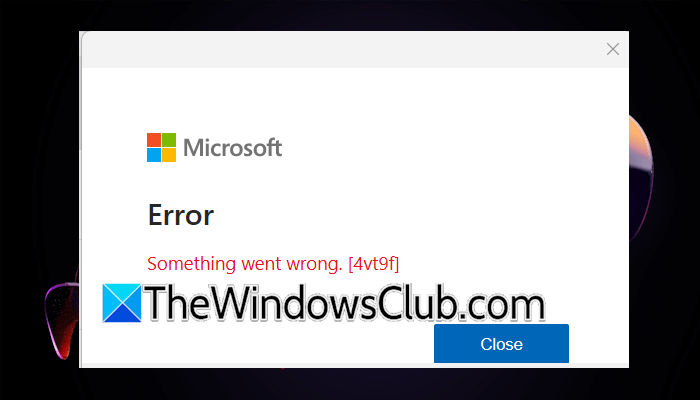
If you encounter the Microsoft Office error 4vt9f, this article will help. This is an Office activation error that can occur with any Office application. However, most users encountered this error in Outlook. If your Office license is not activated, Outlook does not receive any emails. Therefore, it is important to fix this error.
Fix Microsoft Office error 4vt9f
Use the following fixes for the Microsoft Office error 4vt9f:
- Update Office
- Launch the affected Office app as an administrator
- Disconnect and reconnect your school or work account
- Have you installed Office on a new device?
- Check the status of the Microsoft Account Sign-in Assistant Service
- Empty the OneAuth folder
- Repair or reinstall Office
All these fixes are explained in detail below.
1] Update Office
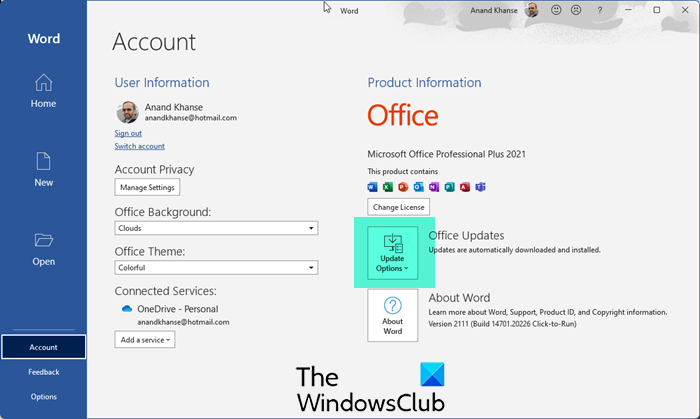
If your Office version is outdated, you may encounter several issues. Therefore, the first step is to update Office to the latest version.
2] Launch the affected Office app as an administrator
You can try launching the affected Office application as an administrator. Click Windows Search and type the name of the Office application. Now, click Run as administrator.
3] Disconnect and reconnect your school or work account
If you encounter this error while using your school or work Office account, try disconnecting and reconnecting the account.
Follow these steps:
- Open Windows 11 Settings.
- Navigate to Accounts > Access work or school.
- You will see your school or work accounts there. Click Disconnect next to the account you want to disconnect.
After disconnecting the account, reconnect it. Now, check if the issue persists. If this does not help, try removing and adding your account.
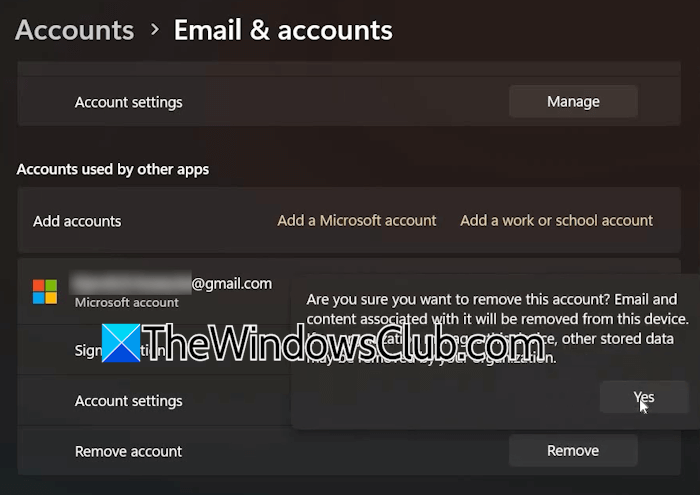
Follow these steps:
- Launch Windows 11 Settings.
- Go to Accounts > Email & Accounts.
- Click the school or work account you want to remove, then click Remove.
- Click Yes to confirm.
- Restart your computer.
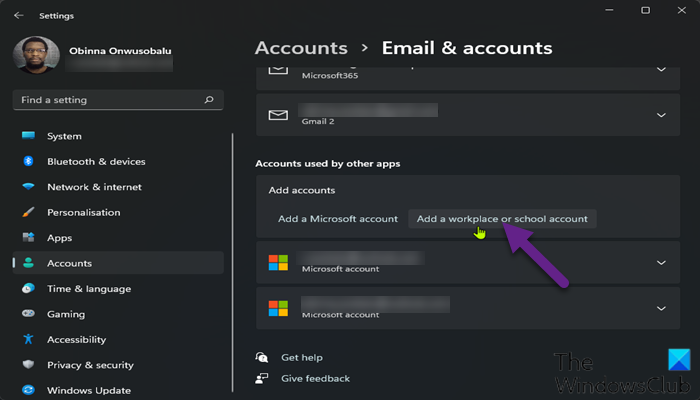
After restarting your computer, add the school or work account again. For this, open your system settings and go to Accounts > Your accounts. Now, click Add a work or school account.
4] Have you installed Office 365 on a new device?
This fix is for Microsoft 365 subscribers. Microsoft 365 Personal subscription allows you to install it on 5 devices. The limit differs for Microsoft 365 Family and Premium. If you have already installed it on 5 different devices and want to install it on one more device, that is not possible. In that case, you need to sign out of Microsoft 365 from any one of the old devices.
Follow these steps:
- Open your web browser and sign in to your Microsoft account.
- Click Subscriptions and expand the Microsoft 365 apps for your devices tab.
- Now, sign out of any one of the devices.
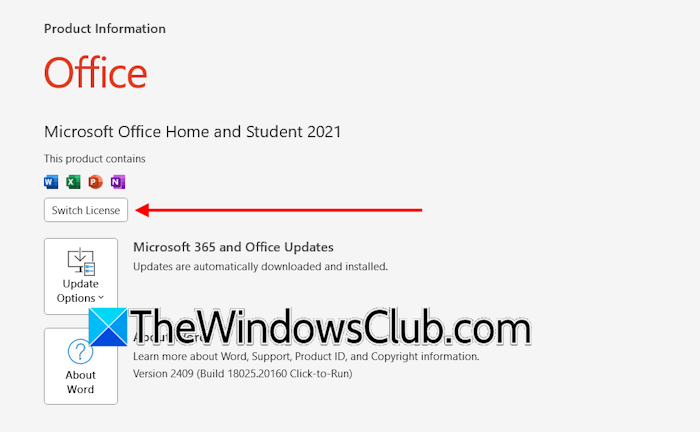
After following the above steps, launch any Office 365 app on your new device and follow these steps:
- Click Account from the left side.
- Click Switch License.
- Click Sign in or create account.
- Enter the same Microsoft account credentials and click Next.
- You will see all your Office licenses on the next screen.
- Select the right license, and click Next.
5] Check the status of the Microsoft Account Sign-in Assistant Service
If the error still occurs, check the status of the Microsoft Account Sign-in Service. The Microsoft Account Sign-in Assistant is a service on Windows computers that enables users to sign in through Microsoft account identity services. If this service is stopped or disabled, users cannot logon to their computer with a Microsoft account.
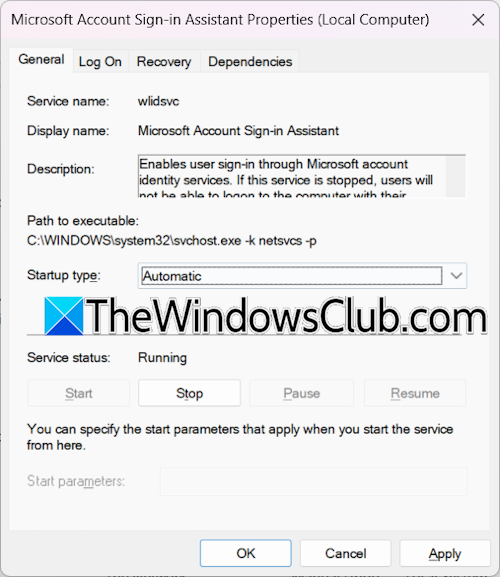
Follow these steps:
- Open Windows Services Manager.
- Look for Microsoft Account Sign-in Assistant. Its status should show Running.
- If it is stopped, right-click on it and select Properties.
- Select Automatic in the Startup type and click Start.
- Click Apply and then click OK.
If the service is already running, right-click on it and select Restart.
6] Empty the OneAuth folder
The OneAuth folder contains files that store the authentication information for Microsoft accounts. Deleting these files can help fix this error. Open the Run command box, type the following command, and click OK.
%localappdata%
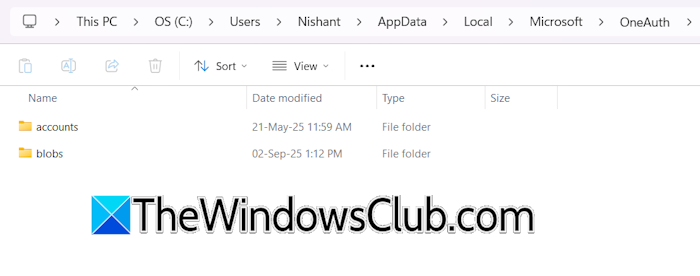
The above command will open the Local folder in File Explorer. Now, open the Microsoft > OneAuth folder. You will see the following two folders there:
- blobs
- accounts
Open each of these folders and delete all the files inside them.
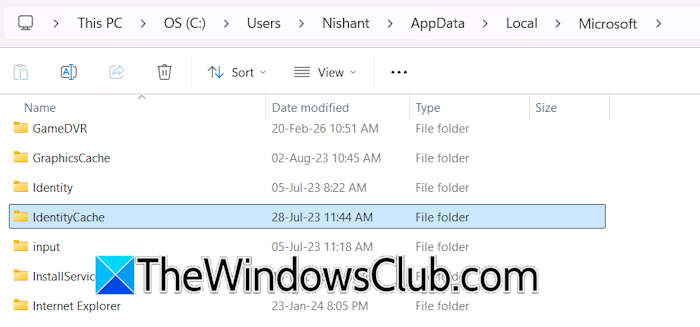
Now, go back to the Local > Microsoft folder and open the IdentityCache folder. Delete all the files and folders inside it.
7] Repair or reinstall Office

If nothing helps, the last resort is to repair or reinstall Office. First try Online Repair. If it does not work, uninstall and reinstall Office.
That’s it. I hope this helps.
How to fix the Microsoft Office error?
You may encounter different errors with Microsoft Office. Different errors require different fixes. For example, if Office takes too long to install, you can try switching to another network connection. If you cannot install Office, disable your antivirus. Also, check if a previous version of Office is installed on your system.
How to fix an SMTP error with Outlook?
To fix an SMTP error in Outlook, first of all, check the SMTP settings. The server connection should be encrypted with SSL. Other fixes that you can try include removing and re-adding your email account and temporarily disabling your antivirus and firewall.
Read next: Email not saved to Sent Items folder in Outlook.
