
This unhandled exception occurs primarily because the .NET Framework application cannot write essential data to the disk. You are most likely to encounter this error during specific actions that require writing data to the disk. Common triggers include waking a computer from hibernation, as the system tries to restore state and save data, but finds zero disk space available. In this post, we will see what you can do if Microsoft .NET Framework throws an Unhandled exception error stating:
Failed to save configuration. An error has occurred loading a configuration file. There is not enough space on the disk.
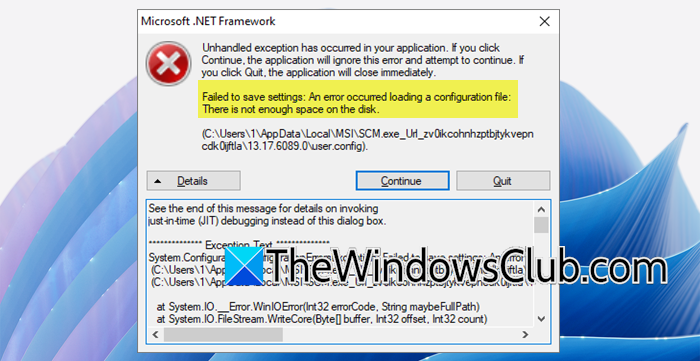
Microsoft .NET Framework Unhandled exception, Not enough space on the disk
This unhandled exception occurs because the .NET Framework application cannot save critical data to disk. This saving process is vital for tasks such as storing application settings (in a user.config file), handling uploads, and extracting installer files. If the disk or the folder it needs to access (like the %TEMP% directory) is full, the operation will fail. Because the application often does not properly handle this error in its code, it results in an “unhandled exception,” which causes the program to crash or display an error message.
If you get a Microsoft .NET Framework Unhandled exception because no disk space is left, follow the solutions below.
- Clear the TEMP folder
- Run Disk Cleanup
- Check Disk Quotas
- Manage Hibernation File
- Use .NET Framework Repair Tool
Let us talk about them in detail.
1] Clear the TEMP folder
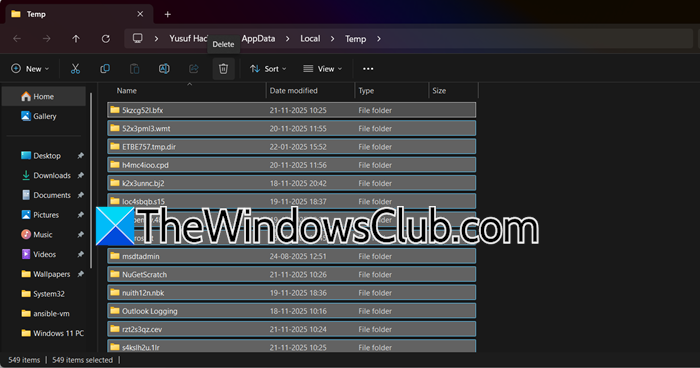
The .NET Framework and many Windows applications heavily rely on the TEMP directory for temporary file operations like compilation, caching, and data processing. When this location runs out of space, essential framework operations cannot complete, causing the unhandled exception. Clearing these files immediately frees up the required space for these critical operations to proceed normally. To do the same, hit Win + R, type %TEMP%, and click OK. Select all files by Ctrl + A and delete them. If files are in use, skip them and empty the Recycle Bin.
2] Run Disk Cleanup
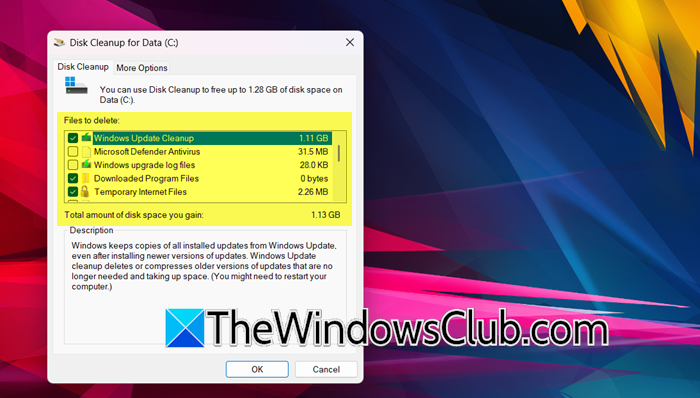
The Disk Cleanup utility helps remove unwanted files that the system generates. These files can take up more space than regular temporary files, including the Windows Update cache and system restore points. By cleaning up these specific areas, Disk Cleanup can free up a lot of disk space, which the .NET Framework needs to work properly. This is a more effective way to recover space than just deleting temporary files from the TEMP directory. To use Disk Cleanup, you can follow the steps mentioned below.
- Type Disk Cleanup in the Start Menu.
- Select your main drive (usually C:).
- Check categories like Temporary Files and Windows Update Cleanup.
- Click Ok to clean.
Finally, check if the issue is resolved.
3] Check Disk Quotas
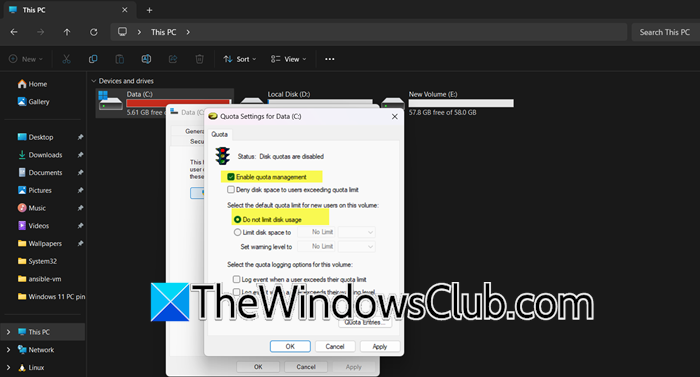
Disk quotas limit the storage space for a user account, independent of the drive’s total free space. If the quota is exceeded, the .NET Framework can’t save files, even if there’s available space on the disk. Adjusting the quota eliminates this barrier, enabling the application to write data again.
To check and adjust Disk Quota, open the File Explorer, right-click on the affected drive, and select Properties. Go to the Quota tab, if it’s enabled, check your quota status, and adjust it if you are an admin. You can even select Do not limit disk usage.
4] Manage Hibernation File
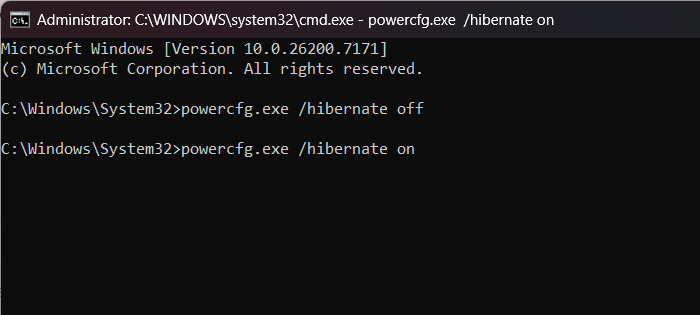
The hibernation file (hiberfil.sys) is a protected system file that reserves a large amount of disk space. If the system hibernated when the disk was full, this file cannot be reduced, permanently holding onto space that other applications need. Disabling and re-enabling hibernation forces Windows to delete and recreate this file, instantly releasing the locked-up space.
You can boot into Safe Mode to prevent hibernation resuming.
Alternatively, open Command Prompt as an administrator and run the following command.
Disable hibernation
powercfg.exe /hibernate off
Enable hibernation
powercfg.exe /hibernate on
Finally, check if the issue is resolved.
Read: Uninstall old .NET Framework versions with this Cleanup Tool
5] Use .NET Framework Repair Tool
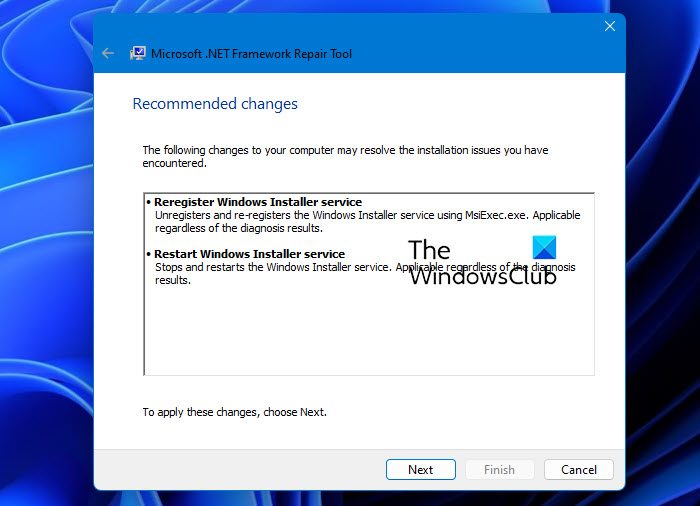
The .NET repair tool diagnoses and fixes corrupted .NET Framework installations that misinterpret disk space. By repairing core components and configuration files, it helps the framework manage resources and handle low-space scenarios effectively, resolving stability issues and preventing unhandled exceptions.
Download the Microsoft .NET Framework Repair Tool from the official Microsoft website. Run the tool and follow its on-screen instructions. Restart your computer when prompted.
Hopefully, with these solutions, your issue will be resolved.
Related: Microsoft .NET Framework, Unhandled exception has occurred in your application
How to fix .NET Framework 3.5 error 0x800F081F in Windows 11?
To fix this error, enable .NET Framework 3.5 via Windows Features with an internet connection. If that fails, use Deployment Image Servicing and Management (DISM) with the command DISM /Online /Enable-Feature /FeatureName:NetFx3 /All and specify the source files from your Windows ISO if required.
Read: Troubleshoot .NET Framework Installation Issues on Windows 11
Can you repair the .NET framework?
Yes, use the official Microsoft .NET Framework Repair Tool. Alternatively, reinstall the specific .NET version in Windows 11/10.
Also Read: Error 0x800F081F while installing .NET Framework on Windows 11.
