
In this post, we will show you how to fix the Microsoft Management Console Class not registered, Error Code 80040154 in Windows 11. Microsoft Management Console (MMC) is a Windows utility that lets users manage system components through administrative snap-ins, such as Device Manager, Event Viewer, and Disk Management. However, when opening MMC or one of its snap-ins, you may encounter the Class not registered error. This error can occur if a required component isn’t registered correctly or if it has an issue.
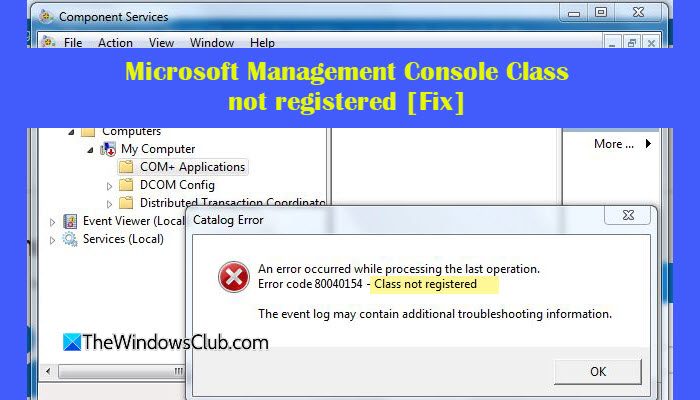
The Class not registered error can also occur while opening images, launching File Explorer, using Outlook, or running Chrome. Although the error message is the same, its cause may vary depending on the application or Windows component affected. In this post, we will focus on Microsoft Management Console and the steps you can take to resolve this issue.
Microsoft Management Console Class not registered, Error Code 80040154
To fix the Microsoft Management Console Class not registered, Error Code 80040154 in Windows 11, use these fixes:
- Re-register the MMC DLLs
- Run SFC and DISM scans
- Install Windows updates
- Perform System Restore
- Enable COM+ in the Registry
Let’s take a look at these in detail.
1] Re-register the MMC DLLs
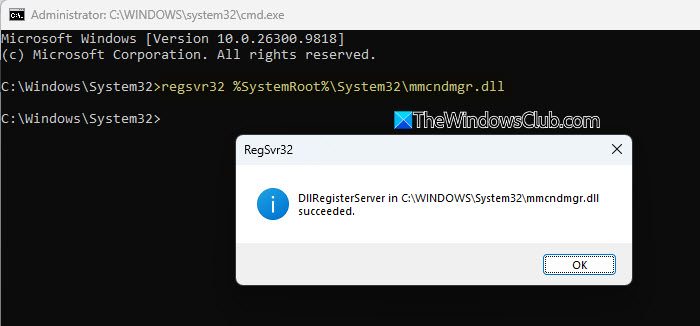
Microsoft Management Console relies on certain DLL files to function. Some DLLs also register COM (Component Object Model) classes in the Windows Registry to identify and load the components when needed. If a relevant component is not registered correctly, MMC may fail to open or display the Class not registered error. You may try re-registering the relevant DLL files to restore their registration.
Before proceeding, check whether the files are available on your system.
Press Win + E to open File Explorer. Navigate to C:\Windows\System32.
Search for mmcndmgr.dll and mmcshext.dll.
If the files are present, proceed with the following steps:
Press Win + R to open the Run dialog. Type cmd and press Ctrl + Shift + Enter. This opens Command Prompt as administrator.
In the Command Prompt window, execute the following commands one at a time:
regsvr32 %SystemRoot%\System32\mmcndmgr.dll
regsvr32 %SystemRoot%\System32\mmcshext.dll
If Windows displays a registration confirmation, close Command Prompt. Restart your computer and check whether Microsoft Management Console opens correctly.
If either DLL is missing or Windows reports that it does not support registration, skip the corresponding command. Do not download DLL files from third-party websites.
2] Run SFC and DISM scans
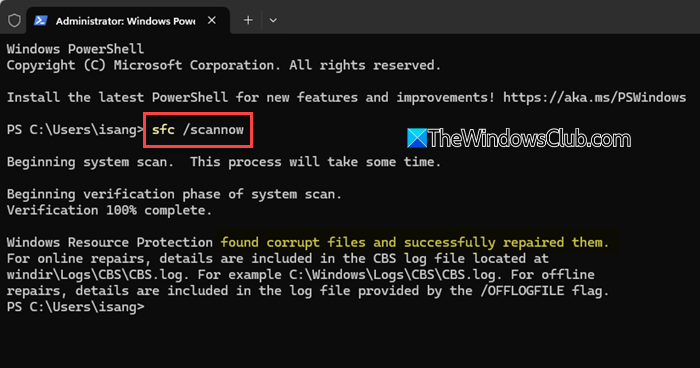
The Class not registered error may also occur if your OS has corrupted or missing system files. Windows includes two built-in tools – Deployment Image Servicing and Management (DISM) and System File Checker (SFC ) – that can help repair such files.
Open Command Prompt as administrator. In the elevated Command Prompt window, execute the following command:
DISM /Online /Cleanup-Image /RestoreHealth
The above command checks the Windows component store for corruption and repairs it if necessary. Once the scan completes successfully, run the following command:
sfc /scannow
The above command scans protected system files and replaces corrupted files with healthy copies from the component store.
If SFC reports that it found and repaired corrupted files, restart your PC and check MMC again. If it reports that it did not find any integrity violations, the error may be caused by something other than corrupted Windows system files.
3] Install Windows updates
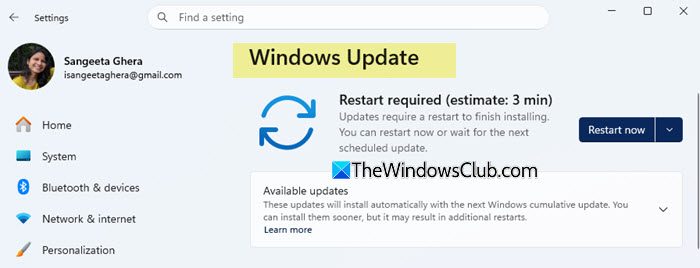
Microsoft regularly releases Windows updates to fix known bugs, improve system stability, and address compatibility issues. If the Class not registered error occurs because of a bug in Windows or an affected system component, installing the latest updates may help resolve it.
To check for updates, open Settings and go to Windows Update. Click Check for updates and install any available updates. If Windows prompts you to restart your computer, save your work and restart it.
After installing the updates, try opening the Microsoft Management Console or the affected snap-in again.
4] Perform System Restore
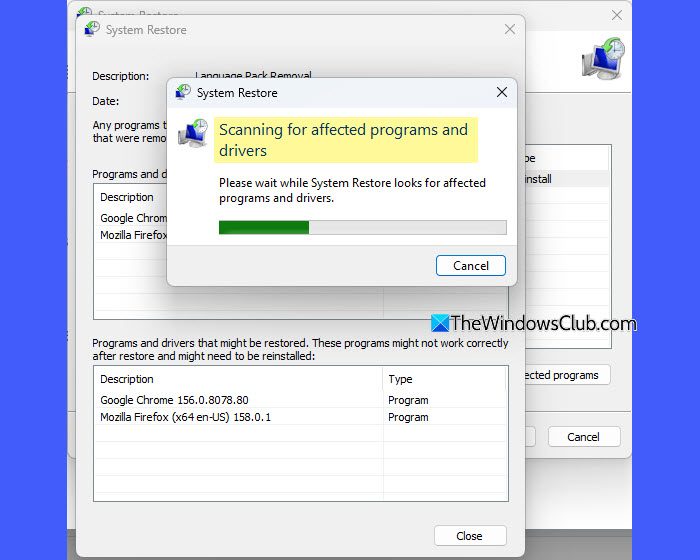
A system restore point is a snapshot of your Windows system files, registry settings, and installed programs at a particular point in time. You can create one manually, or Windows may create one automatically before certain system changes, such as installing updates or drivers, if System Protection is enabled.
If a restore point is available from before the Class not registered error started occurring, you may use it to revert Windows to that earlier state and check whether the issue is resolved.
Press Win + R, type rstrui.exe, and press Enter. Click Next in the System Restore window.
Look for a restore point created before the error appeared. If available, select the restore point and click Scan for affected programs. Review the list of programs and drivers that may be removed or restored, then close the scan window and click Next to continue.
Click Finish to start the restoration process. Wait for Windows to restart and complete the restoration.
After your computer restarts, try opening the Microsoft Management Console or the affected snap-in again.
Note: System Restore does not affect your personal files, but it may remove apps, drivers, or updates installed after the selected restore point.
5] Enable COM+ in the Registry
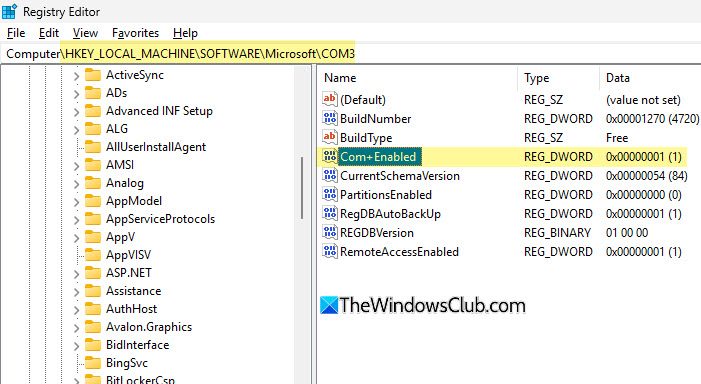
If you encounter the Class not registered error while opening the COM+ Applications folder in Component Services, the issue may be related to COM+ configuration. In one reported case, enabling COM+ through the Registry Editor resolved the issue and allowed the COM+ catalog to load.
Note:
- This workaround applies to the specific COM+ Applications issue. It may not resolve the error in other MMC snap-ins.
- Incorrect changes to the Windows Registry can cause serious system problems. Back up the registry before making changes.
Press Win + R, type regedit, and press Enter. Navigate to the following registry key:
HKEY_LOCAL_MACHINE\SOFTWARE\Microsoft\COM3
Locate the COM+ Enabled value in the right pane. Double-click it and set its Value data to 1.
Click OK and restart your computer.
I hope this helps.
Read: Microsoft Management Console (MMC.exe) has stopped working.
How do I fix the “Class Not Registered” error on Windows?
The Class not registered error can appear when opening File Explorer, Images, Outlook, Chrome, VBA, Start menu components, or certain applications. It usually means Windows cannot find a required component or its registration information. The fix depends on where the error occurs. For MMC-related issues, try re-registering relevant DLLs, running DISM and SFC scans, installing Windows updates, or using System Restore.
What is the meaning of Class not registered?
The Class not registered error often involves a Component Object Model (COM) class whose registration details are missing, incorrect, or inaccessible in the Windows Registry. COM components allow different programs and system features to work together. The error may therefore occur when Windows or an application tries to use a component but cannot find the information needed to load it.
Read Next: MMC could not create the snap-in on Windows.
