
Some users have reported that Microsoft Edge is not showing History data on their Windows PC. It happened after resetting or formatting the system, customizing settings, etc. For some users, the History page did not display the website(s) they were looking for unless they used the search option. And, for other users, their history was not stored/saved for the visited sites for the same day or past days. It can happen if there is some sync issue with your profile, the option to automatically clear browsing history is enabled accidentally, or a setting is configured to disable the browsing history. We have covered the working solutions for all possible causes in this post.
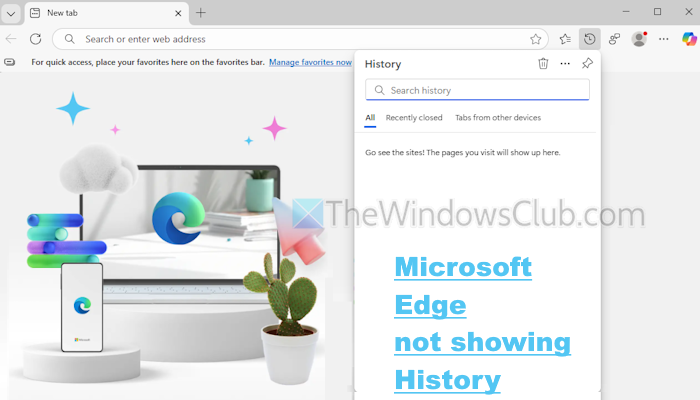
Before proceeding, update the Edge browser and check if this solves the problem. Additionally, make sure that you are not using InPrivate mode or Incognito mode while browsing. Also, Microsoft Edge keeps browsing history for 90 days.
Microsoft Edge not showing History
If the Microsoft Edge browser is not showing history data on your Windows 11/10 PC, use the solutions listed below:
- Check your Sync settings
- Re-sync data to your device
- Disable automatic deletion of Browsing History on exit
- Check Group Policy and Registry settings
- Recreate your Edge profile
- Reset Microsoft Edge settings.
Let’s check these solutions.
1] Check your Sync settings
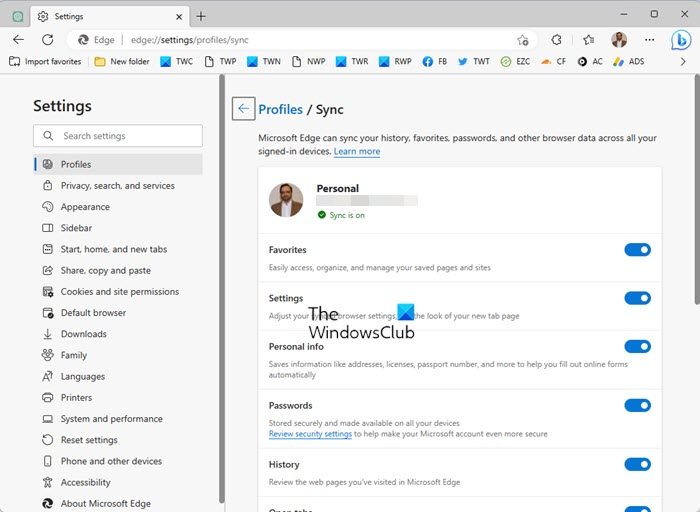
If you are signed in to a profile and browsing history and other data are not showing on this device but on another device(s), you should check your Sync settings. In the Settings page of Microsoft Edge, go to Profiles > Sync. After this, sync data on the Edge browser. Check if the History button is turned on under the Sync option. If not, enable it as it could be the cause of your browsing history not displaying. You should also check other sync options, such as Favorites, Passwords, and Settings, etc., if you face these sync issues.
TIP: If the Sync button is greyed out (even if you are signed in to a profile) in the Settings page of Microsoft Edge, that means the sync settings are disabled for user profiles on your device. In that case, you need to re-enable data sync in your Edge browser using Registry Editor.
2] Re-sync data to your device
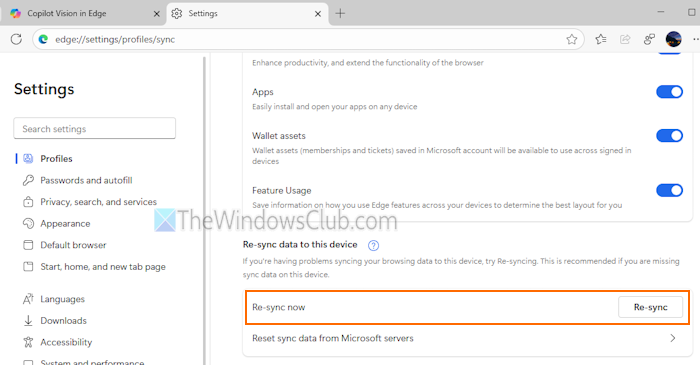
If the sync settings are checked and you still face problems syncing your browsing data to the device you’re using, you should try re-syncing. This helps to merge the local browsing data with the sync data stored on the Microsoft servers.
In Microsoft Edge, go to Settings > Profiles > Sync (under Profile settings). Scroll down the page and press the Re-sync button. In the confirmation box, press the Resync button. This should fix the problem.
Related: Fix Microsoft Edge sync issues on Windows PC
3] Disable automatic deletion of Browsing History on exit
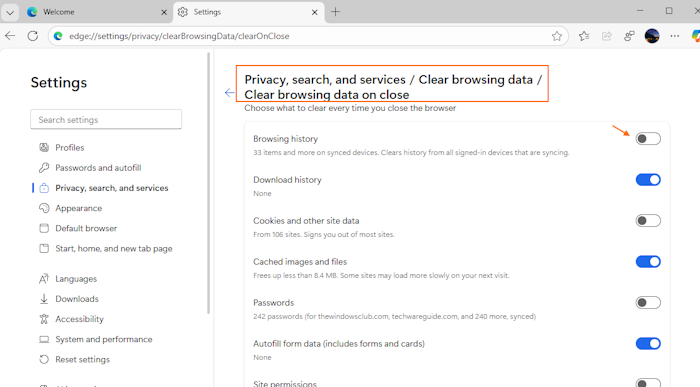
This fix worked for users who found that their browsing history was not stored even after visiting various sites. It can happen if the setting to delete Microsoft Edge browsing history on exit is enabled. The problem was solved after disabling the automatic deletion of browsing history on browser exit. Here are the steps:
- Open the Settings page of Microsoft Edge
- Access Privacy, search, and services
- Select the Clear browsing data option
- Click on the Choose what to clear every time you close the browser
- Turn off the Browsing history button.
4] Check Group Policy and Registry Settings
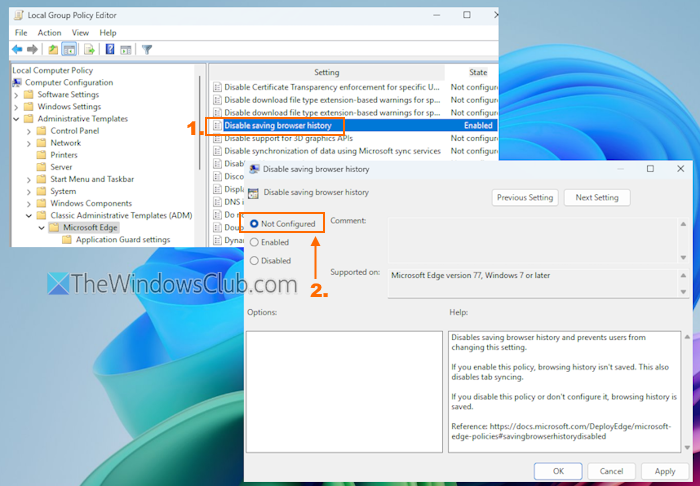
If a setting is configured to prevent the Edge browser from saving browsing history in Group Policy or Registry Editor, this could be the reason that Microsoft Edge is not showing history. If you can view the history for previously visited/stored sites, but Edge is not storing browsing data for current or other sessions, this is the reason. You should check the Group Policy and Registry settings to solve the issue.
In the Group Policy Editor window, access the following location:
Computer Configuration > Administrative Templates > Classic Administrative Templates (ADM) > Microsoft Edge.
After that, access the Disable saving browsing history setting, and set it to Not Configured.
In the Registry Editor window, access the Edge key using the following path:
HKEY_LOCAL_MACHINE\SOFTWARE\Policies\Microsoft\Edge
Delete the SavingBrowserHistoryDisabled DWORD (32-bit) Value in the right section or set its Value data to 0.
Also read: Prevent deleting browser history and download history in Microsoft Edge
5] Recreate your Edge profile
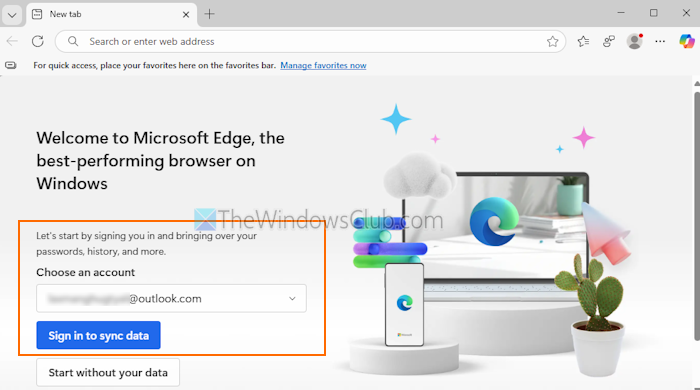
This solution worked for a user who faced the same problem. He was able to search for a site, but it was not visible on the History page of the Edge browser. He deleted the profile and created it with the same email address, and the problem was gone. If that is the case, you should recreate your Edge profile.
This option permanently deletes browsing data for your profile, but any other data that previously synced to that profile will remain with your Microsoft account. Follow these steps:
- Access the Profiles section in the Settings page of Microsoft Edge
- Click on the Delete icon or button
- Press the Remove profile button to remove your user profile from Microsoft Edge
- The browser will close and re-open automatically
- In the Choose an account option, select the same email address from the drop-down list
- Press the Sign in to sync data button. Or else, you can add a new account for an entirely new profile
- Press the Confirm and continue button
- Uncheck the Make your Microsoft experience more useful to you or keep it selected
- Press the Confirm and start browsing button.
6] Reset Microsoft Edge settings
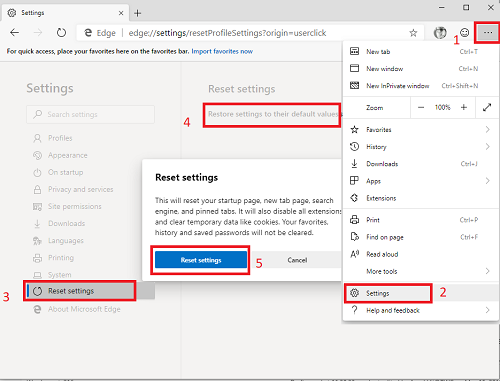
If the above solutions don’t help, you should reset the Microsoft Edge browser. This will reset settings to default, including the startup page, pinned tabs, and more. It will also turn off extensions and clear temporary data.
That’s all.
Why is Edge History not clearing?
When deleting browsing data in Edge, make sure the Browsing history option is checked; otherwise, it will not clear your history. Also, check that the Time range is set as per your requirements. Set the Time range to All time if you want to clear the entire browsing history.
Where is the browsing history file in Microsoft Edge?
The browsing history of Microsoft Edge is stored in an SQLite database file named History. Access the User Data folder for the Edge browser to find the History file. The path to that folder is:
C:\Users\USERNAME\AppData\Local\Microsoft\Edge\User Data
Replace USERNAME with the actual username folder on your PC. Look for a profile folder (say Profile 1, Profile 6, etc.) and open it. There you will see a History file. You can open that file with an SQLite viewer web app or DB Browser software.
Read next: Where does Edge store Password, Cache, History, Extensions, Profiles, and Autofill data?
