
Netizens are quite enthusiastic about Marvel’s Guardians of the Galaxy but now there is criticism rising as it keeps crashing on gamer’s PC. To address this issue, we have compiled some solutions in this article. So, if Marvel’s Guardians of the Galaxy keeps crashing on your computer, you need to follow the solutions mentioned here to resolve the issue.
Why Marvel’s Guardians of the Galaxy keeps crashing on my computer?
Several factors contribute to this issue, but first and foremost, it is essential to check the system requirements before downloading the game. If your computer fails to match the requirements, you won’t be able to play it.
There are some PCs that barely meet the requirements; the game will still work on them, but they may need to make some minor adjustments so that the game doesn’t place a significant load on the CPU and GPU, allowing it to run smoothly on your system without crashing. However, even some compatible systems are not able to play Guardians of Galaxy, because of many different reasons such as outdated Graphics, corrupted game files, etc.
There are also workarounds that can help you play the game, especially if you are not using a high-performance system. We will discuss them as well.
What are the system requirements to run Marvel’s Guardians of the Galaxy on PC?
Please note that if your computer is not compatible, you won’t be able to play the game. Please check the given system requirements to ensure your system is compatible.
Minimum System Requirements:
- Operating System: Windows 11/10 64-bit Build 1803 or above
- Processor: AMD Ryzen 5 1400 / Intel Core i5-4460
- RAM: 8 GB
- Graphics: Nvidia GeForce GTX 1060 / AMD Radeon RX 570
- DirectX: Version 12
- Storage: 150 GB
Recommended System Requirements:
- Operating System: Windows 11/10 64-bit Build 1803 or above
- Processor: AMD Ryzen 5 1600 / Intel Core i7-4790
- RAM: 16 GB
- Graphics: Nvidia GeForce GTX 1660 Super / AMD Radeon RX 590
- DirectX: Version 12
- Storage: 150 GB
Fix Marvel Guardians of the Galaxy crashing on Windows PC
If Marvel’s Guardians of the Galaxy keeps crashing on your system, then the first thing you need to do is to check for updates. Sometimes, the issue can be a bug and updating is a great way to eradicate the bug. So, do and see if the issue persists. If updating is not an option, consider these solutions to resolve the issue.
- Update your Graphics Driver
- Verify the integrity of the game
- Install the latest game patch
- Disable overlays
- Temporarily disable anti-virus software
- Run the game as an administrator
- Close unnecessary background task
- Disable CPU or GPU overclocking
- Update DirectX and Visual C++
- Enable or Disable Game Mode
Start with the first fix.
1] Update your Graphics Driver
Always start by checking your graphics driver’s updated status. If you have recently updated the graphics drivers, no problem there. However, if you haven’t, then update your Graphics Driver. After updating, restart your computer and check if the issue persists.
2] Verify the integrity of the game
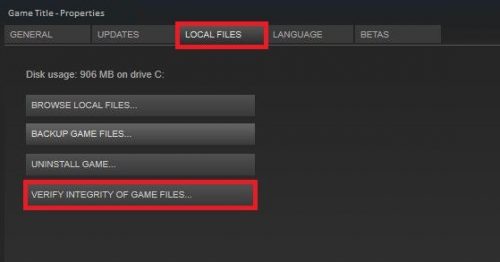
The game may crash because of corrupted files, so, in order to resolve this issue, you need to verify the integrity of the game. Follow the steps below to complete the same task.
- Launch Steam and go for Marvel’s Guardians of the Galaxy in the Library.
- Right-click on the game and click Properties.
- Select VERIFY INTEGRITY OF GAME FILES from the LOCAL FILES tab.
Although it may take some time, it will replace corrupted files.
3] Install the latest game patch
Certain game patches lead to crashing. Developers frequently release new patches. If new patches are available, Steam will automatically install them and replace any faulty ones. Once you do that, your issue should be resolved.
4] Disable Overlays
Overlays were created to improve game performance. In some cases, it does help, but sometimes, it can interfere with your game. Turning it off may prevent this error. Follow the steps to achieve the same result.
- Navigate to Library in the Steam.
- Right-click on Marvel’s Guardians of the Galaxy, and go to Properties.
- Untick Enable Steam overlay while in-game.
If you have some application running Overlays, you need to turn it off for them as well. So, do that and see if the issue is resolved. If not, go to the next step.
5] Temporarily disable Anti-Virus
A common factor responsible for crashing is the Anti-virus. Game files verifying as a virus can a third-party antivirus disallowing them to run on your system. You can either add the Steam client to the whitelist or completely disable the anti-virus.
If you have configured Windows Defender you should allow Steam through it as well. This way, your game or any Steam game will not be considered as a virus or malware. After doing this, relaunch the game and check if the issue persists.
6] Run the game as an administrator
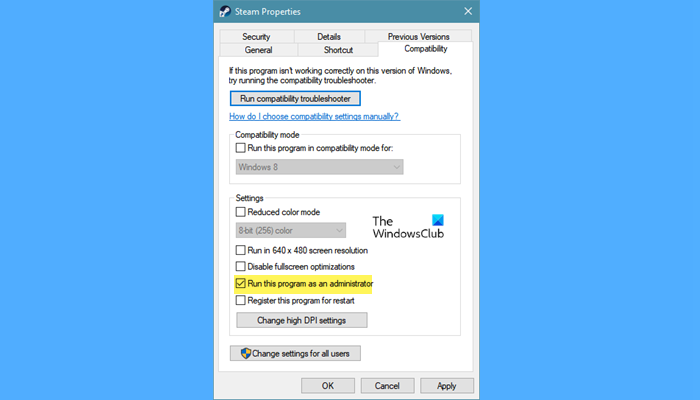
You can also run the game as an administrator and to do so right-click on Marvel’s Guardians of the Galaxy Shortcut and then go to Properties.
In the Compatibility tab, tick Run this program as an administrator and then click Apply > OK. Do the same with Steam Client and this will surely eradicate the issue.
Read: Processor Scheduling in Windows for better performance
7] Close unnecessary background task
Before entering gaming mode, close any background tasks. Most of the time, they occur during the game’s operation. To do so, the steps are below.
- Click Ctrl+Shift+ESC to open Task Manager.
- In the Process tab, end the resources that may affect the functioning of your game.
You should also check the ventilation of your computer, if it has fans. You need to ensure that you are not blocking the air passage, as this can cause overheating, which will eventually crash the game.
Relaunch the app to see whether you are still hit up with the same issue or not. And if you are then the next step will surely help you to resolve this issue.
8] Disable CPU or GPU overclocking
Enabling CPU or GPU overclocking can sometimes affect a game’s functionality, potentially leading to crashes. Setting its frequency to the default can help to resolve the problem. It does not impact the bottleneck or compatibility. This will surely help you to fix the problem.
Read: Optimize Windows PC for gaming; Improve gaming performance
9] Update DirectX and Visual C++
The game can crash if you are running an outdated version of DirectX or Visual C++. You can update DirectX from microsoft.com and Visual C++ redistributes from docs.microsoft.com. After updating them, reopen the game and check if the issue persists. Hopefully, the issue won’t persist.
10] Enable or Disable Game Mode
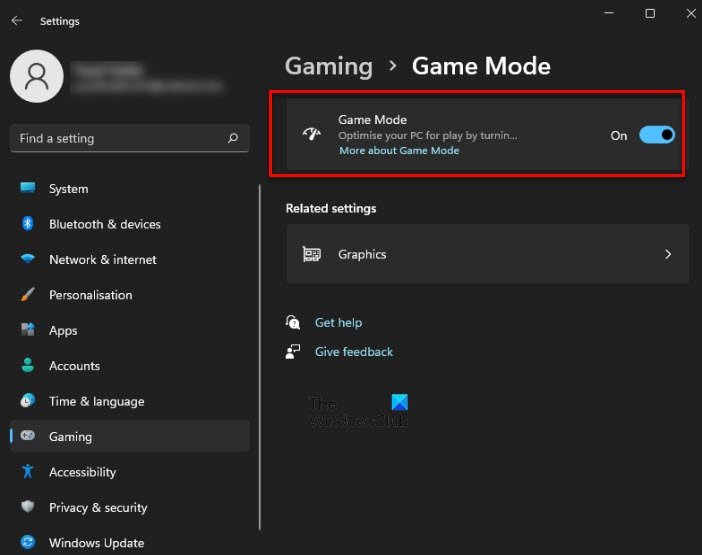
This may sound a bit unusual, but for some computers, Game Mode may work, while for others, it won’t. Let us first understand the difference.
Game Mode is designed to optimize a computer for better gaming performance. So, if you have a system with decent configurations, this mode will optimize your system and you won’t see frame drops, lagging, etc. However, if your computer meets the minimum requirements to run the game, the feature can cause trouble for you and can prevent you from playing the game. In that case, it is recommended to disable Game Mode. So, you should check the system requirements, that we have mentioned earlier in this article, and then decide. should you enable or disable Game Mode.
Can my PC handle Guardians of the Galaxy?
If your PC meets the minimum system requirements, it can undoubtedly handle Guardians of the Galaxy. However, it is often recommended to have a configuration that exceeds the minimum requirements to play the game without any lag. That is why you should check the recommended system requirements before submitting any complaint or feedback.
