
We stumbled upon Event ID 4648 in the Event Viewer that says “A logon was attempted using explicit credentials”. This is triggered when a process tries to log into an account by providing credentials (username and password) different from those of the currently logged-in user. While this may occur during legitimate operations such as scheduled tasks, “RunAs” commands, or remote sessions, it can also signal malicious activity like credential theft or lateral movement. In this post, we are going to talk about this and see what you can do if a logon was attempted using explicit credentials, Event ID 4648.
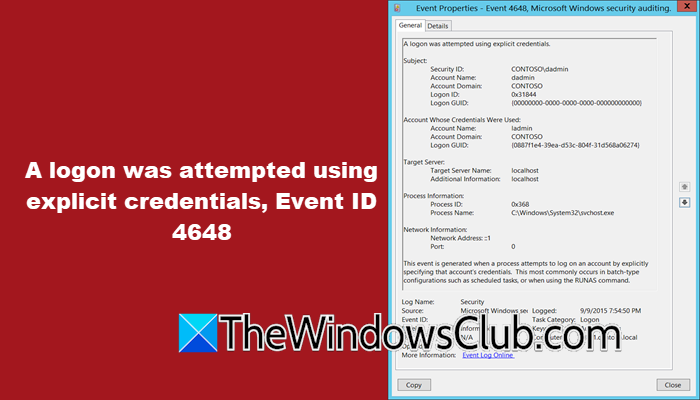
What is Event ID 4648 A logon was attempted using explicit credentials?
Event ID 4648, “A logon was attempted using explicit credentials,” occurs when a process attempts to authenticate to an account by explicitly providing credentials (username/password) that differ from the currently logged-in user’s session. This event is common in legitimate operations like scheduled tasks, “RunAs” commands, or remote access but may signal malicious activity such as credential theft or lateral movement if unexpected.
Fix A logon was attempted using explicit credentials, Event ID 4648
If you see “A logon was attempted using explicit credentials, Event ID 4648” in Windows 11/10, you can follow the solutions mentioned below.
- Restrict and Audit Privileges Account Usage
- Remove the account
- Audit Scheduled Tasks with Stored Credentials
- Change your WiFi Password
- Disable Remote Desktop
Let us talk about them in detail.
1] Restrict and Audit Privileged Account Usage
Restricting and auditing privileged accounts involves controlling who has elevated permissions and how they are used. By limiting access, we reduce the attack surface; only trusted users should have access when necessary. The “RunAs” command should be restricted, as it can create risks if misused.
Regular account reviews and strict auditing ensure that only authorized personnel keep privileges, accounts are not shared, and access is revoked immediately when no longer needed. Auditing tracks privileged operations, checks for excessive permissions, and investigates unusual activities to quickly respond to threats.
2] Remove the account
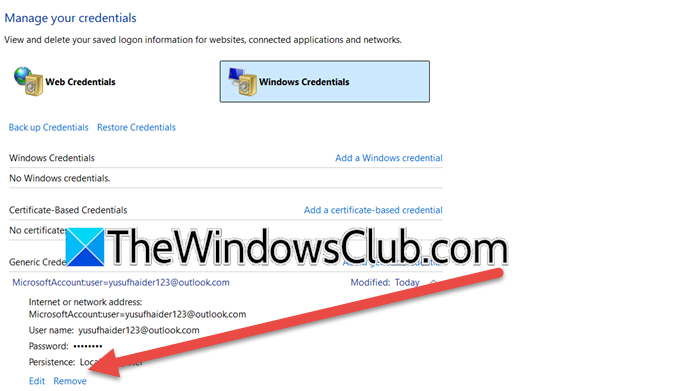
When you check the event log, you will notice the Account Name field pointing to the actual name of the account. In this solution, we are going to remove that account and add it again later. To do this, you can follow the steps mentioned below.
- Open the Control Panel by searching for it in the Start Menu.
- Go to Credentials Manager.
- Click on Windows Credentials
- Expand the user account you do not recognize or no longer need. In the dropdown menu, select Remove to delete that user.
Once done, you need to add the account. And finally, see if the issue is resolved.
3] Audit Scheduled Tasks with Stored Credentials
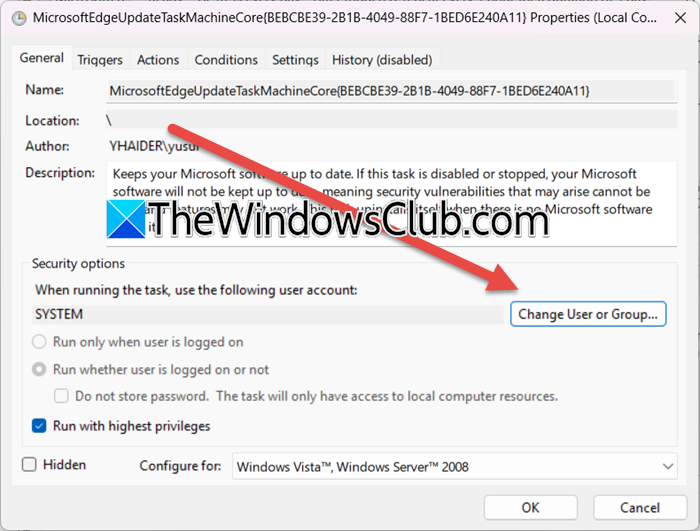
Scheduled tasks configured with explicit credentials (username/password) will routinely trigger Event ID 4648 when they run. If the stored credentials are outdated, invalid, or compromised, these tasks cause repeated logon failures or security alerts. You can follow the steps mentioned below to do the same.
- Open the Task Scheduler.
- Right-click on a scheduled task, click on Properties, and click on the General tab.
- Check the Run whether user is logged on or not, and Run with highest privileges options are ticked.
- Click on Change user or group.
- You need to reconfigure the task to avoid storing passwords and switch to gMSA for domain operations.
Finally, check if the issue is resolved.
4] Change WiFi Password
If your device connects to a corporate/enterprise Wi-Fi network, example WPA2-Enterprise, using explicit credentials (domain username/password), Windows stores these in Credential Manager. When the password changes, example, domain password rotation, the device may repeatedly attempt authentication with old credentials, triggering Event ID 4648. So, go ahead and change the WiFi password and see if it helps.
Read: Sign in required, Device is having problems with work or school account
5] Disable Remote Desktop
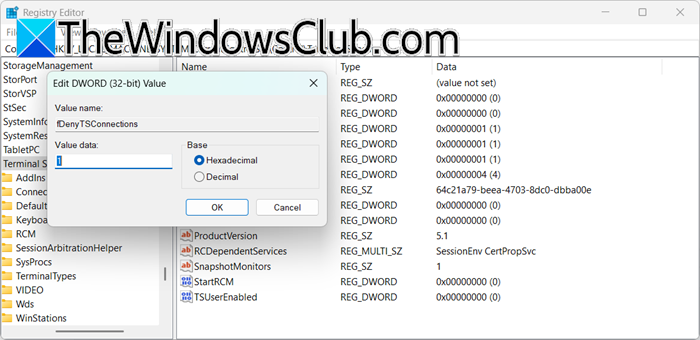
When you RDP into a machine using different credentials it might generate Event ID 4648. Additionally, malicious actors often abuse RDP for lateral movement, causing suspicious 4648 events. Therefore, you need to check the 4648 event details:
- Process Name: svchost.exe (with service TermService).
- Target Server Name: TERMSRV/<IP> (RDP protocol).
In this case, disabling RDP stops these events. To do so, you can follow either of the two methods to disbale Remote Desktop.
Settings:
Open Settings > System > Remote Desktop > Toggle off.
Registry Editor
- First take a backup of your registries.
- Now, navigate to
HKEY_LOCAL_MACHINE\SYSTEM\CurrentControlSet\Control\Terminal Serverin the Registry Editor. - Set fDenyTSConnections = 1.
- Finally, reboot your computer.
We hope that with the help of these solutions, you will be able to resolve the issue with ease.
Read: Cannot login to Windows 11; Windows login and password problems
What is the event code for explicit login?
The event code for an explicit login in Windows is Event ID 4648, titled “A logon was attempted using explicit credentials.” This event triggers when a process or service attempts to authenticate to an account by explicitly providing credentials that differ from the currently logged-in user’s session, often seen in scenarios like scheduled tasks, RunAs commands, RDP connections, or potential credential theft attempts.
Also Read: You can’t sign in with this account – Windows error.
