
If the iCloud account is not showing up in Outlook or refuses to sync, you are not alone. Some users are experiencing this issue on Windows systems, where Outlook and iCloud stop communicating. However, the best part is that it is easily fixable, and that’s what we are going to do in this article.
Why is my Outlook account not connecting?
There are various reasons why the Outlook account is not connecting. It may be due to incorrect credentials, outdated authentication methods, profile corruption or add-in conflicts. Network restrictions and recent Outlook or Windows updates can also be one of the contributing factors. To know more, see the next section.
iCloud account not showing or working in Outlook
If the iCloud account is not showing or working, or refuses to sync in Outlook, execute the solutions mentioned below.
- Perform a clean reinstall of iCloud for Windows
- Enable and manage the iCloud Outlook add-in
- Manually configure iCloud as an IMAP account
- Create a new Outlook profile
- Disable conflicting add-ins and use the iCloud shared calendar workaround
Let’s get started with the troubleshooting guide.
1] Perform a clean reinstall of iCloud for Windows
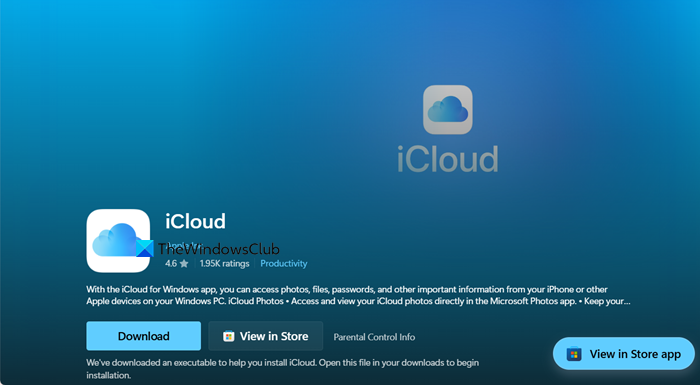
Outdated files, a botched update, or a damaged Outlook add-in installation can prevent iCloud from appearing at all. A clean reinstall will ensure that we have the latest, uncorrupted version of both the iCloud application and its critical Outlook add-in.
- Sign out from iCloud app, and close the app. Navigate to the Windows Settings, click on Apps, and then select Installed apps.
- Search for iCloud, click on it, and select the Uninstall button. Follow the on-screen prompts to uninstall it completely.
- Once done, open File Explorer, navigate to C:\Program Files, and look for a folder named Common Files. There, delete the Apple folder if it exists, and also look for an Apple or iCloud folder in C:\Program Files (x86) and delete it.
- After deleting them, reboot the PC, and download the latest version of iCloud for Windows from app.microsoft.com. Right-click the downloaded installer file and select Run as administrator option. Install the app and restart the computer once more when prompted.
- After restarting, open the iCloud app and sign in with your Apple ID and password. Check the boxes for Mail, Contacts, Calendars, and Tasks. There, ensure that Microsoft Outlook is checked, and then click Done. This will install and enable all the critical add-ins.
Open the app and check if the issue is resolved. If it persists, move on to the next solution.
2] Enable and manage the iCloud Outlook add-in
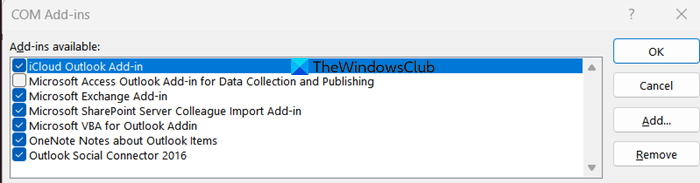
The iCloud add-in can get disabled due to conflicts or Outlook updates, or it can get stuck in a faulty state. We are going to manually access the add-in manager to forcefully re-enable or refresh the add-in.
- Launch Outlook, go to the File section, and select Options.
- In the Outlook options window, click on the Add-ins option, and ensure that COM Add-ins is selected.
- Next, hit the Go… button, and in the COM Add-Ins dialogue box, search for the iCloud Outlook Add-in option.
- If it is unchecked, simply check the box, click OK, and restart Outlook. However, if it is already checked, uncheck it, click ok, and close the app. After a few seconds, relaunch the app, go back to the COM Add-ins dialogue box, recheck the box, and hit the OK button.
Now verify whether the issue is resolved. See the next solution if the iCloud account is still not showing or working.
3] Manually configure iCloud as an IMAP account
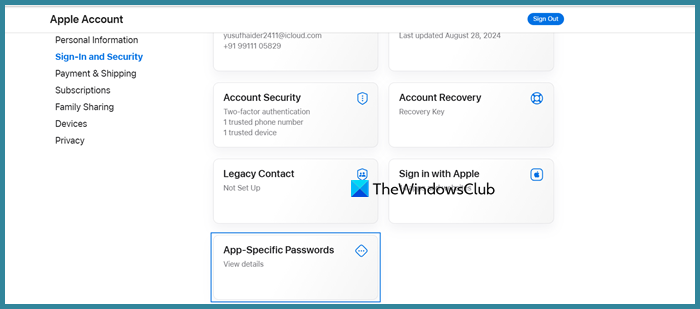
If the add-in refuses to work, then the next step is to bypass it entirely by treating iCloud as a standard IMAP account. The add-in is primarily needed for calendars and contacts, but email can often sync using industry-standard protocols.
- Open the web browser, go to appleid.apple.com, sign in with the Apple Id, and navigate to the Sign-In and Security section.
- Find the App-Specific passwords option, click the Generate Password button, and give the password a descriptive name like Outlook Windows.
- Next, click Create and immediately write down the 16-character password shown on the screen. Now, launch Outlook, go to the File tab, and select Account settings.
- Click on the Manage Profiles option, then select Email accounts, and click New. Select Manual setup or additional server types, click Next, and choose POP or IMAP, followed by hitting the Next button.
- Here, enter account information such as name, email address, account type that is IMAP, incoming mail server: imap.mail.me.com, and outgoing mail server: smtp.mail.me.com. Fill in other information like user name and the 16-character App-specific password we generated earlier.
- Select the More Settings button, go to the Outgoing Server tab, check the My outgoing server (SMTP) requires authentication box, and select Use same settings as my incoming mail server.
- Next, go to the Advanced tab, set the Incoming server (IMAP) port to 993, and select SSL\TLS from the dropdown. Set the Ongoing server (SMTP) port to 587 and select STARTTLS.
- Hit the OK and Next buttons for Outlook to test the account settings. Once the test passes successfully, hit the Finish button.
If manual IMAP setup fails, continue to the next solution.
4] Create a new Outlook Profile
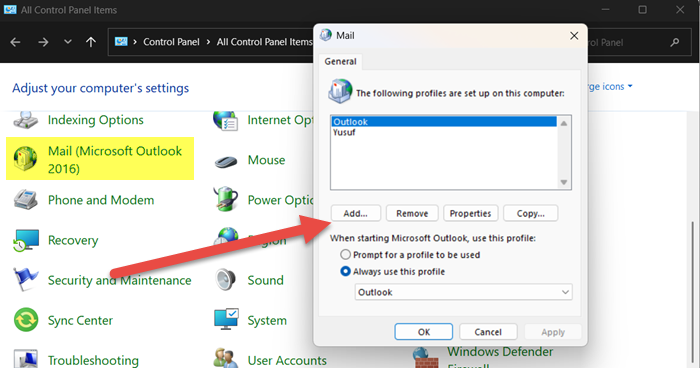
Corrupted Outlook profiles prevent iCloud from attaching correctly. A new profile provides a fresh, clean environment, and that’s what we are going to do in this solution.
- Open Control Panel, change View by to Large icons, and select Mail (Microsoft Outlook). In the mail setup window, click the Show Profiles option, select Add, type a name for the new profile, and click OK.
- The Add account wizard will open. Do not add the iCloud account now, and close the window. Next, open the iCloud app, navigate to its control panel, and ensure the Mails, contacts, calendars, and tasks box is checked.
- A new window will appear. There, verify that Microsoft Outlook is checked to connect iCloud to the new Outlook profile.
- Now, go back to the Control panel, select Show profiles, and click the Always use this profile as the default option. Click the Apply and OK buttons.
Launch Outlook, and it should use the new profile with the iCloud data synced in. Move to the next solution if the issue persists.
Read: iCloud for Windows not showing Calendars and Contacts
5] Disable conflicting add-ins and use the iCloud shared calendar workaround
Sometimes the problem isn’t in iCloud but something inside Outlook, which is blocking it. Third-party add-ins can interfere with how the iCloud Outlook add-in loads. To prevent this from happening, we will disable conflicting add-ins by following the steps below.
- Open the Outlook app, go to the File tab, click Options, and select the Add-in option.
- Look for COM Add-ins, select it, and click Go. Uncheck every add-in in the list except for the iCloud Outlook Add-in, and click OK.
- Once done, restart Outlook, and check if it functions. If it does, re-enable other add-ins one by one to find the culprit.
Now, if that still doesn’t restore visibility, follow the steps mentioned below to use the iCloud shared calendar workaround.
- Open a browser, go to iCloud.com, log in, and open the Calendar app.
- In the lift sidebar under Calendars, click the “…” button and select the Share Calendar option.
- Check the box for Public calendar, click Copy link, and close iCloud.com.
- Next, go to outlool.live.com, sign in with the account used in the Outlook desktop app, and right-click on My calendars or Other calendars from the left pane of Outlook on the web.
- Select Add calendar and then click on Subscribe from web. Paste the public calendar URL, give it a name, and click Import.
The iCloud calendar will now appear in the web Outlook, and after a short sync, it will appear in the desktop client’s “Other Calendars” section.
That’s it!
Read: Fix iCloud syncing issues and errors on Windows
Is iCloud linked to Outlook?
Yes, iCloud can link to Outlook on Windows through the iCloud for Windows app. This connection allows mail, contacts, and calendar to sync. However, it is often unstable due to compatibility and authentication issues.
Also Read: iCloud will not let me sign in or sign out on PC.
