
At times, you might want to view Google search results by date so that you can find the latest happenings at your fingertips. The good news is that there are multiple methods to obtain Google search results or sort them by date. This article explains almost all the possible ways to get the job done.

How to view Google Search Result by date
To view Google Search Result by date, follow these steps:
- Using Any time tool
- Using Advanced search
- By changing URL
To learn more about these methods, continue reading.
1] Using Any time tool
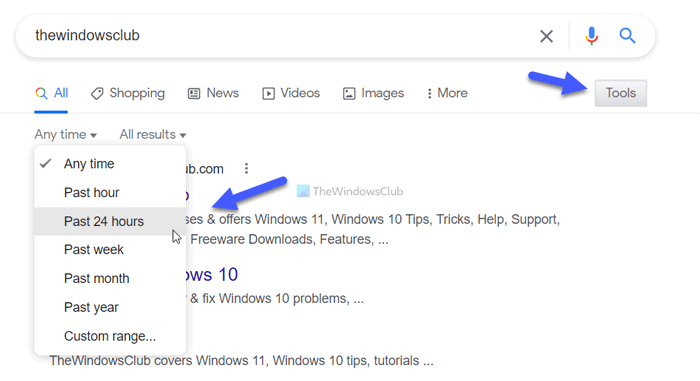
Any time is an in-built tool that you can use to search by date on the Google search engine. Whether you need to find results published in the last hour, week, month, year, or anything else, you can use this option to view Google search results by date. As mentioned earlier, you do not need to install third-party extensions or use third-party services since it is an in-built option. To use the Any time tool to search for results on Google, follow these steps:
- Open google.com and search for a keyword.
- Click on the Tools option.
- Expand the Any time menu.
- Select a time that suits your needs.
The best thing about this method is that you can find an option called Custom range. The Custom range option, available under the Any Time drop-down menu in Google search results, helps you view search results within a specific date range. This option opens a Customised date range pop-up. Use that pop-up to enter From and To date and use the Go button.
Let’s assume that you want to find all the articles published between two particular dates. In such situations, you can use the Custom range option. If you select this option, you need to enter two dates manually.
2] Using Advanced search
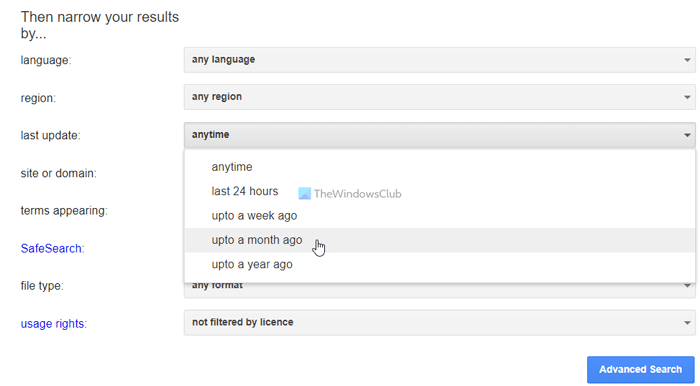
Google offers several options to users for customizing search results according to their needs. For example, you can search for PDF, exclude a particular website, include a specific webpage, etc. Above all, you can view Google search results by date using the same method. In this case, you need to select a period that displays all published articles from that time. To use the Advanced search option, follow these steps:
- Open google.com and search for a keyword.
- Click on the setting gear icon visible in the top-right corner.
- Select Advanced search option.
- Find out the last update menu.
- Expand the menu.
- Choose a time you want to get search results from.
- Click on the Advanced Search button.
After clicking on the Advanced Search button, you can find the search result on the Google search result page.
Read: Google Search Fun Tricks
3] By changing URL
The above two methods are quite user-friendly when it comes to changing the keyphrase or time. However, if you want to use the same technique manually, you can customize the URL and get the search result accordingly.
Let’s assume that you want to get search results from the past 24 hours. In that case, you need to enter a URL like this:
https://www.google.com/search?q=thewindowsclub&source=lnt&tbs=qdr:d
If you want to get search results from last week, enter the URL like this:
https://www.google.com/search?q=thewindowsclub&source=lnt&tbs=qdr:w
For your information, qdr:d (d stands for day) or qdr:w (w stands for week). Similarly, if you want to get search results from the past 3 days, you need to use this parameter: d3. On the other hand, if you want to get search results from the past 5 weeks, you need to use a parameter like this: w5. Apart from that, q=thewindowsclub denotes that you are searching for the keyword, thewindowsclub.
That’s all! Hope this guide helped.
Read:
Can you see old Google search results?
You can view old Google search results using the browsing history feature of your browser (unless you haven’t deleted the browsing history). In addition to that, if you have turned on the Web & App Activity feature for your Google account, then Google may store the searches performed by you, websites you’ve visited, etc. You can see that information under the My Activity section present in the Data & privacy category of your Google account.
Read next: How to search Images by Color in Google.
