
Zoho Mail is a secure, encrypted, and ad-free email service. Today, it has become a top choice for professionals and businesses. It is packed with many productivity tools, including Zoho Calendar. This article will guide you on how to use Zoho Calendar.
How to use Zoho Calendar
Zoho Calendar offers many useful features. It is more than just a tool for checking dates. It allows you to organize meetings, set automated calendars, and manage your workflows from one place. Here, we will show you how to use Zoho Calendar.
We will talk about the following actions in Zoho Calendar:
- Create and edit events
- Organize repeating events
- Add conferencing
- Create and manage Group Calendars
- Sync your Google Calendar
Let’s start.
1] Create and edit events
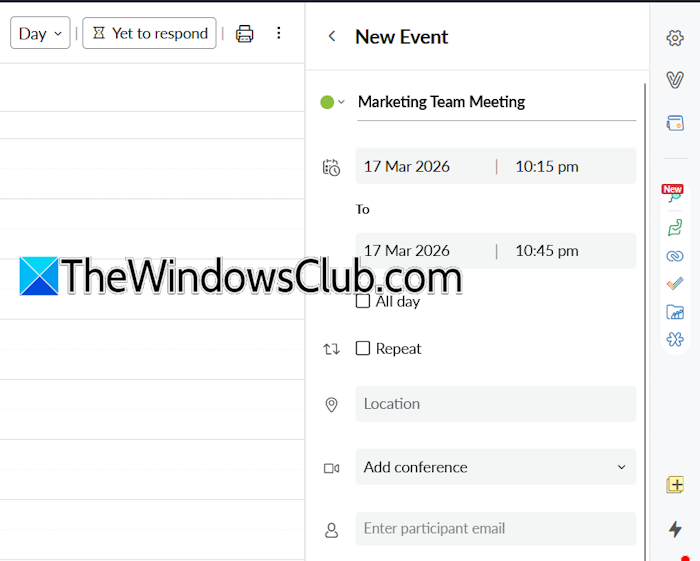
To create an event in Zoho Calendar, click on the Calendar icon on the right pane and then click New Event. After that, type a name for your event and select the required date and time. You can also add location and participants’ email addresses. When you are done, click Save. As you create an event, Zoho Calendar will send an email automatically to all the added participants.
You can also configure advanced actions for events, such as event permissions and event descriptions, by clicking the More Options link.
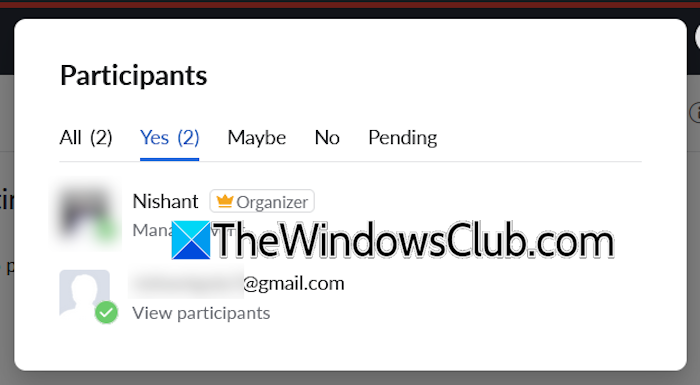
All the participants have three choices for every event. They can accept, decline, or tentatively accept the invitation. You can also view which participants accepted or declined the event invitation. For this, switch to the Month view in Zoho Calendar, then click on the event. Now, click on the required icon to open the event in a new tab. Here, you can easily view the action taken by the participants. To edit an event, click on it and then click the Pencil icon.
Create events using Smart Add
Smart Add is a useful feature that lets you create events quickly by entering event details. You just have to provide the event details in one sentence, and the Smart Add feature will create the event for you.
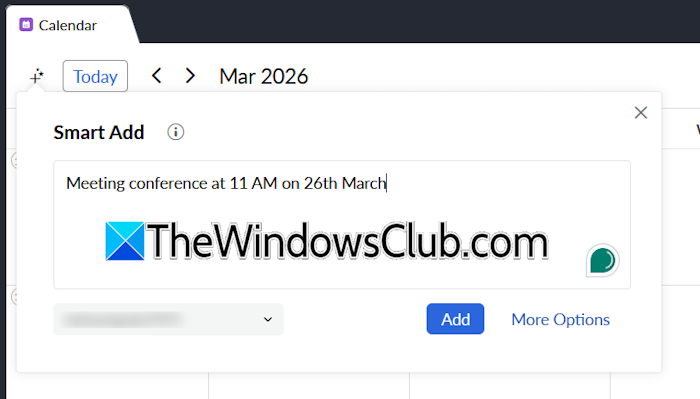
For example, if you want to schedule a meeting conference at 11 AM on a particular date, you can type the following sentence:
Meeting conference at 11 AM on <Date>
To access this feature, click the Plus icon or press the c + s keys.
2] Organizing repeating events
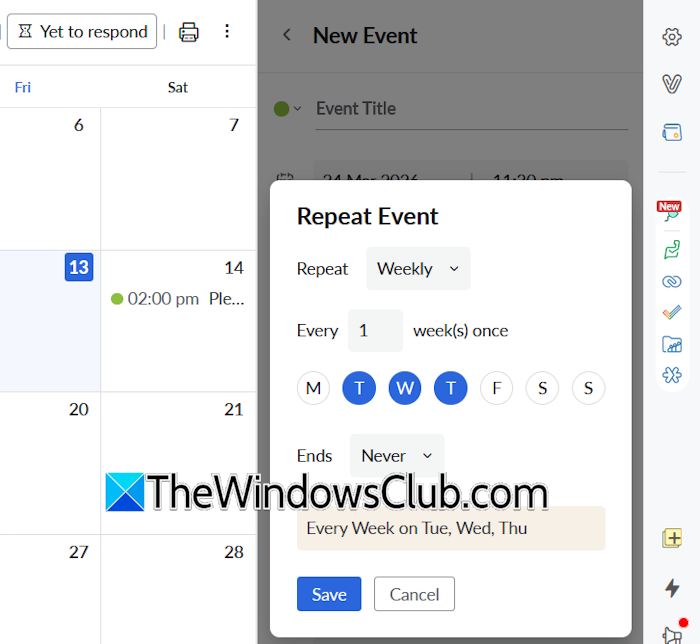
In Zoho Calendar, you can also set your events to repeat at specific intervals, such as daily, weekly, or monthly. To create repeating events, follow these steps:
- Open Zoho Calendar.
- Click on the Calendar icon on the right side.
- Click New Event.
- Enter your Event title and select the starting date for the event.
- Now, select the Repeat checkbox.
As you select the Repeat checkbox, the repeat options will appear. You can repeat an event daily, weekly, monthly, and yearly. The repetitive events never end by default. If you want the events to stop repeating after a specific time, you can select that date, or you can end a repeating event by count.
3] Add conferencing
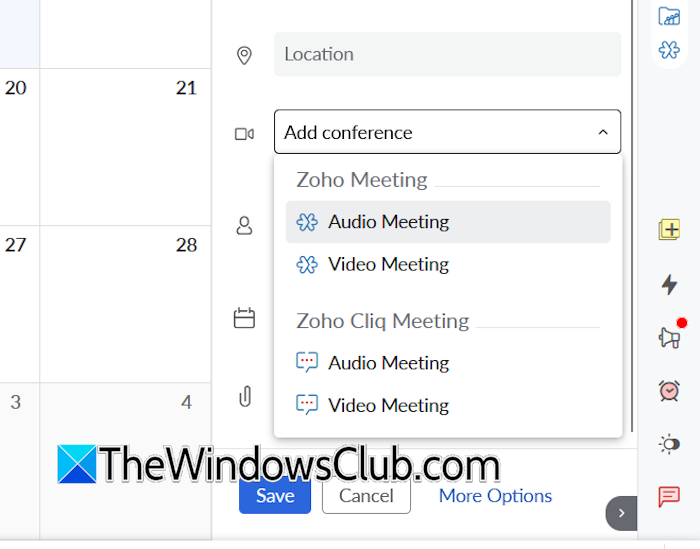
Zoho Calendar also allows you to create an audio or video meeting by adding conferencing. To create a conference in Zoho Calendar, use these instructions:
- Click the Calendar icon on the right pane.
- Enter event details, such as event name, date, attendees, etc.
- Click Add Conference and select the required option.
- Click Save. You will see a pop-up asking you to send an invitation to only attendees or attendees and yourself. Select the desired option. If you do not want to send an invitation to anyone, select None.
When you are done, click Confirm. Zoho Calendar will send an email for the video or audio meeting to all the attendees (if you select that option).
4] Create and manage Group Calendars
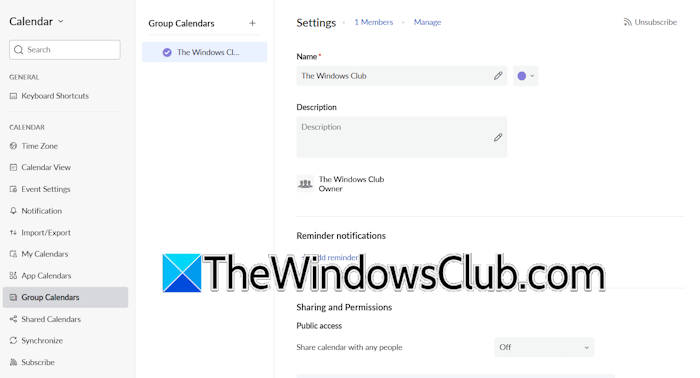
Group Calendars allow you to manage your team activities through one calendar. Members of the Group Calendar can manage events and view all updates. To create a Group Calendar, follow these steps:
- Log in to Zoho Calendar.
- Click the Plus icon next to My Calendars and select Add Calendar.
- Select Group Calendars from the left side and enter the required details to create a Group Calendar.
All the created Group Calendars will appear under the GROUP CALENDARS section. If you are an admin, you can share your Group Calendars. For this, click the three dots next to the Group Calendar you want to share, and select Edit. Scroll down and select the required option in Public access.
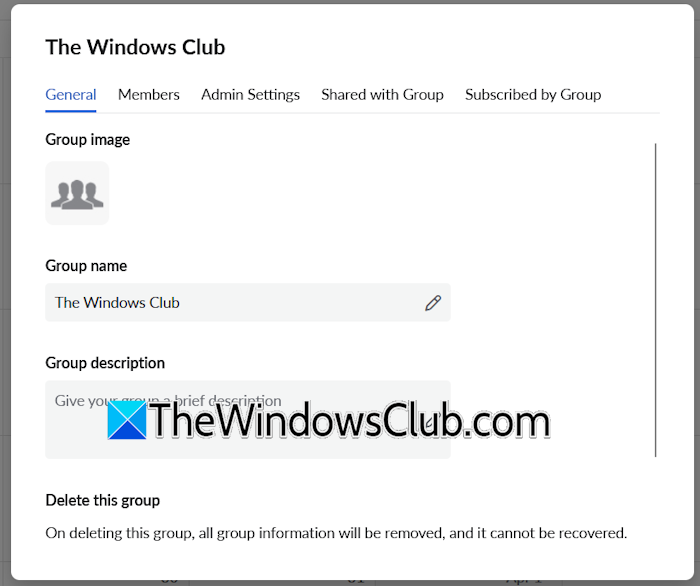
To manage a Group Calendar, click on the three dots next to it and select Manage Group. Here, you can add members to the Group Calendar and change other admin settings.
5] Sync your Google Calendar
Zoho Calendar also allows you to sync your Google Calendar. The steps to do this are as follows:
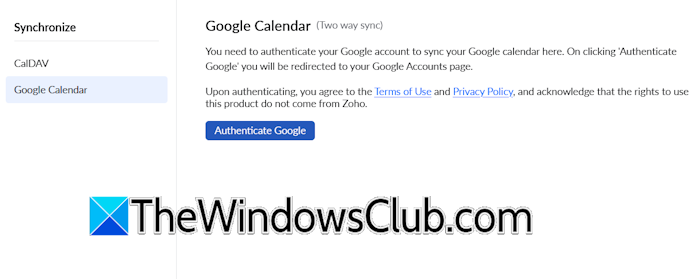
- Click on the gear-shaped icon next to MY CALENDARS to open Settings.
- Select Synchronize from the left side.
- Now, select Google Calendar.
- Click Authenticate Google and follow the on-screen instructions.
- Your Google Calendar will be added to Zoho Calendar. Now, click Synchronize. This process will take time.
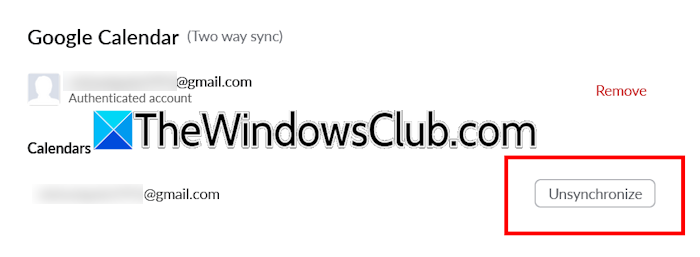
To unsynchronize Google Calendar, repeat the above steps and click Unsynchronize.
How to hide or unhide Calendars
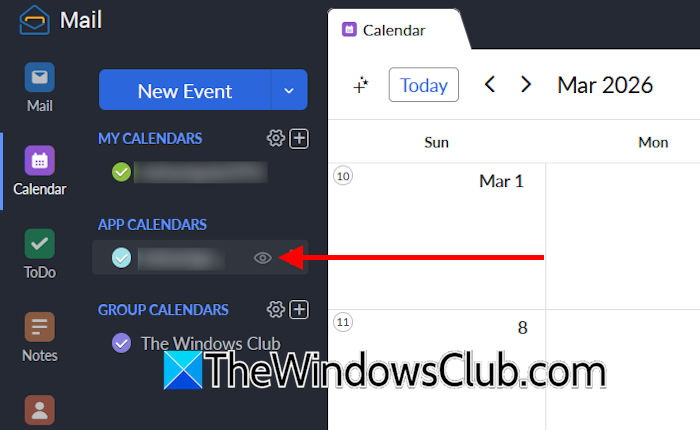
You can hide or unhide your calendars in Zoho Calendar. To hide a calendar, hover over the calendar you want to hide and click the Eye icon.
Hiding a calendar makes it disappear from the Calendars list. Therefore, if you want to unhide that calendar, you need to follow these steps:
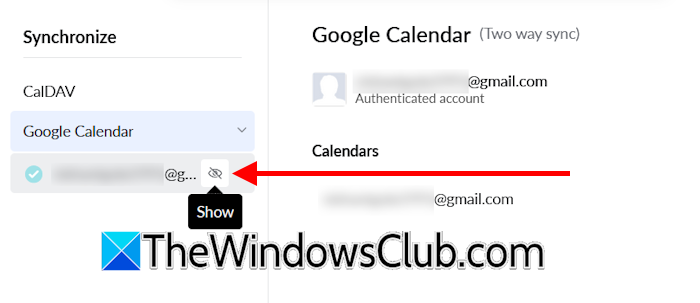
- Click on the gear-shaped icon next to the calendar to open its settings.
- Select the category of the hidden calendar. For example, if you hid a Google Calendar, select Synchronize.
- Hover your mouse over the hidden calendar.
- Click the Show icon.
That’s it. This is how you can use Zoho Calendar.
Read: How to set Auto Reply in Zoho Mail.
Is Zoho Calendar free?
Yes, Zoho Calendar is a free online tool provided for teams and individuals. It includes many useful features, such as event scheduling, reminders, sharing, and integrations with other Zoho applications. You can also sync your Google Calendar with Zoho Calendar.
What is the date format for Zoho Calendar?
Zohjo Calendar supports these four date formats: MM/dd/yyyy, dd/MM/yyyy, yyyy/MM/dd, yyyy-MM-dd. The dates in the Zoho Calendar are displayed based on the date format chosen in the calendar settings.
Read next: Create a custom Email ID with a domain name with Zoho Mail for free.
