
In this post, we will show you how to use MAI-Image-1 for HD image generation on a Windows PC. Microsoft has recently introduced its first text-to-image model built completely in-house. Known as MAI-Image-1, the model has already ranked among the top 10 models on LMArena, an online platform that ranks large language models (LLMs) and other generative AI systems based on what users like better.

What makes MAI-Image-1 different from other similar models is Microsoft’s focus on data selection and evaluation to ensure its datasets mirror what professional creators do. The company also refined the model using feedback from creative professionals to make its outputs more diverse, realistic, and relevant for real-world use cases.
Use MAI-Image-1 for HD image generation in Windows 11
To use MAI-Image-1 for HD Image Generation on a Windows 11/10 PC, follow these steps:
- Visit the LMArena website
- Select MAI-Image-1 as your model
- Enter your image prompt
- Generate and review the result
- Download or save your HD image
Let us see this in detail.
Microsoft will soon embed the model into its flagship products, such as Microsoft Copilot and Bing Image Creator. Meanwhile, you can try MAI-Image-1 and compare it with other leading AI models on LMArena.
Open your preferred web browser and visit lmarena.ai using this link. Switch conversation mode to Direct Chat.
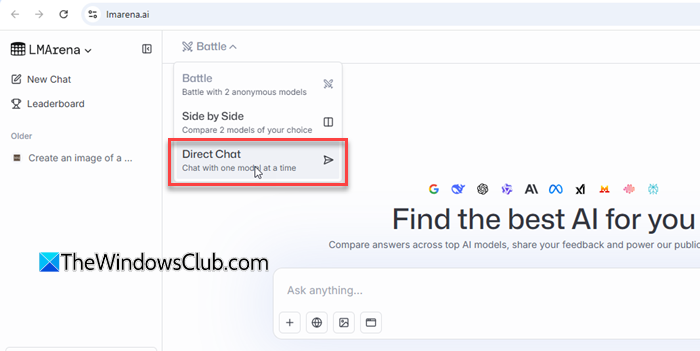
Note: You can start generating images right away. Signing in is not required for basic use. However, creating a free account allows you to save your work and participate in ranking or feedback sessions.
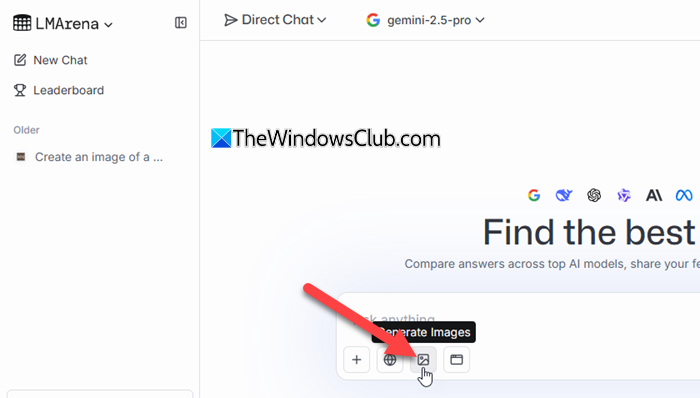
Select the Generate Images option from the prompt window.
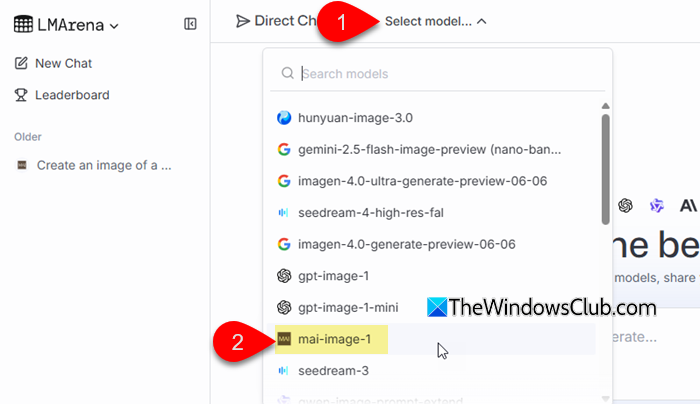
Then click the Select model dropdown on top and select mai-image-1.
Next, describe the image you want to generate and press Enter. The text or prompts you write might be shared publicly by the platform for research or community purposes.
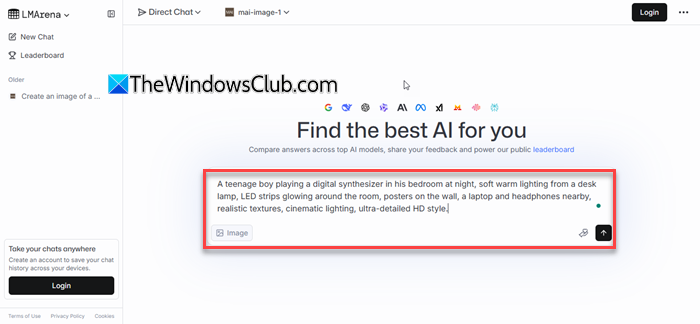
The model usually takes just a few seconds to generate the output. In my case, it took around 15–16 seconds, which is quite fast compared to other similar models. Here’s how the results look:
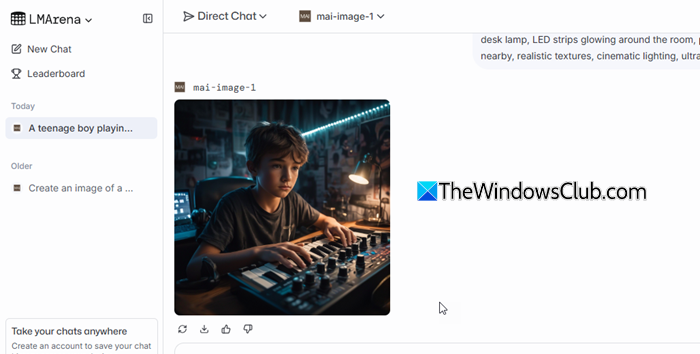
If you’re not satisfied with the results, click Retry to generate a new one (you can click this only once). For more accurate outputs, try using a detailed prompt that describes the scene, lighting, mood, and style. You can also use an AI prompt generator to craft better prompts for MAI-Image-1.
Once you’re happy with the result, click Download to save the image to your system.
Use Comparison Mode
To compare MAI-Image-1 with other models, you can use the Comparison Mode on the LMArena platform.
To do this, select Side by Side from the top dropdown menu, then choose another model from the second dropdown that appears. After that, enter your prompt to generate images from both models simultaneously.
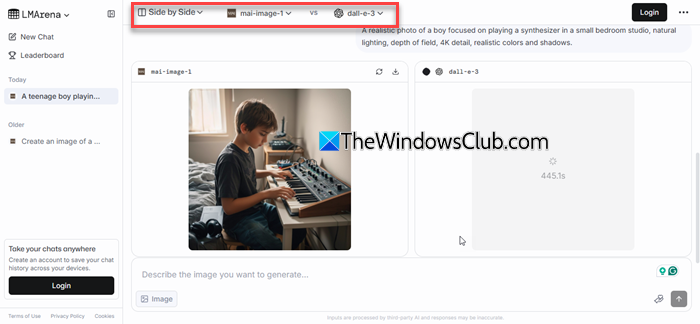
I tried comparing MAI-Image-1 with DALL·E 3, and while MAI-Image-1 produced impressive results in just 10–12 seconds, DALL·E 3 took a whopping 1004.5 seconds (roughly 16 minutes), and was still processing! I eventually gave up waiting.
Once both results are up, you may vote by clicking “Left is Better”, “Right is Better”, “Both are bad”, or It’s a tie.
Overall, MAI-Image-1 feels like a real game-changer in terms of both speed and output quality.
Key Features of MAI-Image-1
- In-house Microsoft model: MAI-Image-1 is built entirely by Microsoft, giving the company full control over its training data, architecture, and deployment.
- High-definition, photorealistic results: The model excels at producing lifelike images with complex lighting, bounce reflections, texture, and fine details.
- Optimized for speed and efficiency: MAI-Image-1 is faster than many larger models. It generates high-quality images quickly, allowing rapid iteration and experimentation.
- Reduced AI look: The model focuses on natural composition and authentic aesthetics, minimizing the overly stylized or artificial appearance common in many AI images.
- Strong content safety and filtering: It integrates Microsoft’s responsible AI standards to prevent harmful or biased outputs.
I hope you find this useful.
Read: Gemini Nano Banana: Use Prompt to create 3D images.
Can I generate AI images on my PC?
Yes, you can generate AI images directly on your PC using online tools or local AI models. Platforms like LMArena, Bing Image Creator, or Microsoft Copilot let you create images in your web browser without any installation. For offline generation, you can use tools like Stable Diffusion if your system has a good GPU. It’s easy, fast, and works well even on Windows PCs.
Can AI generate HD images?
Yes, modern AI models like MAI-Image-1, DALL·E 3, and Midjourney can generate high-definition (HD) images with excellent detail and realism. These models use advanced diffusion and rendering techniques to create sharp, visually rich results. You can even fine-tune the resolution or upscale your images for professional use.
Read Next: How to use DeepSeek to generate Images.
