
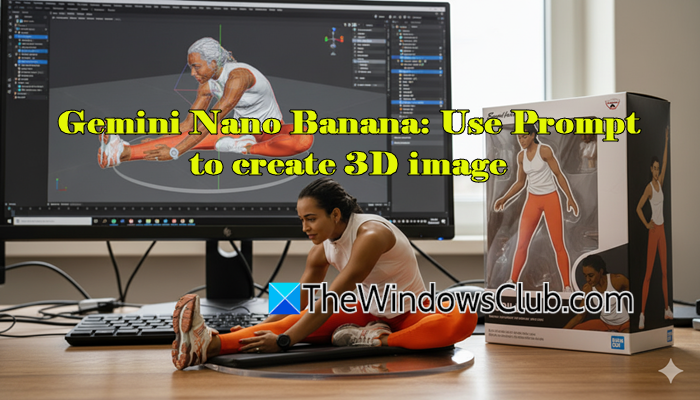
Imagine designing a lifelike mini collectible of yourself with just a simple prompt. Sounds exciting, right? Well, that’s what Google’s Gemini Nano Banana is all about. If you’ve seen it popping up on Instagram or X and are curious to know what it is, we’ve got you covered. In this post, we’ll walk you through everything you need to know about this fun new trend and show you how to create your very own 3D figurine and turn it into a video absolutely free.
What is Google Nano Banana AI?
Nano Banana is the nickname for Gemini 2.5 Flash Image, a powerful image generation and editing model developed by Google DeepMind. It allows users to make multiple edits to an image using natural-language prompts while ensuring the main subject remains recognisable across changes. The model also supports blending elements from more than one image, mixing different designs and textures, changing backgrounds, and experimenting with styles (retro, fantasy, cartoon-like, etc.). Edited images can even be transformed into dynamic videos for social media or personal projects.
Use Prompt to create 3D image with Gemini Nano Banana
Follow these steps to create your 3D Figurine using Gemini Nano Banana:
- Open Google Gemini
- Select the Gemini 2.5 Flash Image (Nano Banana) model.
- Upload your image.
- Enter the prompt.
- Generate the Image.
Let us see this in detail.
Create a Figurine Character with Nano Banana
Open your browser and go to gemini.google.com. Sign in with your Google account. Once logged in, you’ll see the Gemini dashboard.
At the top, you may see a prompt to try the new image editing capabilities of Gemini. Click that prompt. Alternatively, click Create Image or select Tools > Create images.
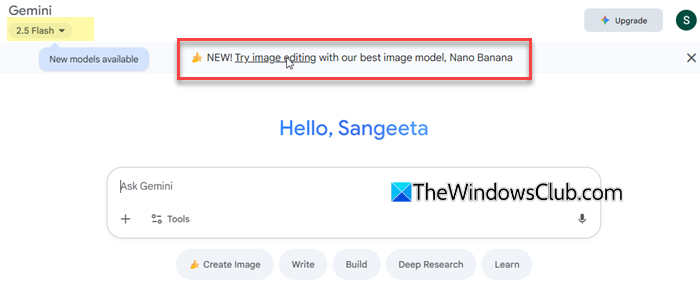
Click the Add files (+) icon and upload your image.
Tip: For best results, upload a clear, high-quality photo, preferably a full-body shot of yourself or the subject.
In the text box, type the prompt.
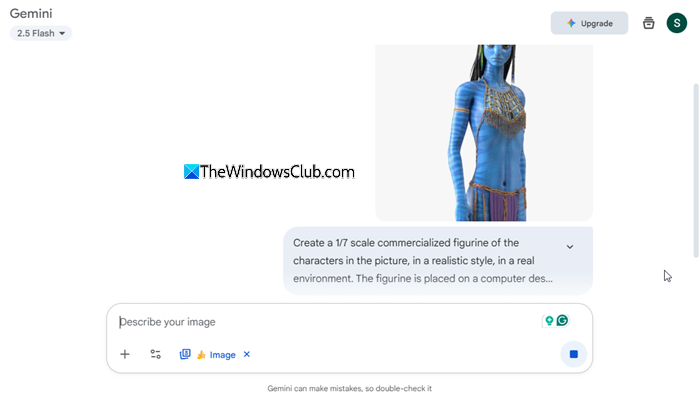
Here’s the exact prompt shared by Google (on X) to showcase Nano Banana’s figurine-creation ability:
“Create a 1/7 scale commercialized figurine of the characters in the picture, in a realistic style, in a real environment. The figurine is placed on a computer desk. The figurine has a round transparent acrylic base, with no text on the base. The content on the computer screen is a 3D modeling process of this figurine. Next to the computer screen is a toy packaging box, designed in a style reminiscent of high-quality collectible figures, printed with original artwork. The packaging features two-dimensional flat illustrations.”
Click Submit and wait a few seconds for Gemini to process and return results.
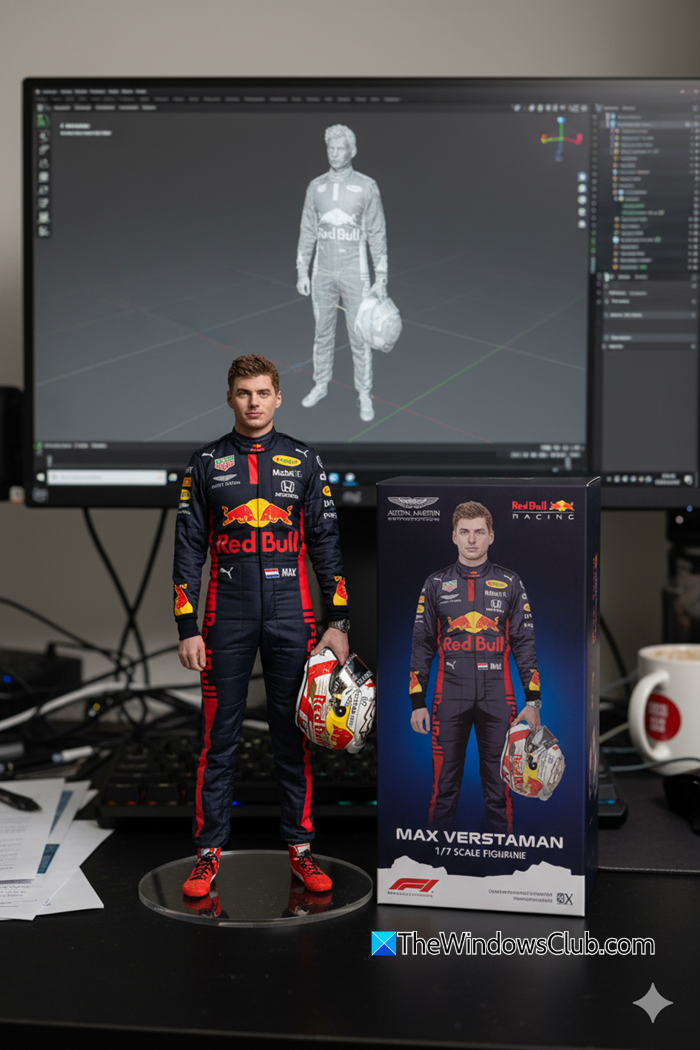
Gemini may not always produce the exact results you want. For example, when I tried two images, the first one produced quite impressive results, while the second one was not up to my expectations.
Here’s the first image:
And here’s the second one:
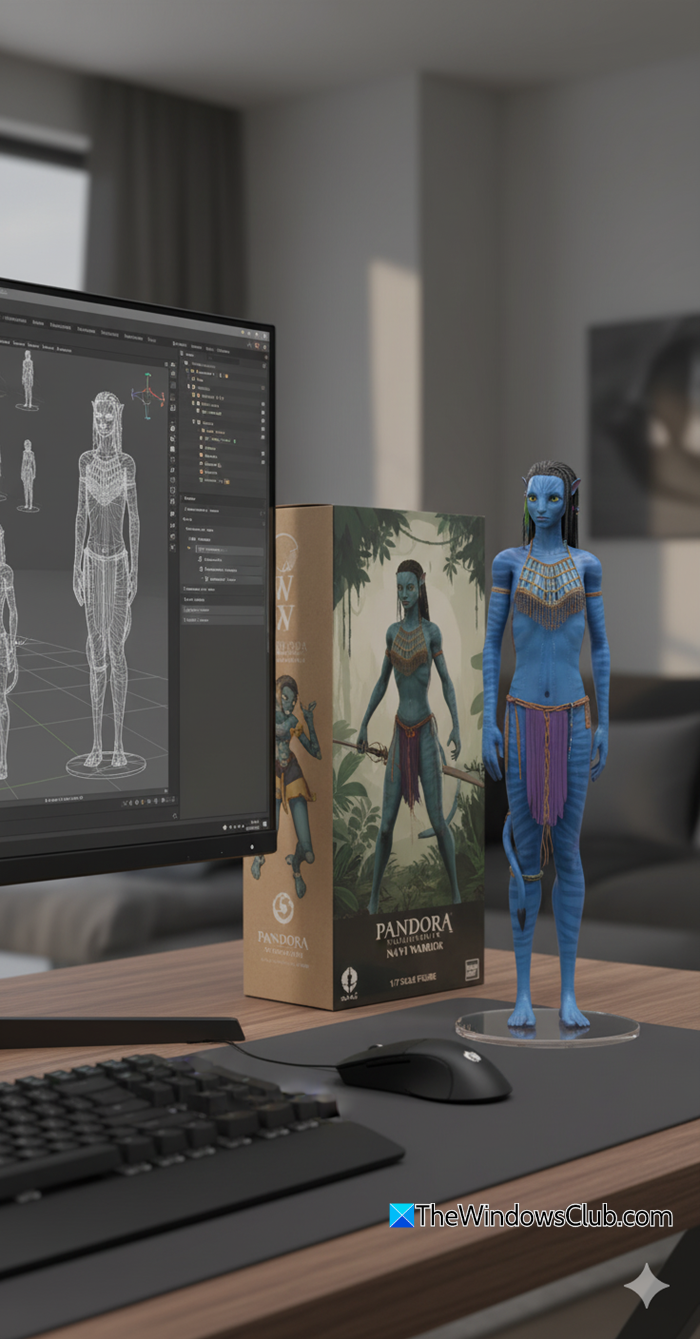
I decided to refine the results for the second image by giving it follow-up prompts with the desired changes.
Here’s the prompt I used:
“Adjust camera angle so that the figurine remains centered and in focus, with the packaging box stands to its right.”
And here are the results:
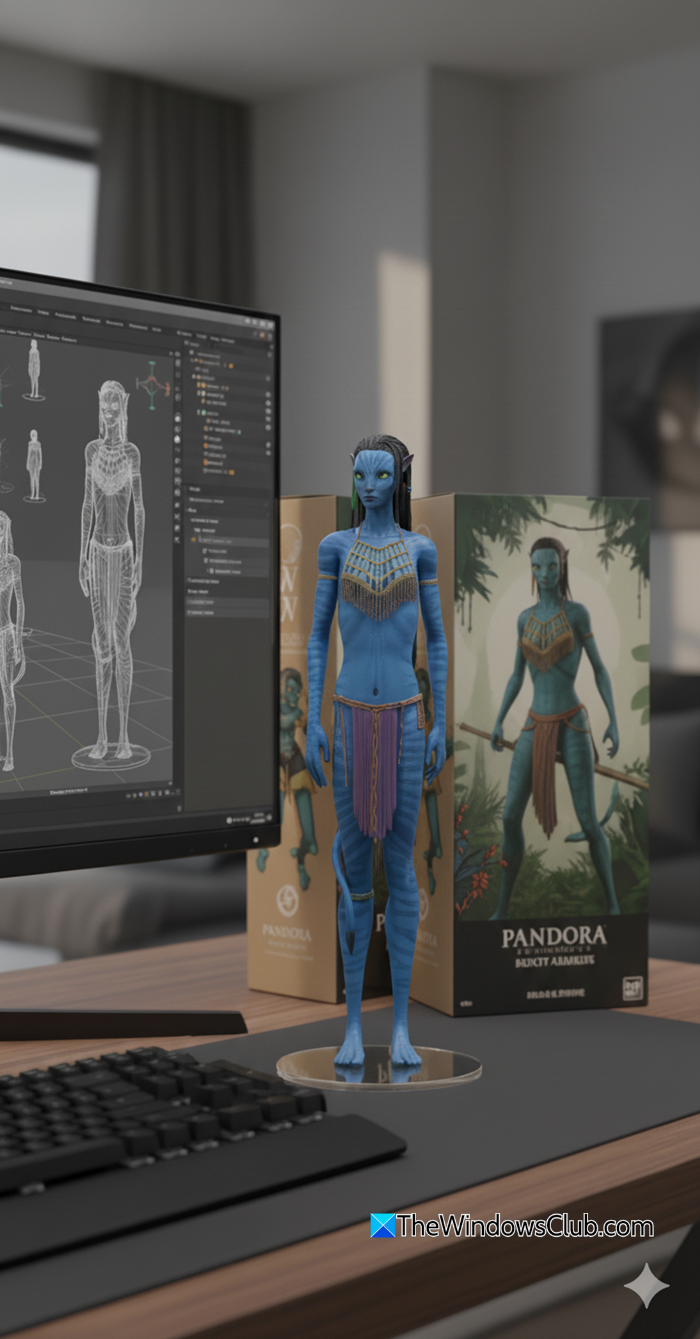
Now, as you can see, the figurine was centered correctly, and the box shifted to the right, but Gemini also duplicated the box. This means more refinement was needed.
Likewise, you can continue giving follow-up prompts until you get the exact results you want.
Note: To get the best outcome, make sure your instructions are clear and specific. If needed, you can use AI tools like ChatGPT to help you frame better prompts.
Once you’re happy with the results, click Download to save the figurine image on your PC.
Turn your Nano Banana generated 3D models into videos
Interestingly, you can also bring your flat images to life by turning them into short videos. There are many AI tools available for this, such as OpenAI Sora, but most of them are premium. However, there are exceptions like Grok AI and Kling AI, which let you do it for free. For this demonstration, I’ll be using Grok AI.
Open your browser and go to Grok AI. Sign in with your account (or create one if you’re new).
Click Imagine in the left pane of your dashboard.
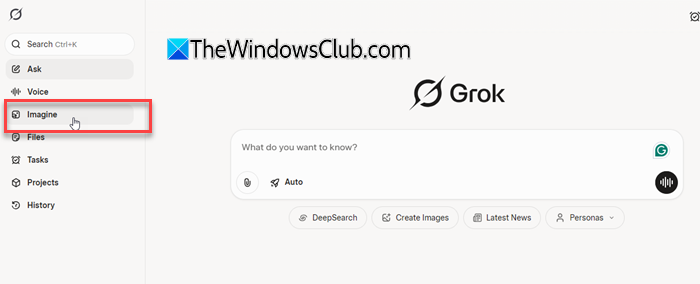
Upload your Nano Banana–generated figurine image. In the prompt box, describe the motion you want. For example, here’s a prompt I used:
“Using the provided reference image, create a short video of the 3D figurine placed on the desk. The figurine slowly rotates 360 degrees on its round transparent acrylic base, as if displayed on a turntable. Keep the background, computer screen, and packaging box unchanged. Ensure the figurine’s details, facial features, and body proportions remain consistent as it rotates. The lighting should stay natural and realistic, just like in the reference photo.”
Click Generate, and wait a few seconds while Grok processes it. Once ready, preview the video and click Download to save it.
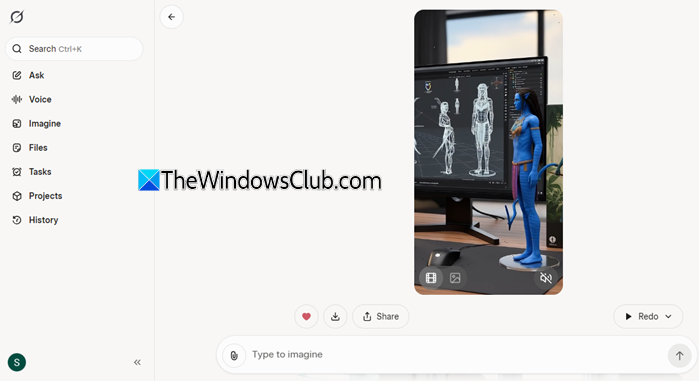
Here’s what Grok generated for me:
The results came out really well. The figurine stays in place while the camera angle moves around it, creating a smooth collectible-showcase effect. The preview even included audio, but when I downloaded the file, the audio disappeared.
Overall, the experience was fun and surprisingly simple — from generating a figurine with Nano Banana to animating it with Grok AI, you can easily bring your AI creations to life.
Read: Top AI Manga Filters to convert your photos to anime.
How to use Gemini AI Nano Banana?
To use Gemini AI Nano Banana, open the Gemini app and sign in with your Google account. Select the Gemini 2.5 Flash Image model and click Create Image. Upload a clear photo, paste the official prompt (or your own), and hit Submit. You can then refine the output with follow-up prompts until you’re happy with the results.
Read Next: Turn your photos into action figures using AI.
