
If Firefox opens automatically when your Windows computer turns on then this post shows how to stop Firefox from opening on startup, it usually happens in a couple of scenarios. It’s possible that there was an abrupt shutdown of the computer, or you may have set it to open automatically as soon as you log in with your account.
Stop Firefox from opening on startup
Before we disable any features, you should know that sometimes it’s helpful. This kind of restart also reopens the previously opened tabs which you were working on earlier. Before you begin, do check if Windows is set to open programs after a restart.
1] Disable Firefox Application Restart
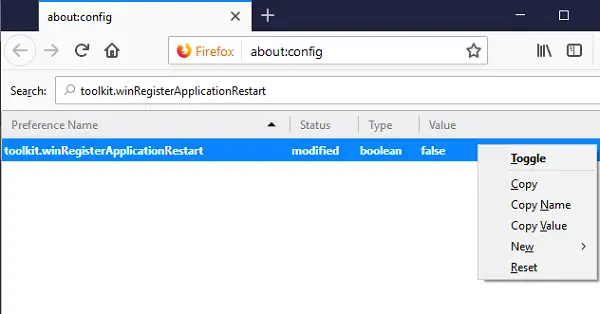
- Open Firefox, and type about:config in the address bar of the new tab. Hit Enter.
- You will receive a notice which says “This might void your warranty!” warning page may appear.
- Click to continue to the about:config page.
- In the search bar, type toolkit.winRegisterApplicationRestart and double-click on it to set its value to false.
The changes apply immediately.
There is no need to restart Firefox. It will ensure Firefox does not start automatically.
2] Remove Firefox from Windows Startup
Many times, we set programs to launch automatically when we log in to Windows. While it does increase startup time, it’s useful for many. However, if you did not do so, here is how to remove Firefox from Windows Startup.
- Right-click on the taskbar, and click on the Task Manager.
- Switch to Start-up, and find Firefox.
- Right-click on it and select disable.
You may also use a Startup Manager app to stop apps from opening at startup.
3] Check the Startup folder
Windows has a Startup folder. Any program or file you place in this folder will open automatically when you start your system. It is possible that the Firefox application shortcut is placed in this folder, which causes Firefox to start automatically at system startup. Check this. If you find the Firefox application shortcut there, delete it.
To open the Startup folder, open the Run dialog (Win+R). Type shell:startup and click OK.
4] Remove Firefox from Startup via Group Policy
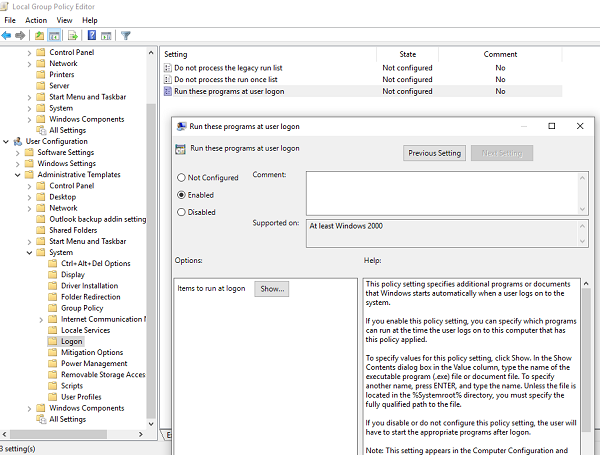
- Type gpedit.msc in the run prompt, and hit enter.
- It will open the Group Policy Editor.
- Navigate to User Configuration > Adminstrative Templates > System > Logon.
- Check if Firefox is part of the list of programs which can start with Windows Logon.
- If yes, remove it.
- Save and Exit.
It’s relatively easy to remove programs from Windows Startup, but make sure you understand that you might lose tabs with which you were working.
That’s it. I hope this helps.
Why does Firefox keep opening on its own?
If Firefox opens automatically at system startup, it may be configured to do so. You should check startup apps. If Firefox is listed there, disable it from starting on system startup. Another cause of this problem is a virus or malware infection. Scan your system with a reputable antivirus or antimalware tool.
How do I stop Firefox from opening old tabs at startup?
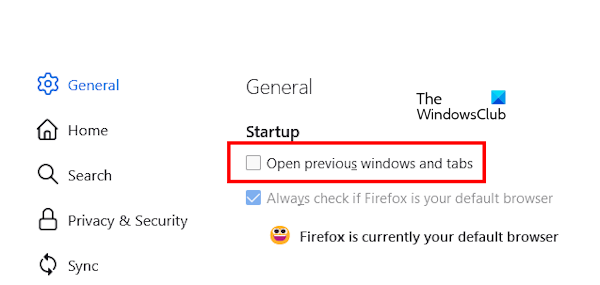
The new Firefox is configured to restore the previous session by default. If you do not want Firefox to restore old tabs at startup, you have to disable this feature in Firefox settings. Click on the three horizontal lines on the top right side in Firefox and select Settings. Under the General category, uncheck the “Open previous windows and tabs” checkbox.
Read next: Firefox not installing on Windows 11.
