
Is Mozilla Firefox not installing correctly on your Windows 11/10 PC? Some users have reported being unable to install the Firefox browser on their computers.
How do I install Firefox on Windows 11?
To install Firefox on a Windows 11 PC, open the official Firefox website in Edge, then download the latest Windows installer. After that, run the downloaded setup file and follow the prompts to install Firefox. You can also install Firefox from the Microsoft Store. Open the Microsoft Store, search for Mozilla Firefox, tap the app, and select Get to download and install it on your computer.
However, see users have reported that the installation just gets stuck and the browser won’t install. Many users have also reported getting the following error message:
Hmm. For some reason, we could not install Firefox. Choose OK to start over.
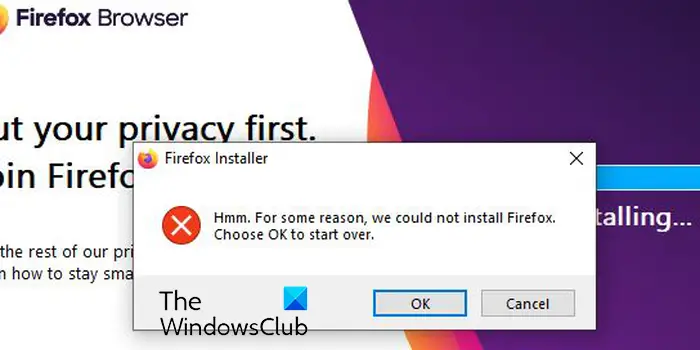
This issue may occur in different scenarios. For example, reinstalling or updating the browser, or installing Firefox from scratch. You might face the problem due to different reasons, like insufficient access permissions, corrupted installer file, antivirus/firewall interference, etc.
If you are an affected user, you have landed on the correct page. Here, you can find all the working fixes that will help you get rid of the issue. So, without much ado, let us check out.
Firefox not installing on Windows 11/10
If the Mozilla Firefox browser is not installing or updating on your Windows PC, use the following working fixes:
- Run the installer as an administrator.
- Download a fresh setup file.
- Completely uninstall Firefox from your PC and then reinstall it.
- Manually update Firefox.
- Temporarily disable your antivirus/firewall.
Before you begin, make sure that you have downloaded the Firefox setup file for your version and architecture of Windows.
1] Run the installer as an administrator
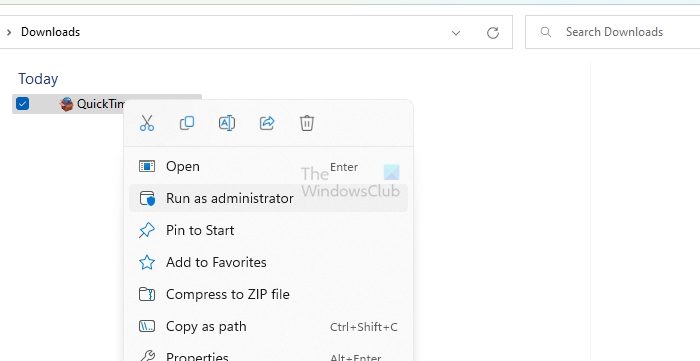
The first step to resolve the issue is to run the Firefox installer as an administrator. It may be a lack of required administrator permissions that is causing issues with installing Firefox on your PC. You can run the installer with administrator rights and see if the issue is resolved.
To do so, open File Explorer using Win+E and go to the Downloads or the folder where you have downloaded the setup file of Firefox. Right-click the setup file and select Run as administrator from the context menu. Next, follow the on-screen instructions to see whether you can successfully install Firefox.
2] Download a fresh setup file
You may be experiencing the issue due to an incomplete or corrupted installer file. The download process might be interrupted due to network issues. Also, if you are using an old installer file to install Firefox, it might not install. If the scenario applies, you can delete the existing setup file and download the latest installer from the official Firefox website or the Microsoft Store. Please check whether you can now install the Firefox browser.
If you downloaded the setup from Microsoft Store, try downloading Firefox from its website instead of the Microsoft Store and see.
Some users report being unable to download and install Firefox from the Microsoft Store. If applicable, download the Firefox installer from the official website and install it on your computer.
Alternatively, if you are unable to install Firefox using its setup file, you can install the browser from the Microsoft Store.
3] Completely uninstall Firefox from your PC and then reinstall it
If you are reinstalling Firefox, you must uninstall it completely to avoid issues. Additionally, if you encounter this issue when updating your browser, first uninstall Firefox and then install the latest version to resolve it.
To completely uninstall Firefox from Windows, follow the steps below:
First, press Win+I to open the Settings app and navigate to the Apps tab. Then, click on the Installed apps option and select the Mozilla Firefox app from the list of installed apps.
After that, press the three-dot menu button present next to Firefox and choose the Uninstall option. You must follow the on-screen instructions to complete the app removal process.
When done, open File Explorer using Win+E and navigate to the C:\Program Files folder. From here, delete the Mozilla Firefox folder. Next, delete the Firefox folder from the C:\Program Files (x86) location as well.
Next, open the Run dialog using Win+R and enter the following address in its Open field:
%APPDATA%\Mozilla\
In the open location, delete all the files and folders.
Now, restart your computer and download the latest Firefox installer from its website. Hopefully, you can now install Firefox without issues.
Read: Firefox Spell Checker not working on Windows.
4] Manually update Firefox

If issues occur when updating Firefox via the installer, you can update it manually. Open Firefox, click on the three-bar menu button and choose the About Firefox option. Now, let Firefox look for available software updates. Once complete, install the updates and restart the browser to complete the process.
5] Temporarily disable your antivirus/firewall
It could be your overprotective security program causing issues while installing Firefox. It might be preventing you from installing Firefox on your computer. Therefore, we recommend temporarily disabling your antivirus or firewall, then installing Firefox on your PC. Once the browser is installed, you can re-enable your security programs.
Hope this helps.
If the problem persists and you are unable to install Firefox on your computer, no worries. There are several good free web browsers available that you can use as an alternative and perform your tasks. Popular options include Google Chrome, Microsoft Edge, Brave, Vivaldi, and Opera. If you want a secure and private browser, you can try Epic Privacy Browser, Tor, Iridium Browser, etc.
Why doesn’t Firefox work on Windows 11?
If the Firefox browser installed on your computer but not working properly, some problematic add-ons might be causing this issue. A corrupted Firefox startupCache can also be a reason for this. Additionally, if the browser is corrupted or certain installation files are broken, Firefox won’t work properly.
Now read: Firefox keeps crashing on Windows PC.
