
Firefox is one of the popular browsers in the market, yet it can sometimes create issues. One such issue is when Firefox won’t open. There are 2 cases for this condition. In the first case, Firefox won’t open but will run in the background. In the second case, the application won’t open in the background either. This can be caused by missing or corrupt Firefox files, problematic add-ons, a corrupted user profile, or a driver issue.

Firefox will not open or launch
The case where Firefox runs in the background occurs when you try to close a Firefox session but it doesn’t close. Now that you know the potential causes, if Firefox does not open or launch on your Windows PC try these suggestions to fix the issue:
- Check the Task Manager and kill the Firefox process if open
- Remove or disable some add-ons
- Delete Firefox Startup cache
- Run Firefox in Troubleshoot Mode
- Create a new Firefox profile
- Reset Firefox
- Reinstall Firefox
Proceed with the following solutions sequentially to troubleshoot the problem.
Firefox browser not opening
1] Check Task Manager & kill the Firefox process if open
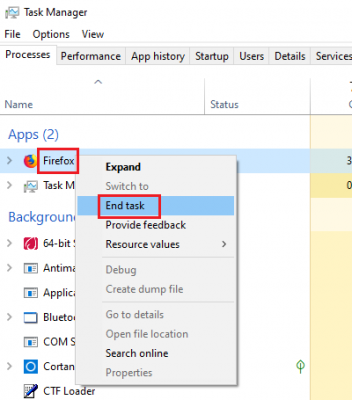
Press CTRL+ALT+DEL to open the Security Options menu. Select Task Manager from the list to open it.
Check the list of running processes. If you find Firefox in the list, right-click on it and select End process to kill it.
Try reopening Firefox; it should work.
Read: Program won’t open after Windows Update
2] Remove or disable the problematic add-ons
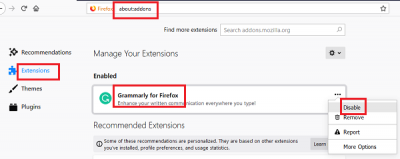
Faulty add-ons can cause issues with the Firefox browser. However, it would be difficult to resolve the issue because you cannot open the browser.
In such a situation, try opening Firefox while pressing the SHIFT button. This will open the browser in Safe Mode (if at all it does).
Then open the add-ons page by entering about:addons in the address bar.
In the Extensions tab, disable any unverified, suspicious, or less known extension.
Now try opening Firefox in normal mode and check if it works right.
3] Delete Firefox Startup cache
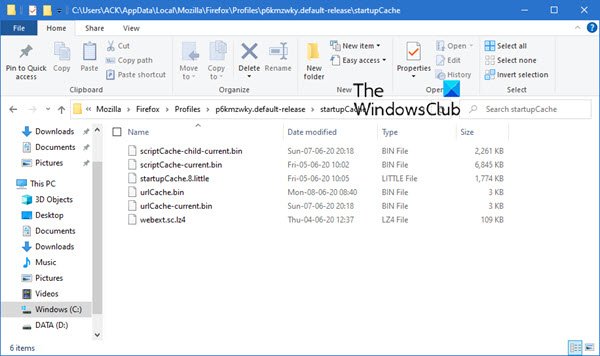
The procedure to delete the Firefox user profile startup data is as follows:
Open Explorer and navigate to:
C:\Users\<username>\AppData\Local\Mozilla\Firefox\Profiles\p6kmzwky.default-release\startupCache
Here the <username> has to be your own and the ‘p6kmzwky‘ digits in the name may vary.
Clear all the files in the startupCache folder.
Alternatively, you may type about:support in Firefox address bar and hit Enter.
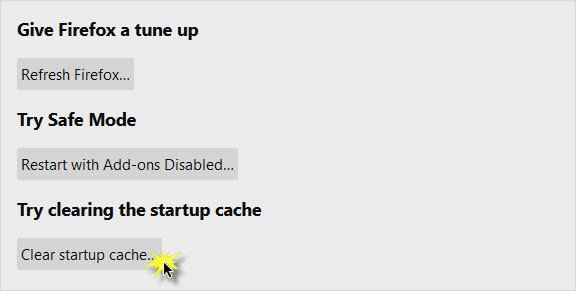
On the page which opens, press the Clear Startup Cache button.
Restart Firefox and see.
4] Run Firefox in Troubleshoot Mode
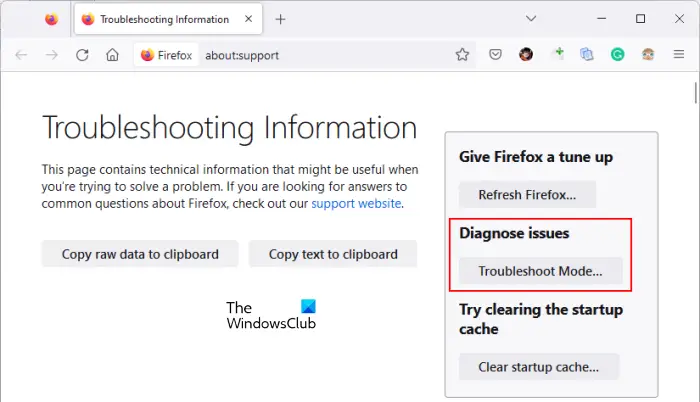
To launch Firefox in Troubleshoot Mode on Windows 11:
- Press
Windows + Rto open the Run dialog. - Type
firefox -pand hit Enter to open the Profile Manager. - Select your profile, then click Start in Troubleshoot Mode
- Firefox will start with add‑ons disabled and default settings, so you can check if it opens properly.
- If it works here, the issue is likely caused by an extension or corrupted settings — you can then refresh Firefox or rebuild your profile.
5] Create a new Firefox profile
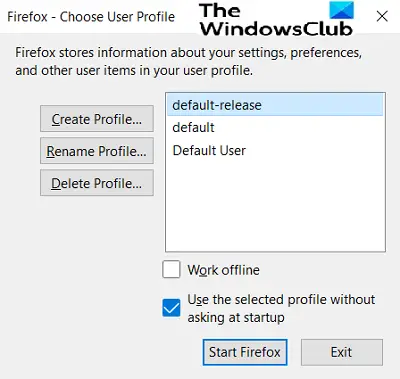
Clear your profile cache or create a new Firefox profile if corruption is suspected.
6] Reset Mozilla Firefox
If you haven’t resolved the issue, it could be with Firefox itself. In such a case, you could consider resetting the Mozilla Firefox application. You may need to start Firefox in Safe Mode. Doing so will reset many browser settings you may have changed over time.
7] Uninstall Firefox and then delete any residue folders
If some files associated with Firefox have become corrupt, you might consider uninstalling the browser and then deleting all associated files. It should be noted that by doing so, you would not harm any information stored on the cloud.
The application can be reinstalled later.
Press Win+R to open the Run window and type the command appwiz.cpl. Press Enter to open the Programs and Features menu.
Right-click on Mozilla Firefox and select Uninstall.
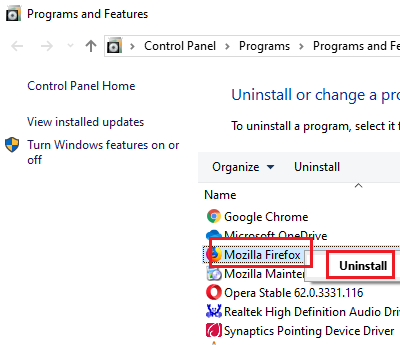
Once Firefox is completely uninstalled, restart the system.
Go to the path C:\Program Files in the File Explorer and locate the Mozilla Firefox folder.
Right-click on it and select Delete. You would need administrator permission for it.
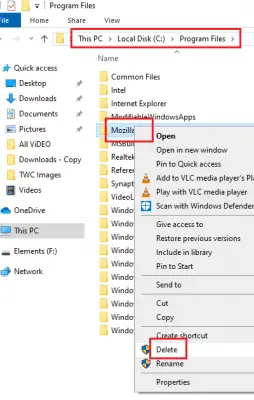
Repeat the same process for the path C:\Program Files (x86).
You can now download and install it again from the company’s website.
I hope it helps!
Read: How to set or change default Firefox profile.
