
Our world now is filled with QR codes. While most people know their common uses, like scanning to make online payments, you can also use them to connect to an active Wi-Fi network. In this article, we will discuss how you can connect to a Wi-Fi connection using its QR Code on Windows 11/10.
How to generate a QR Code for Wi-Fi on a phone?
On an Android phone:
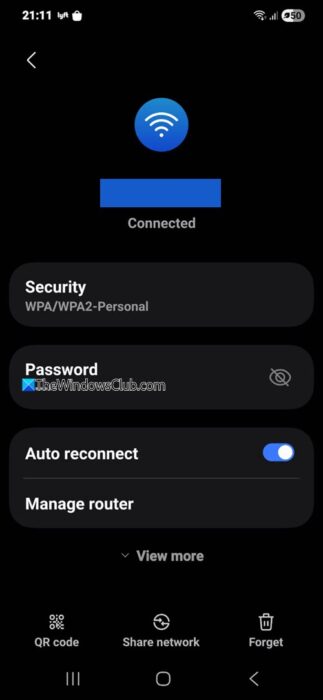
- Connect your phone to the Wi-Fi you want to share.
- Open Settings > Network & Internet > Internet.
- Tap the gear icon next to your Wi-Fi network.
- Select QR Code and tap Share.
- Authenticate the request with your password or fingerprint.
- A QR code appears that you can share.
On iPhone
- Go to Settings > Wi-Fi.
- Tap the “i” icon next to your connected network.
- Tap Share Network (or Password) and verify the request with your Face ID/Touch ID.
- A QR code appears on the screen that your friends can scan and connect automaticaly.
How to scan a Wi-Fi QR Code in Windows 11
Typically, there are two ways in which you can connect to Wi-Fi. You can either enter the pre-configured password or if you don’t know what that is, then you can scan a QR code to connect to it. You can generate this QR code from any mobile phone already connected to the Wi-Fi.
Wi-Fi QR Code Scanner Microsoft Store app
While connecting a smartphone to a Wi-Fi network with a QR code is remarkably simple, most smartphone cameras include a QR code scanner in their camera app; the Windows Camera app doesn’t, so you’ll need a third-party QR code scanner. For the purposes of this article, we will be using the Wi-Fi QR Code Scanner app which you can get from the Microsoft Store. There are several features that this app provides like:
- You can scan a QR Code generated live at the moment
- If you are connected to a Wi-Fi connection, you can generate a QR Code on it and use that to connect other devices to the said Wi-Fi
- You can scan the saved image of QR code, in case you aren’t able to generate one at the time
- It also keeps a log of the Wi-Fi profiles that you connected your computer previously, making it easier for you to establish connections with them again
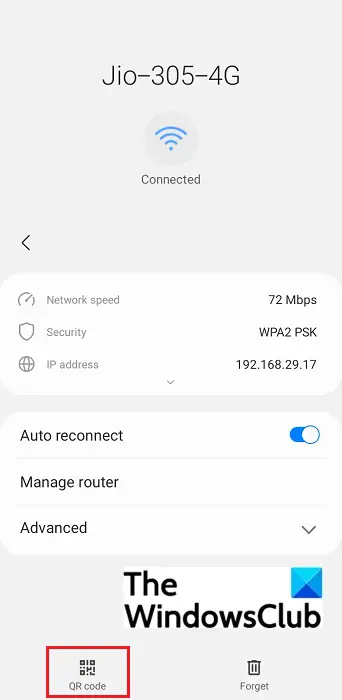
The Wi-Fi QR Code Scanner allows you to scan and generate standard Wi-Fi QR Codes. The process with it is very straightforward. If you want to connect to a Wi-Fi network using a QR code from some other device, you have to get to that QR code first. On a smartphone, open your Wi-Fi settings. At the bottom of this page, there should be an option that says QR Code. Your ISP or public Wi-Fi settings often provide these QR codes.
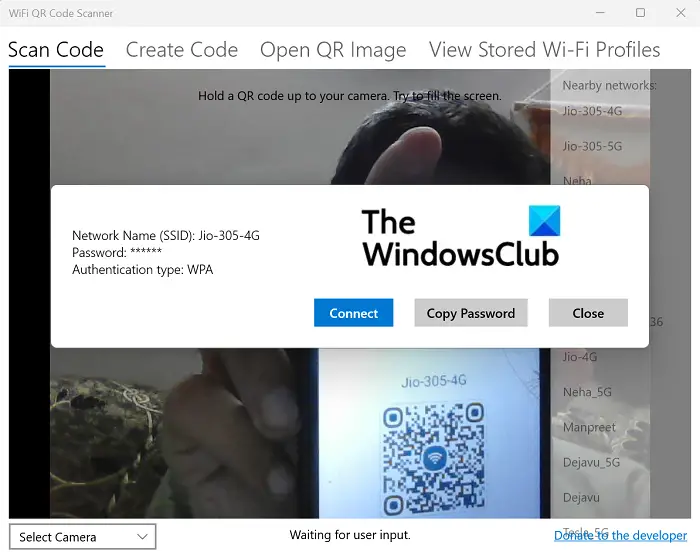
Now, open the Wi-Fi QR Code Scanner app on your PC. If you have the ‘Scan Code’ option selected here, this would automatically open the webcam integrated into your computer. Now place the QR Code you just generated in front of the webcam and once scanned, you’ll find that a connection has been established.
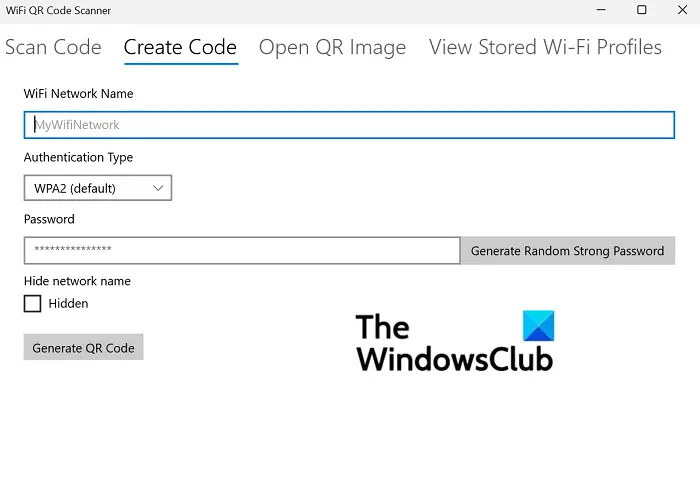
You also get an option to generate a QR Code from the Create Code option. Simply put in the credentials of your Wi-Fi network like its name, generate the password and you’ll create a code that can then be used to connect to other devices.
If you’re using a separately attached webcam on your computer, then on the bottom-left corner of the ‘Scan Code’ setting is an option to select the camera. The View Stored Wi-Fi Profiles is where you can see all the Wi-Fi networks that you’d previously connected to. Their information is saved for you to reconnect with them later with ease.
The app uses de facto standards for code scanning and generation, which is what’s normally used for apps like this. This lets you scan QR codes generated by other apps and use the QR codes it generates elsewhere.
You can download the Wi-Fi QR Code Scanner from the Microsoft Store.
Other similar apps you can use for this purpose are QR Code for Windows and QR Scanner Plus.
We recommend not using a QR Code online decoder website, as some may be untrustworthy.
We hope this helps and that you’ll now find it easy to connect your Wi-Fi to your computer using a QR Code.
TIP:You can also use your phone’s camera to scan the Wi‑Fi QR code,and when connected, share the Wi‑Fi password with your PC. On Windows 11, go to Settings > Network & Internet > Wi‑Fi > Manage known networks > Add network. Enter the SSID and password manually.
How to create a QR code?
After reading all of that, you may now want to create your own QR code for whatever reason. There are many options out there – you can create QR codes using PowerPoint & Excel, Microsoft Word, Free software, Microsoft Edge, or even use the Bing search engine.
How can I transfer Wi-Fi password from my phone to my laptop?
If you forget your Wi-Fi password, here is how to retrieve it on Windows or Android.
On Windows, you can find the password to the Wi-Fi network you’re currently connected to from the Control Panel. Passwords for other networks can be retrieved using relevant commands entered in the command prompt. While there isn’t a direct way to get a Wi-Fi password on Android, generating a QR code can do the job for you.
On Android, you can view all your passwords in the Wi-Fi settings and share passwords using a QR code.
