
If some files are lost during cut and paste, you can follow this article to get them back. Here is how you can recover files lost during a cut and paste operation in Windows 11 and Windows 10. Although it is pretty unusual, you may encounter this issue on your computer while moving files from mobile to PC or one drive or another.
At times, when copying and pasting from one device to another or from one location to another, you might lose some files. Although it doesn’t happen every day, some internal problems could cause such issues with your computer. No matter the reason, you can use the following solutions to recover those lost files.
How to recover Files lost during Cut and Paste in Windows 11
To recover files lost during cut and paste in Windows 11/10, follow these steps:
- Use file recovery software
- Use System Restore point
To learn more about these steps, continue reading.
1] Use file recovery software
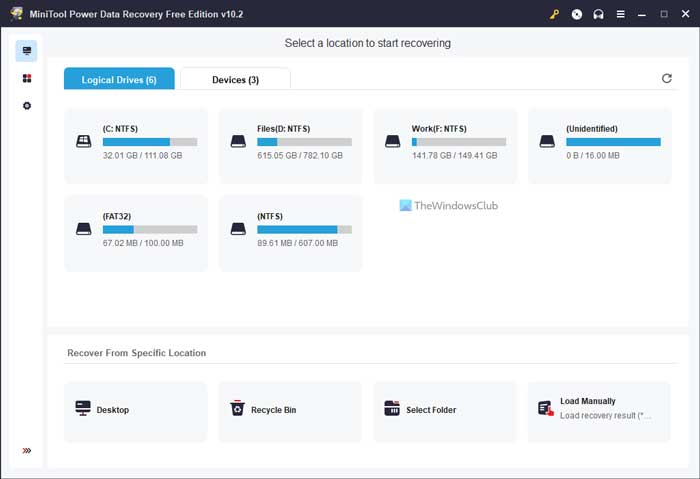
It is the very first thing you need to use in order to recover lost files. When a file is removed, hidden, or deleted, it gets stored somewhere, and you cannot recover it manually. In other words, when you delete a file from your computer, it doesn’t get removed permanently. Instead, it just makes space for new files. It is possible to recover a deleted file from your hard disk with the right data recovery software.
There are tons of free data recovery tools available in the market that you can install on your Windows 11 and Windows 10 computer. For example, you can use Pandora Recovery, Glary UnDelete, Steller Photo Recovery, Avira UnErase Personal, etc.
However, you can also try the MiniTool Power Data Recovery. It is free, easy to use, and it does the job pretty well. Whether you want to recover data from a partition, an SD card, a mobile phone, or anything else, you can use this program.
2] Use System Restore point
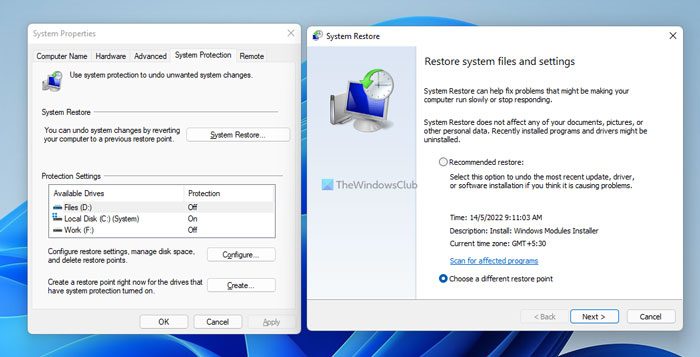
Using the System Restore point is the second and final option you have in your hands. However, it works when you have created a System Restore point earlier. If so, you can follow this guide to restore computer using System Restore. Once done, you will be able to find the lost file on your computer.
That’s all! Hope these solutions worked.
How to avoid losing Files during Cut-Paste operation on Windows?
- Use an Uninterruptible Power Supply (UPS) to protect yourself against unexpected power cuts
- Use Copy Paste, and once this operation is completed, delete the file in the original location
- Ensure that there is enough disk space at the location where you are moving files.
How do I recover lost cut and paste in Windows 11?
To recover lost files during cut and paste in Windows 11/10, follow the aforementioned solutions. Although the options are limited, you may find these handy. That said, you can use file recovery software to recover the lost file. Secondly, you can use the System Restore point to get back those files on your computer.
Read: Set up OneDrive for file recovery – Windows Security warning
How do I retrieve cut/paste data?
To retrieve cut/paste data on Windows 11/10, the above-mentioned solutions work pretty well. It is highly recommended to use data recovery software as soon as possible. However, if it doesn’t work, you can use the System Restore point to get the job done.
Read: Windows File Recovery Tool from Microsoft will help recover deleted files.
