
To open Microsoft Teams in multiple windows or instances from the application is not possible. But, Teams can also be accessed from the Teams web portal by using any web browser. In this post, we will outline steps to open multiple instances of Microsoft Teams on your Windows PC.
It stands to reason that if you are on multiple chats, editing a file, and trying to join a Teams meeting, you don’t want to leave each ongoing action behind to go to the next and shuffle around trying to find where you left off in each section later. Even separate windows for a chat would be a huge help or allowing a meeting to launch a new window outside of Teams and leave whatever you were working on in the original window.
The ability to shift context will certainly help users get more work done.
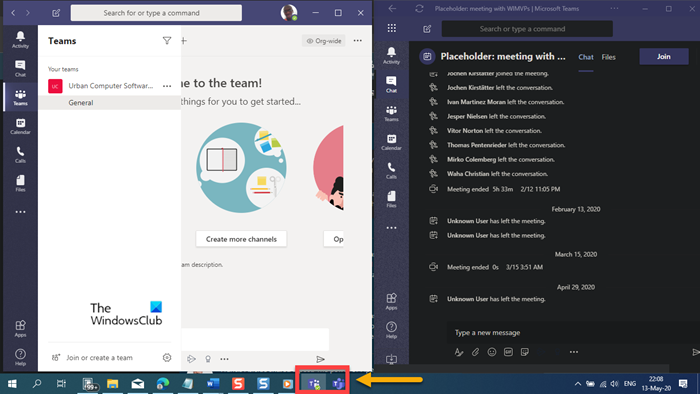
If you find that you’re jumping in and out of different Teams tenancies all the time, and have many channels that you frequent and want to open them at the same time as your calendar, chats and other apps, then follow the instructions outlined below to be able to open Microsoft Teams in multiple windows on Windows.
How to open multiple instances of Microsoft Teams
If you want to open multiple instances of Microsoft Teams in Windows 11/10, do the following:
- Launch the Microsoft Teams application on your Windows 11/10 PC.
- Enter your credentials to sign in to Microsoft Teams.
- Next, open the Microsoft Edge browser.
The reason to choose Edge is that it supports Progressive Web Apps (PWAs), which lets you install a website as a native app on Windows, enabling features such as push notifications, background data refresh, offline support, and more.
- Now, head over to teams.microsoft.com.
- Enter your credentials (if you’re not automatically signed in) to log in.
- Once you’re signed in, click the ellipsis (the 3 horizontal dots) in the top-right corner to open the Edge settings menu.
- Choose Apps > Install this site as an app.
Now you will get a separate pop up to Install app.
- Click on Install.
Once done, the Microsoft Teams portal window will be installed as a native app on your Windows 11/10 PC, with an icon added to the taskbar.
You can now be able to open Microsoft Teams in multiple windows. This won’t cause any difference between the installed Teams application and the web portal native app. It will auto-refresh, and you will get immediate notifications and calls when someone pings or tries to reach you.
I hope you find this post useful!
Related reads:
