
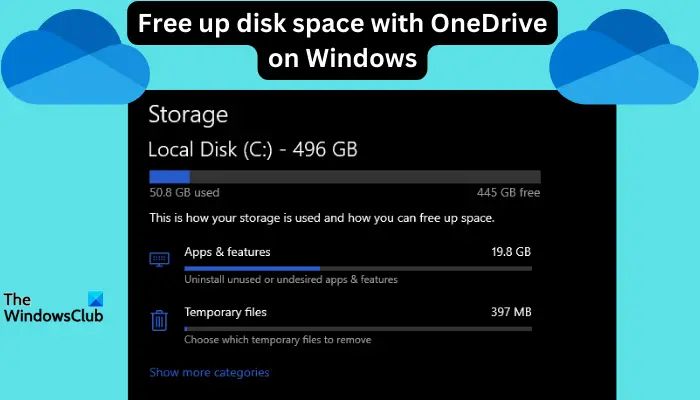
When you go to This PC and see your disk storage is running low, you need to free up local disk space. Some files are important to keep, so you need a method that frees up space without losing them. In this article, we will see how to free up disk space with OneDrive on Windows 11.
For this method to be successful, you need OneDrive Files On-Demand, and we will show you how to convert your files. As long as you have more space on your OneDrive cloud storage, you can free up as much space as possible on your local disks.
Does OneDrive free up space?
OneDrive can automatically free up your local drive space without deleting files, with assistance from the Storage Sense feature. The feature allows Windows to remove temporary files and items in the recycle bin that you no longer need.
If Storage Sense is activated and configured, OneDrive automatically converts files that you haven’t opened for a specified time into Files On-Demand. This means that your files are only saved in the cloud and do not consume your local disk space. You can access these files on your local computer if you are connected to the internet.
How to free up Disk Space with OneDrive on Windows 11
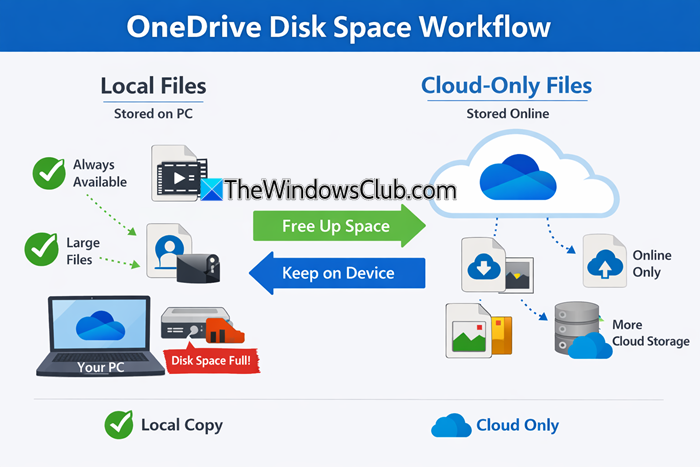
To free up disk space with OneDrive on Windows 11, you can turn all your files in the OneDrive folder to Files On-Demand or select some.
To free up space for all OneDrive files:
Open OneDrive Settings by clicking the OneDrive icon in the Windows tray area. After that, select the OneDrive Help and Settings icon, and finally click Settings.
Locate and click Sync and back up, and then expand the Advanced settings. You will see Files On-Demand. Here, select Free up disk space. This will turn all your files into online-only files that will not be available offline on your local disk.
To free up space for individual files with OneDrive:
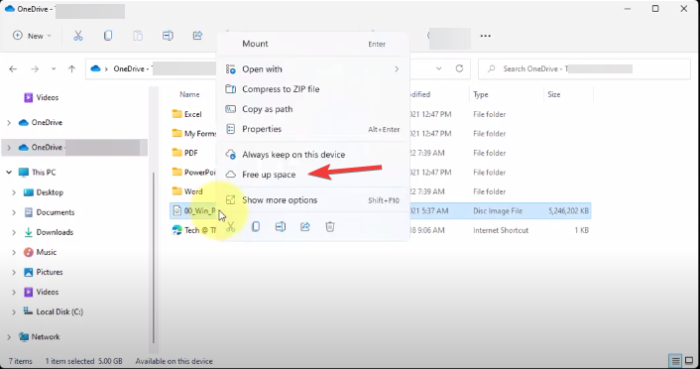
You can free up disk space for individual files. To do this, open your OneDrive folder, right-click on a specific file, and select Free up space.
Related: How to free up space IN your OneDrive storage
Free up space with OneDrive automatically using Storage Sense
You can turn on and configure Storage Sense to free up disk space with OneDrive automatically. To do so, follow the steps below:
- Search for Storage settings in the search box and click Open.
- Under the Storage option, you will see Storage Sense on the right side. Toggle the button on.
Once the feature is turned on, all your files will be turned into online-only files if not opened or used for 30 days on OneDrive and if the disk space is running low.
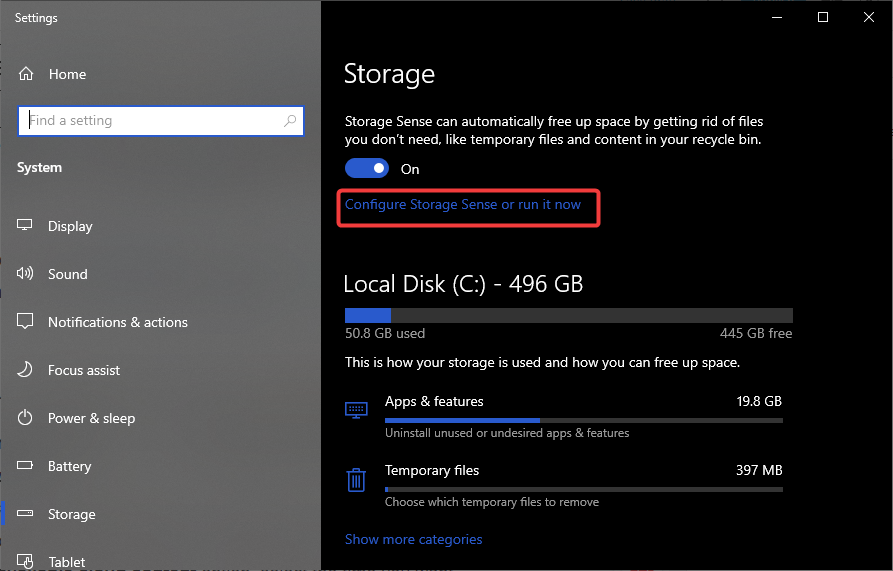
However, you can configure Storage Sense to run periodically. Do the following:
- Go back to the Storage settings, and under Storage Sense, select Configure Storage Sense or run it now.
- Select the frequency you want Storage Sense to run from the drop-down menu.
- You can either select Every week, Every day, or Every month.
- Under the Locally available cloud content option, select the time you want Storage Sense to convert offline files to online-only files in the OneDrive folder.
How to clear OneDrive cache?
To clear the OneDrive local cache, open OneDrive settings and under Advanced settings, select Clear cache to remove temporary files.
Read: How to clear up Disk Space via Windows Settings
How do I identify files to free up space with OneDrive?
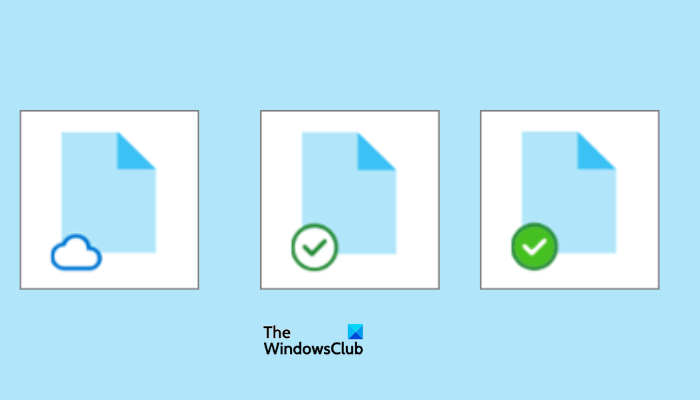
To identify files that you can free up space with OneDrive, pay attention to the status labels next to each file in OneDrive. Generally, there are three statuses, as indicated below:
- Blue cloud icon. These are files that have an online-only status. They don’t consume any local disk space on your computer, and you need an internet connection to access them.
- Green tick. The green tick status shows that the file is both online-only and locally available. This means it consumes your local disk storage. Right-click the file and select Free up space if you want more disk space.
- White tick. This status indicates that the file is available locally on your device and can be accessed even without an internet connection. You can free up space for such a file.
The image below shows the three status labels that will help you identify which file to free up space with OneDrive on your Windows 11 PC.
We hope you find the post useful.
What do I do when OneDrive is full?
If your OneDrive is full, the only way to free up space is to delete files or buy more storage from Microsoft. You can also download files to external storage and delete them later. Check if the recycle bin has files to delete and see what else is taking up space. The other option is to buy a Paid Plan from Microsoft.
