
This article shows how to fix or remove misplaced sections in OneNote. If you see them in your OneNote app, this article will be helpful. Misplaced sections appear in a notebook when OneNote attempts to sync changes to a notebook section but cannot locate the section file. These misplaced sections remain in the notebook until OneNote finds their new location or you take steps to resolve them.
How to fix Misplaced Sections in OneNote
To fix or remove the misplaced sections in OneNote, follow these steps:
- Force sync your notebooks
- Move or copy the misplaced sections
- Merge the misplaced sections
- Restore from OneDrive
- Delete the misplaced sections
All these fixes are explained in detail below.
1] Force sync your notebooks
Since misplaced sections in a notebook appear when OneNote tries to sync the changes to a notebook section but cannot find the section file, syncing the notebooks manually can help resolve them.
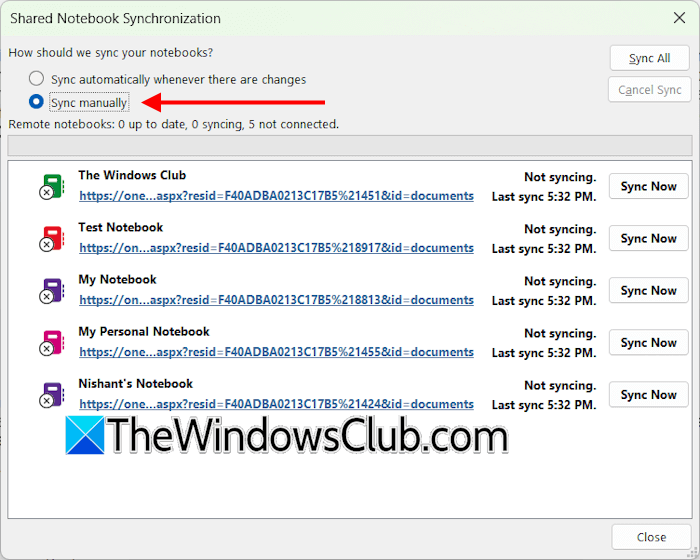
Go through the following instructions:
- In OneNote, click File.
- Click View Sync Status.
- The Shared Notebook Synchronization window will appear.
- Click Sync all.
Now, check if it resolves the misplaced sections.
2] Move or copy the misplaced sections
You can move or copy the misplaced sections to your other notebooks. For this, follow these steps:
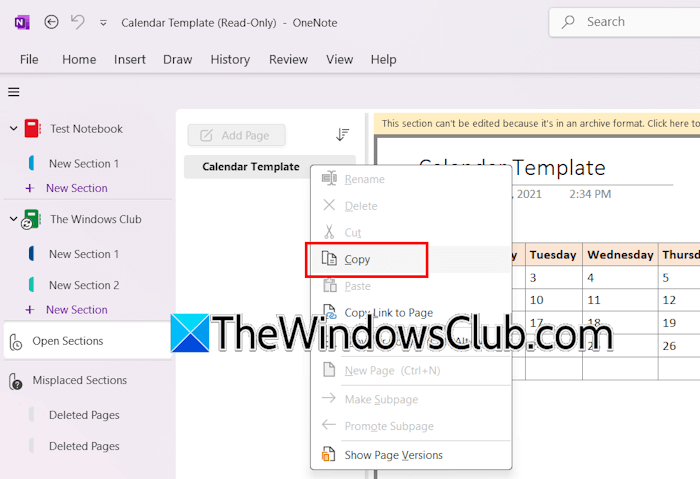
- Right-click on a misplaced section.
- Select Move or copy.
- The Move or Copy Section window will appear.
- Select a notebook to which you want to move or copy the misplaced section.
- Click Move or Copy.
If you do not see the notebook to which you want to copy or move the misplaced section, first, open that notebook, then repeat the above steps.
3] Merge the misplaced sections
If the Move or Copy option is greyed out for the misplaced sections, you can try merging them with another section. For this, open the notebook to which you want to move or copy the misplaced section. Now, create a new blank section in that notebook. Name this section, say Section 2. After that, follow these steps:
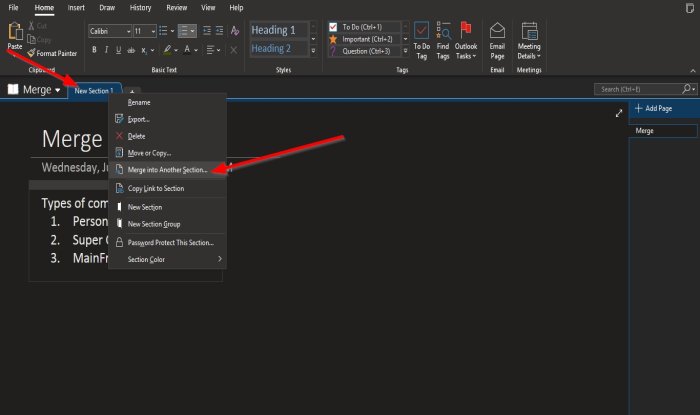
- Right-click on the misplaced section and select Merge into Another section.
- The Merge Section window will appear, showing all currently opened notebooks.
- Expand the notebook in which you have created the new section, Section 2.
- Select the newly created section, say Section 2.
- Click Merge.
4] Restore from OneDrive
If you have a Microsoft 365 subscription, you can use the Restore your OneDrive feature. This option will revert your OneNote notebook to the previous version. Therefore, it is useful if the section were synced to OneDrive before becoming misplaced.
Before proceeding, create a duplicate copy of your affected notebook. For this, create a new notebook with another name. Now, copy all the sections from the affected notebook to the newly created notebook. This process will take time. I also suggest you copy all your OneDrive data to an external hard drive before proceeding.
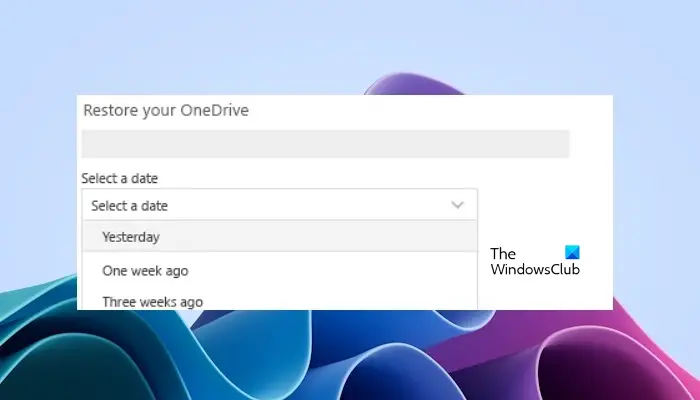
Now, log in to OneDrive in your web browser and use the Recover your OneDrive option. Select the correct date from the drop-down and proceed.
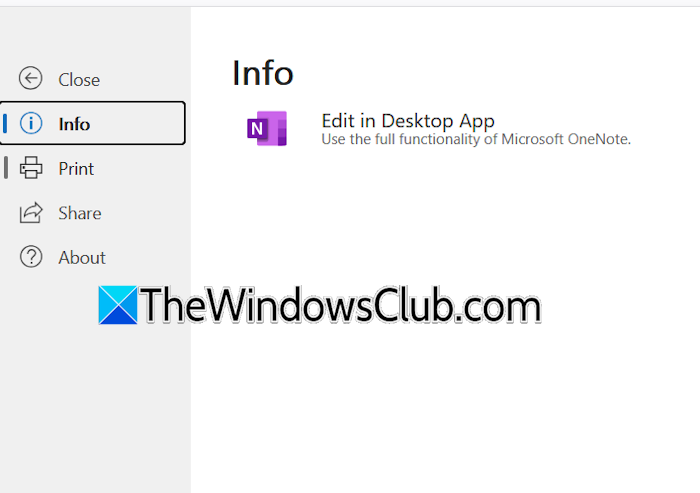
After restoring your OneDrive to the previous version, open the affected notebook in your web browser. See if it contains the misplaced section. If yes, open the notebook in the OneNote app directly from your web browser. For this, select File > Info > Edit in Desktop App. Click Open in the pop-up in your web browser.
5] Delete the misplaced sections
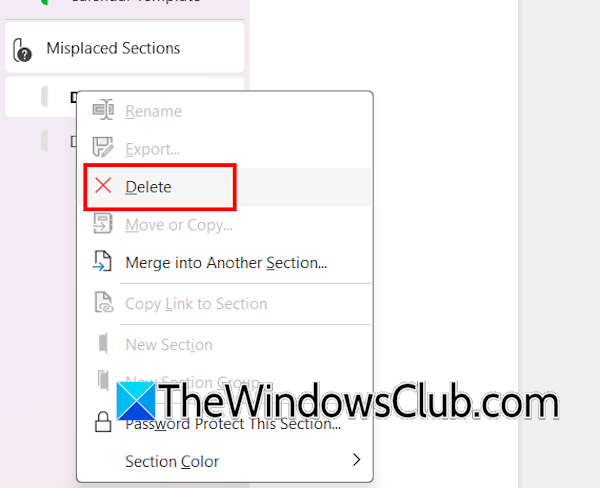
If the misplaced sections contain nothing or you no longer need them, you can delete them. Right-click on the misplaced section and select Delete. Click Yes in the confirmation window.
That’s it. I hope this helps.
How to recover a missing section in OneNote?
If a section is missing in OneNote, you might have deleted it by mistake. Check OneNote Recycle Bin. Select your notebook, then click History > OneNote Recycle Bin. You will see all the deleted sections there. To restore the deleted section, right-click on it and select Merge into Another section.
How to align sections in OneNote?
You can easily align sections in OneNote by using the drag-and-drop method. Drag the section you want to align and move it to the right or left. If all the notebooks and sections are shown on the left pane, drag the sections to the top or bottom to align them correctly.
Read next: We can’t move or export pages that have problems.
