
If you want to find the Windows Update size using PowerShell, here is how to do it. Although Windows Settings can do it easily, you can do the same within moments. For that, you need to install a script, as there is no built-in PowerShell command to do so.
If you have a limited data connection but want to download and install a few mandatory updates, you can use this method to estimate the update size. It will help you save bandwidth for other tasks.
However, the problem is that Windows PowerShell doesn’t have any included commands to show you the update size. You need to install a third-party script or module to get started. Before getting started with the script, you need to know a few things:
- You need to run a few commands if you are trying it for the first time on your computer.
- From the second time onwards, you can use the last command mentioned in this article.
- You can find only the pending updates’ size. You cannot find the size of an installed update.
- You can use Command Prompt or the Command Prompt instance in Windows Terminal. Either way, the result will be the same.
How to find Windows Update Size using PowerShell
To find Windows Update Size using PowerShell, follow these steps:
- Press Win+X to open the menu.
- Select the Windows Terminal (Admin) option.
- Click on the Yes button.
- Enter this command: Install-Module -Name PSWindowsUpdate –Force
- Press Y and hit the Enter button.
- Enter this command: Set-ExecutionPolicy RemoteSigned
- Enter this command: Import-Module PSWindowsUpdate
- Enter this command: Get-WUList
- Find the size in the Size column.
To learn more about these steps, continue reading.
To get started, you need to open the Windows Terminal with administrator rights. For that, press Win+X to open the WinX menu, select the Windows Terminal (Admin) option and click on the Yes button.
Then, enter this command:
Install-Module -Name PSWindowsUpdate –Force
Type Y and hit the Enter button.
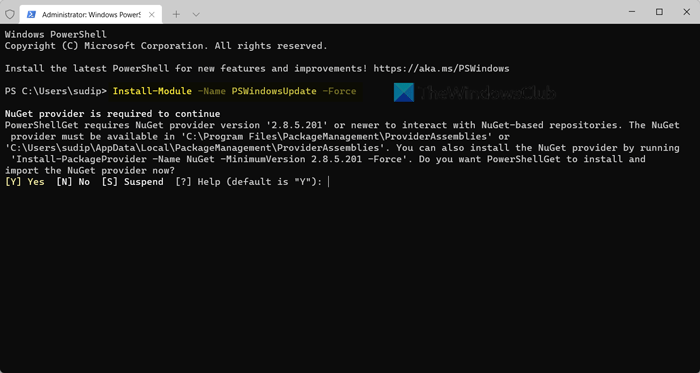
Next, you need to change the execution policy. For that, enter this command:
Set-ExecutionPolicy RemoteSigned
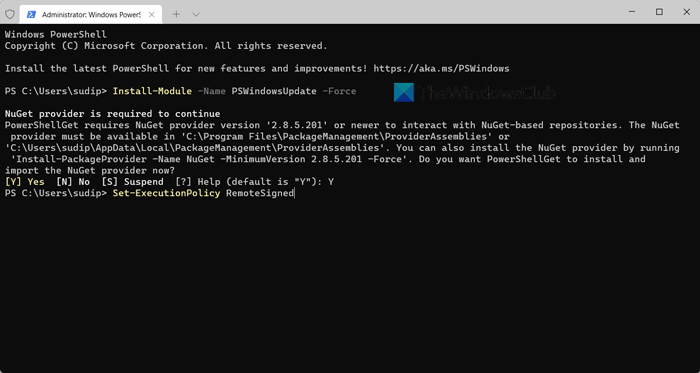
Following that, you need to import the PSWindowsUpdate module on your PC. To do that, execute this command:
Import-Module PSWindowsUpdate
Once it is done, you can enter this command:
Get-WUList
It will list all the updates along with their sizes.
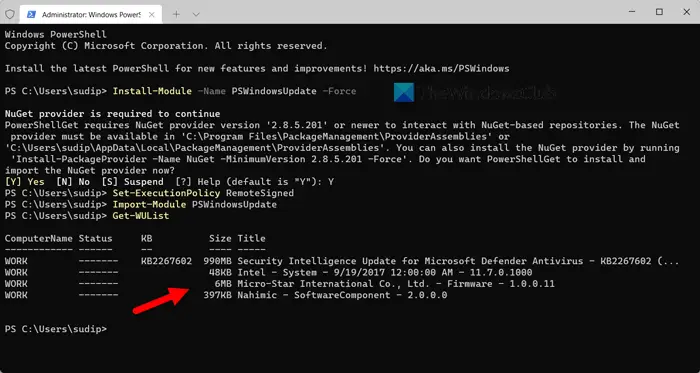
As said before, you can use the very last command the next time to get the update size.
If you want to learn more about the PowerShell module, you can head over to powershellgallery.com.
That’s all! Hope this guide helped.
How do I check the Windows Update size?
Earlier, it was possible to check the Windows Update size before and after downloading using Windows Settings. However, in Windows 11, that option seems to be deprecated. However, you can use Windows PowerShell to check or find the Windows Update size. For that, you need to import a script and use a command. A detailed guide is provided in this article; it is recommended to go through the steps.
Read: Windows could not finish configuring the system
How do I check for PowerShell updates?
Windows PowerShell is updated when you install Windows Update. However, to check for Windows Terminal updates, open the Microsoft Store. As it is a Microsoft Store app, you need to find the available update on the Microsoft Store. If an update is pending, you can click the Update button to install it.
Read: Change Delivery Optimization Max Cache Size for Updates in Windows.
