
While installing or setting up various editions and versions of the Windows operating system, the computer may display various errors. One such error is that Windows could not finish configuring the system.
The full error is-
Windows could not finish configuring the system. To attempt to resume configuration, restart the computer.
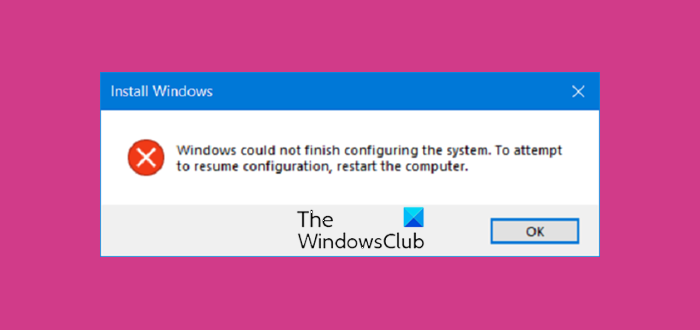
This error occurs on Windows 11/10 and Windows Server operating systems and pops up during the Sysprep phase. It is caused by the operating system containing a Registry key larger than 8 kilobytes.
Windows could not finish configuring the system
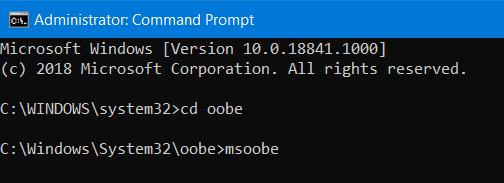
To get rid of Windows could not finish configuring the system error, we have one fix, which has proven to be highly effective.
While running Windows Setup, when the message appears on your screen, press Shift+F10 to open the Command Prompt.
Run Command Prompt as Administrator and execute the following commands one after the other:
cd oobe
msoobe
This will open the oobe directory and then boot into the Windows operating system OOBE or Out-Of-Box-Experience. It will bring you down to the Set up Windows screen.
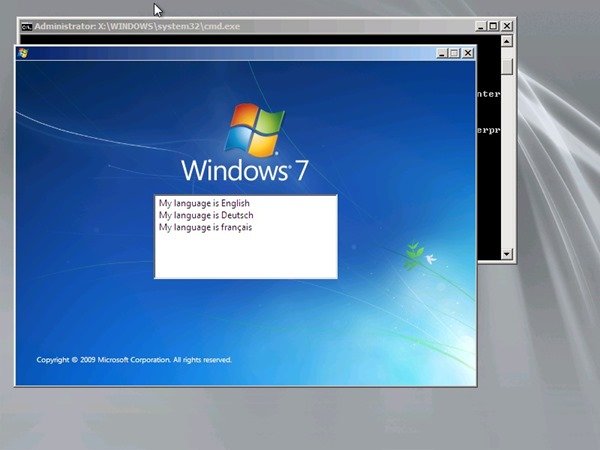
You will have to choose your Country or Region, Time and currency, Keyboard layout.
Once done, select Next.
Now, you will have to go with the flow when setting up your computer by entering your username and password, acknowledging the License terms, setting up Windows Updates, setting up Date and Time, etc.
Finally, when you are done, reboot your computer.
If it does not reboot, you need to Press and hold the Power button on your CPU until it goes off too. This is called as performing a Cold Boot.
Turn on your computer normally now and check if that fixed your issue.
NOTE: Commenter tekk1337 suggests the following solution that helped him:
When the error message appears, open up a CMD window using Shift+F10.
Execute REGEDIT to open the Registry Editor, navigate to HKLM\SYSTEM\SETUP and make the following changes:
- Change CmdLine to blank (no value entered) (earlier was oobe\windeploy.exe)
- Change CreateNewQueueOnFirstBoot to 0 (was 1)
- Change OOBEInProgress to 0 (was 1)
- Change SetupPhase to 0 (was 4)
- Change SetupShutdownRequired to 0 (was 1)
- Change SystemType to 0 (was 2)
- Change SystemSetupInProgress to 0 (was 1)
- Change
HKLM:\SOFTWARE\Microsoft\Windows NT\CurrentVersion\SoftwareProtectionPlatform SkipRearmfrom 0 to 1 - Change
HKLM:\SOFTWARE\Microsoft\Windows\CurrentVersion\WindowsUpdate\Auto Update IsOOBEInProgressfrom 1 to 0 - Change
HKEY_LOCAL_MACHINE\SOFTWARE\Microsoft\Windows\CurrentVersion\Setup\State ImageStateto IMAGE_STATE_COMPLETE - Change
C:\Windows\Setup\State\State.inito IMAGE_STATE_COMPLETE
Now proceed with the setup and see if this has helped.
Other suggestions and points for consideration:
- If setup fails repeatedly, you may need to reinstall Windows, which can erase data.
- In enterprise or VM setups (such as Azure), this error often indicates a misconfigured generalized image.
- Be cautious, as manual registry changes can worsen the issue if done incorrectly.
- If the error persists, boot into Safe Mode and repair registry issues.
- Re-run Sysprep with the correct settings and ensure the image is properly generalized before deployment.
- Boot from a Windows USB/DVD and run “Repair your computer” to fix the setup files.
Read: How to find Windows Update Size using PowerShell.
